Strategies & Risk
Digit Differs vs Digit Match on Volatility 10 Index
Compare digit differs vs digit match on binary bots. Learn payout odds, probability mechanics, and how to configure strategies on BinaryBot.live today.
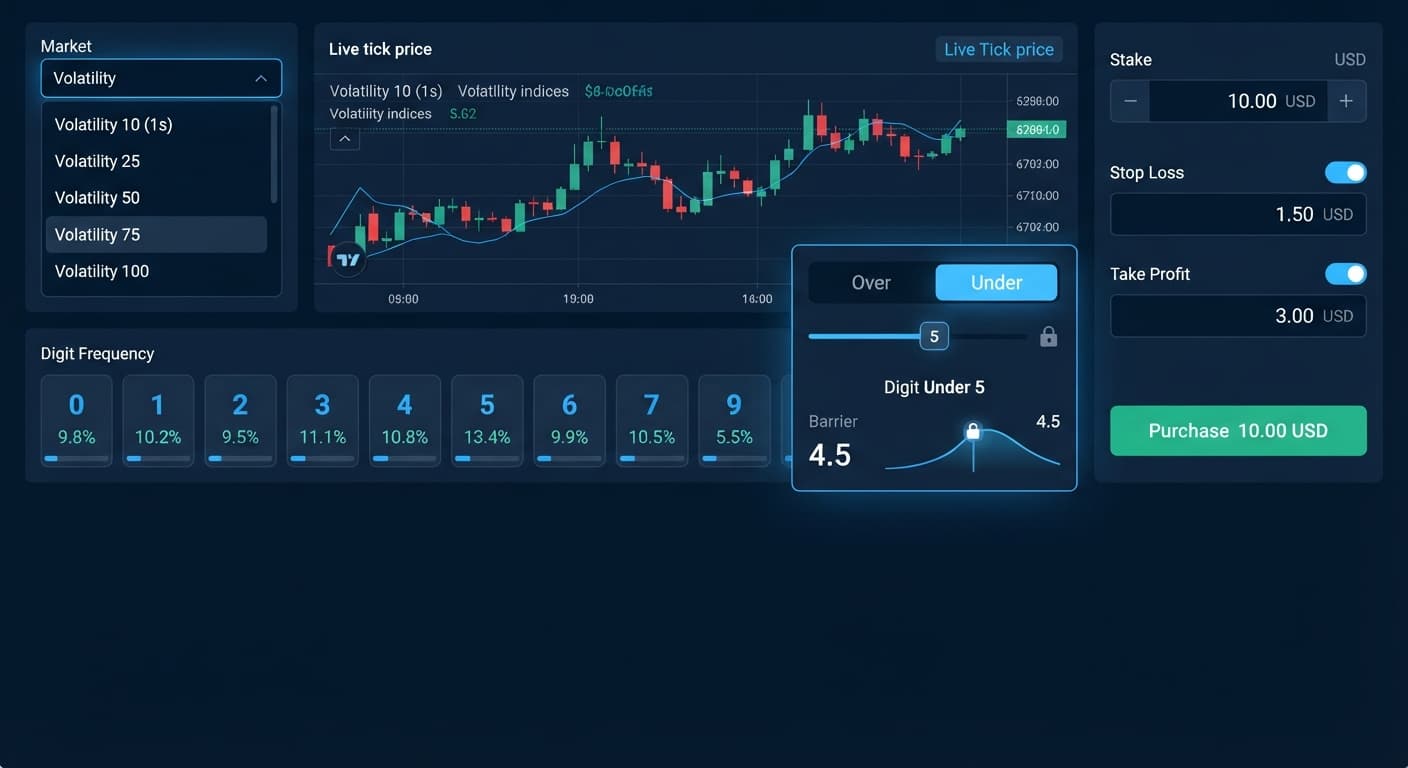
To learn how to trade over under on deriv, you select a digit barrier from 0 to 9 and configure your automated tool to buy DIGITOVER or DIGITUNDER contracts based on whether the final digit of the index tick lands above or below that chosen number. Setting the barrier at 2 for DIGITOVER gives you a 70% theoretical probability with a lower payout, while setting it at 7 yields a much higher payout at a lower theoretical win rate. You can execute this binary trading strategy by pasting your API token into the Solid Trading Bot interface without writing code or building complex scripts.
Understanding how to trade over under on deriv contracts starts with recognizing how barrier placement changes contract pricing. If you set a DIGITOVER contract with a barrier of 4, any tick ending in 5, 6, 7, 8, or 9 results in a win. If the tick ends in 0, 1, 2, 3, or 4, the contract loses. The contract payout adjusts instantly based on how many winning outcomes exist out of the ten possible digits.
When you launch the trading interface, your screen splits into four main functional areas. The left panel handles your API connection state, account token validation, and live connection logs. The middle-left panel contains market selection dropdowns, where you choose synthetic indices like Volatility 10, Volatility 75, or Volatility 100.
The middle-right panel houses your strategy controls. This is where you toggle between DIGITOVER and DIGITUNDER contract types, set the exact barrier digit, and specify the tick duration. The far-right panel contains your stake parameters and automated risk controls.
| Control Panel | Key Inputs | Primary Function |
|---|---|---|
| Account Connection | API Token, Server Connection | Connects directly to Deriv over their official API using your personal token |
| Market & Instrument | Index Selection, Tick Duration (1–10 ticks) | Dictates which synthetic index feeds digits into your bot |
| Contract Strategy | DIGITOVER / DIGITUNDER, Prediction Barrier (0–9) | Defines the contract type and winning digit range |
| Money Management | Fixed Stake, Stop Loss, Take Profit / Target Profit | Controls trade sizing and session exit boundaries |
The contract settings panel requires immediate attention when running deriv bots on digit markets. Selecting DIGITOVER with a barrier of 1 gives you eight winning digits (2 through 9), which represents an 80% theoretical math edge on a random distribution. Conversely, setting DIGITUNDER with a barrier of 2 gives you two winning digits (0 and 1), which drops your win probability to 20% but increases the payout multiplier significantly.
The bottom portion of your screen shows the live execution log. Once activated, every contract purchase, barrier check, entry spot, exit spot, and payout calculation streams across this log in real time.
Open your browser and head to the free bot library to access the tool. Before your script can purchase contracts, it needs permission to talk to your Deriv trading account.
The status light turns green once authentication succeeds. Your virtual or real balance updates in the header display. No funds move to external servers because the interface connects directly to Deriv over their official API. Always start with your demo account active so you don't risk live funds while testing your setup.
Synthetic indices run continuously, generated by cryptographically secure computer algorithms. Different indices update at different rates, so pick one that matches your execution style.
Single-tick durations are standard for digit setups because they reduce market exposure time. When learning how to trade over under on deriv, single-tick execution lets you measure barrier hits directly without price action noise over time.
Now you'll define the exact contract mechanics inside the trade setup block.
If you choose DIGITOVER with a barrier of 2, any tick ending in 3, 4, 5, 6, 7, 8, or 9 triggers a payout. If you select DIGITUNDER with a barrier of 7, any tick ending in 0, 1, 2, 3, 4, 5, or 6 marks a win.
DIGITOVER Barrier: 2  ---> Winning Last Digits: [3, 4, 5, 6, 7, 8, 9] (70% theoretical probability)
DIGITUNDER Barrier: 7 ---> Winning Last Digits: [0, 1, 2, 3, 4, 5, 6] (70% theoretical probability)
Setting a DIGITOVER barrier at 0 or a DIGITUNDER barrier at 9 gives you maximum statistical coverage, but the payout drops to a tiny fraction of your stake. Setting DIGITOVER at 8 or DIGITUNDER at 1 yields high payouts, but wins occur far less frequently.
Money management controls sit on the right panel. These parameters keep your account safe by stopping the script automatically when specific boundaries are hit.
Risk management keeps your capital intact. A strict stop loss ensures that a cold run of digits won't wipe out your account. Many traders set their stop loss too high on their initial runs, which turns a temporary drawdown into a blown account. Keep your stop loss tight.
With all fields configured, you are ready to launch the script.
Running binary bots on demo mode first is essential. It lets you verify that your barrier settings and stake controls perform as expected before putting real capital on the line.
To make informed decisions on barrier placement, traders often monitor digit distribution over recent history. You can open the LDP Analyzer dashboard to view live tick stats.
Here is a sample 500-tick distribution captured from Volatility 75 Index:
| Digit | Occurrences (Out of 500) | Frequency (%) | Statistically Expected (%) | Status |
|---|---|---|---|---|
| 0 | 54 | 10.8% | 10.0% | Normal |
| 1 | 48 | 9.6% | 10.0% | Normal |
| 2 | 31 | 6.2% | 10.0% | Cold |
| 3 | 52 | 10.4% | 10.0% | Normal |
| 4 | 56 | 11.2% | 10.0% | Normal |
| 5 | 59 | 11.8% | 10.0% | Hot |
| 6 | 47 | 9.4% | 10.0% | Normal |
| 7 | 53 | 10.6% | 10.0% | Normal |
| 8 | 55 | 11.0% | 10.0% | Normal |
| 9 | 45 | 9.0% | 10.0% | Normal |
Looking at this dataset, digit 2 ran cold at 6.2%, while digit 5 ran hot at 11.8%.
If a trader sees digit 2 running cold, they might set a DIGITOVER barrier at 2, reasoning that digits above 2 accounted for 83.4% of all ticks in this sample (500 minus occurrences of 0, 1, and 2). That looks attractive on paper.
However, you must remember a core rule of synthetic index mechanics: Deriv synthetic index ticks are independent. The fact that digit 2 appeared only 31 times in the last 500 ticks does not make it any more or less likely to appear on tick 501. The algorithm generates every digit independently. Frequency statistics describe what already happened on your screen; they do not predict what comes next.
Use digit statistics to observe market activity, not to hunt for imaginary patterns. A deriv bot trading strategy based on historical digit bias will fail if it assumes the system is due to correct itself.
Once your script starts running, check the trade output log to confirm clean execution. A healthy system logs three distinct lines per trade within milliseconds:
If your execution log stops updating, check these primary failure points:
[System Check Flowchart]
1. Log output paused? ---> Check Internet & API Connection light.
2. Error "Insufficient Balance"? ---> Reset stake or switch back to Virtual Account.
3. Error "Invalid Barrier"? ---> Ensure barrier digit matches contract rules (0-9 range).
The primary cause of stalled execution is an expired or revoked API token. Deriv tokens can expire if session permissions change. If trades stop firing, disconnect the bot, generate a fresh API token in your account dashboard, paste it into the left panel, and reconnect.
Another common issue occurs when setting an invalid barrier for specific contract types—like setting a DIGITOVER barrier to 9 or a DIGITUNDER barrier to 0. Those settings offer zero valid winning outcomes, causing the API to reject the trade proposal immediately.
If execution slows down, your browser tab might be throttled by your operating system. Keep the trading tab focused or move it to a standalone browser window to ensure the WebSocket connection stays active.
Test your setup today on Solid Trading Bot using a demo balance before trading real capital.
If you don't have an account yet, create a free Deriv account to begin testing digit strategies.
Trading involves risk. Past performance does not guarantee future results.
Related: Binary Bots vs Manual Trading: Digit Differs vs Over Under
How the strategies behind the bots actually work — Digit Differs, Over/Under, Even/Odd, Rise/Fall, and the money management that decides whether they survive a losing streak.
Try 9 Strategies on Solid →You connect it by generating an API token with read and trade permissions from your Deriv account settings. Then, you paste that alphanumeric token string into the left panel of the bot interface to validate your account.
A barrier of 4 means any tick ending in 5, 6, 7, 8, or 9 results in a win. If the tick ends in 0, 1, 2, 3, or 4, the contract loses.
You configure your stop loss and take profit in the far-right control panel under the money management settings. This area also lets you control your fixed stake and session exit boundaries.
It gives you eight winning digits from 2 through 9, which represents an 80% theoretical math edge on a random distribution. Conversely, setting a lower barrier decreases your win probability while increasing the payout multiplier.
Guides closest to this one.
Compare digit differs vs digit match on binary bots. Learn payout odds, probability mechanics, and how to configure strategies on BinaryBot.live today.
Compare binary bots vs manual trading on Deriv. Evaluate execution speed, emotion control, and risk management to refine your binary trading strategy.
Learn how to trade even odd on deriv using the BinaryBot.live digit bot. Configure an alternating pattern strategy step by step. Start trading today!