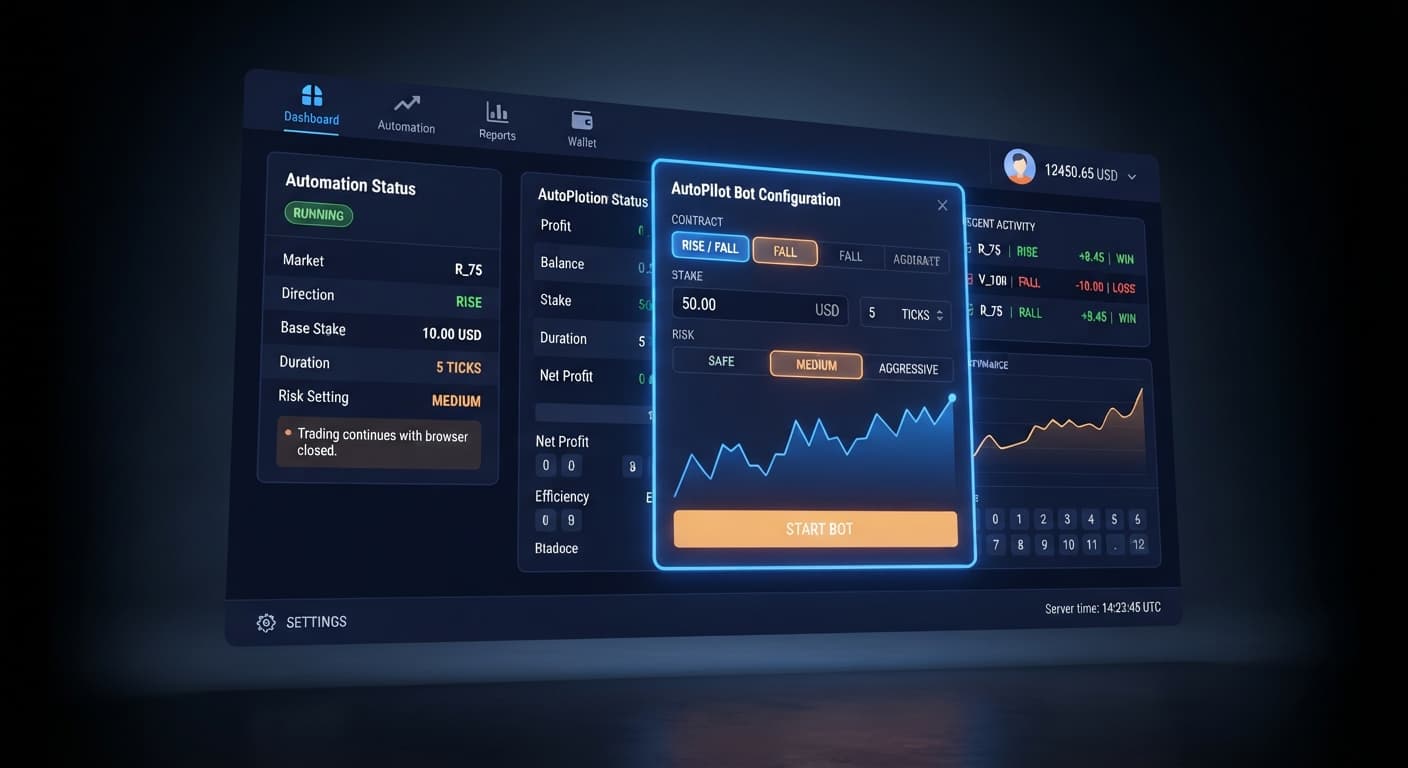
Auto Trading Bots
Autopilot for Beginners: Deriv Rise/Fall Bot Setup
Autopilot for beginners: learn how to set up your first server-side rise fall automated trading bot on Deriv without coding. Try a free deriv bot today.
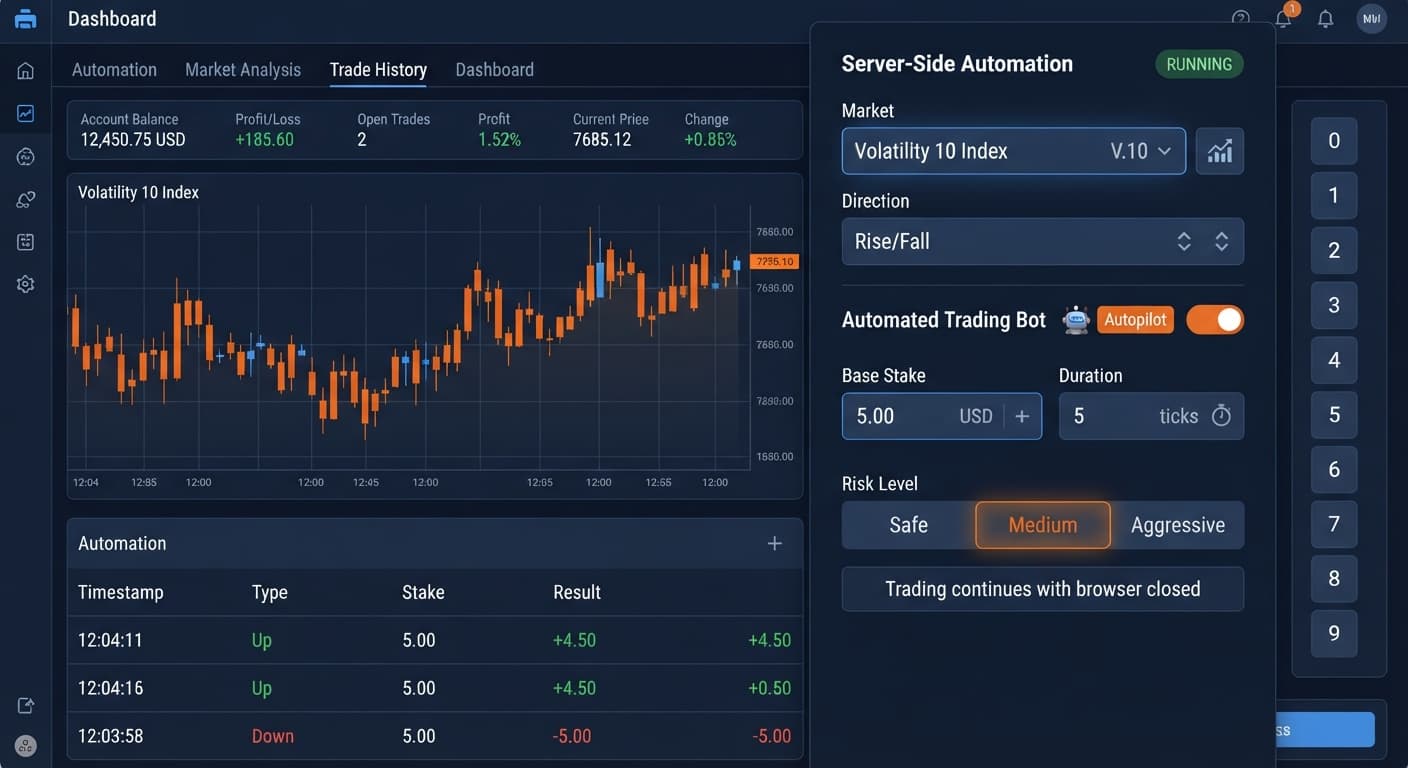
To run autopilot on volatility 10, select Volatility 10 Index under Market, choose your trade Direction, set a Base Stake, and configure your Risk Level and Growth Rate on the interface. Once launched, the system executes server-side Rise/Fall contracts directly through Deriv's API, meaning trades keep running even after you turn off your device or close the browser tab.
This setup is built for traders who want hands-off execution on one of Deriv's least volatile synthetic indices without running local browser scripts. You'll need a clear risk management framework, as automated contract execution paired with stake multipliers can drain your balance rapidly during unexpected market trends.
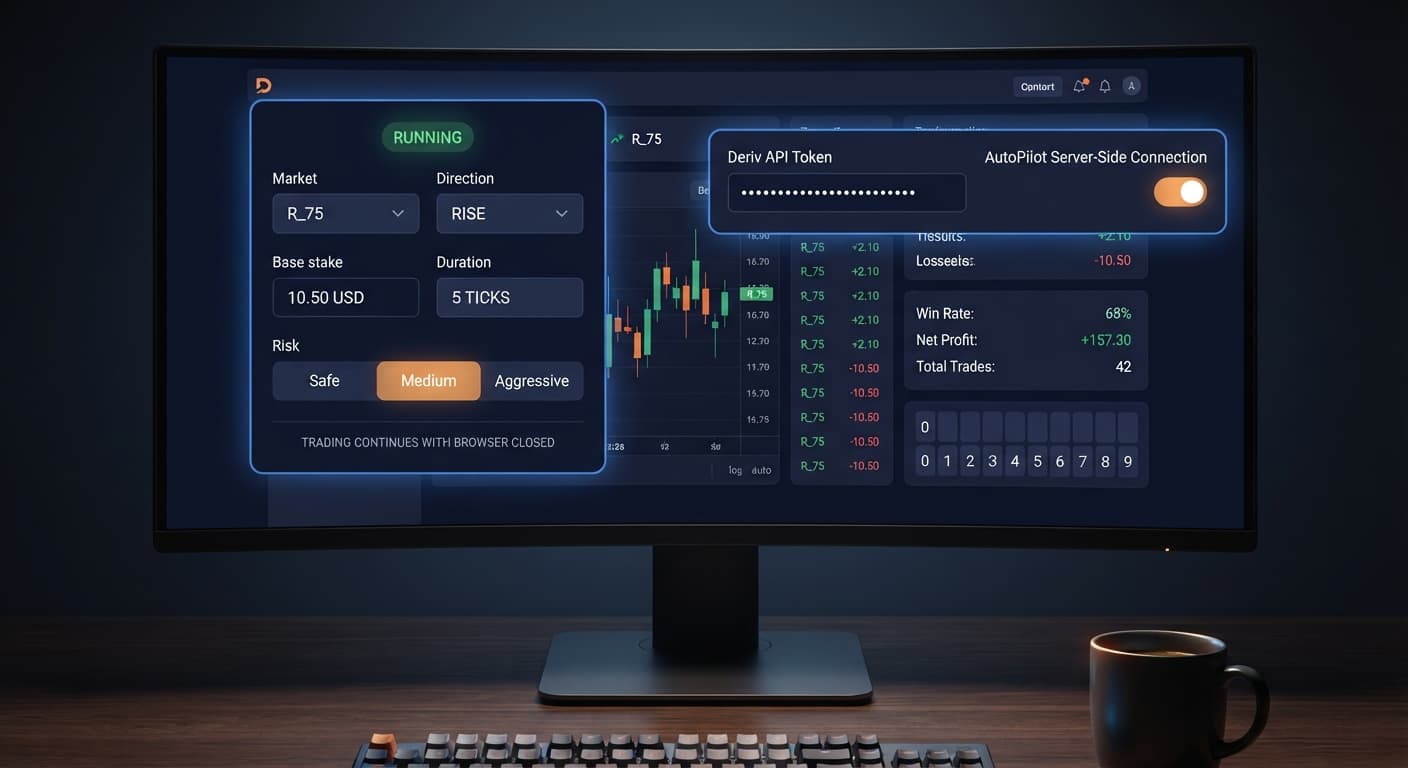
Open the AutoPilot trading tool in your web browser. Locate the API token input box near the top of the interface and paste your generated Deriv API key into the field. Click the connection button to establish a session with the exchange. Once linked, the top panel updates to show your active account balance and account ID, confirming that your token has read and trade permissions active on the server.
Locate the Market dropdown menu on the control board and select Volatility 10 Index. Next, go to the Duration (sec / min) setting to establish how long each individual Rise/Fall trade stays open. When running autopilot on volatility 10, setting a duration between 5 seconds and 2 minutes gives the contract enough room to push clear of the entry tick. The control box will show your selected time frame immediately, confirming that every contract placed by the server will inherit this exact duration.
Find the Direction setting and select either Rise (CALL) or Fall (PUT) based on your market bias. Move down to the Base Stake box and enter your initial trade amount, such as $1.00. This value acts as the foundation for the entire automated run; every new series starts precisely at this dollar value. After typing your entry, the screen confirms the numerical value directly inside the input box, which serves as the base figure for future stake recalculations.
Set the Growth Rate — 1% to 5% slider to control the multiplier progression used following a trade loss. Next, select your Risk Level — Safe / Medium / Aggressive mode. Choosing Safe applies a conservative recovery curve, while Aggressive increases the recovery speed at the cost of rapid balance drawdowns. When configuring autopilot on volatility 10, the interface displays your selected risk tier and growth percentage clearly below the primary control panel so you can review the settings before initiating execution.
Click into the Take Profit field and enter your session target in USD, such as $10.00. Move to the Stop Loss field and type your maximum tolerable loss, such as $25.00. These values are sent directly to the automation server. Once both numbers are typed in, review the overall configuration summary panel on your screen. Click the start button; the display will shift status to active, indicating that the server is now autonomously managing your Volatility 10 Index trades.
Selecting the right combination of settings depends heavily on your capital reserves and overall tolerance for drawdowns. Because the Volatility 10 Index experiences smoother price movements compared to higher-volatility assets, contract duration and risk tiers drastically change how fast your session resolves.
| Trader Profile | Market Selection | Duration (sec / min) | Growth Rate — 1% to 5% | Risk Level — Safe / Medium / Aggressive | Contract Target |
|---|---|---|---|---|---|
| Conservative Scalper | Volatility 10 Index | 5 sec | 1% | Safe | CALL / PUT |
| Balanced Trend Follower | Volatility 10 Index | 1 min | 2% | Safe | CALL / PUT |
| Moderate Recovery | Volatility 10 Index | 15 sec | 3% | Medium | CALL / PUT |
| Aggressive Swing | Volatility 10 Index | 2 min | 5% | Aggressive | CALL / PUT |
For most traders testing this asset, the Balanced Trend Follower setup works best. A 1-minute duration gives the Volatility 10 Index sufficient time to move past minor noise, while the 2% growth rate paired with a Safe risk level keeps stake escalation controlled during consecutive trade losses.
The automated execution engine doubles or scales your stake after consecutive losses according to your chosen risk profile. Even on a low-volatility asset like Volatility 10, prolonged directional runs against your selected entry direction can push a $1.00 base stake to $32.00, $64.00, or higher within minutes.
Traders often review past ticks, spot five consecutive fall ticks, and assume a rise tick is overdue. Synthetic indices on Deriv use continuous cryptographic random number generators; each tick is an entirely independent event.
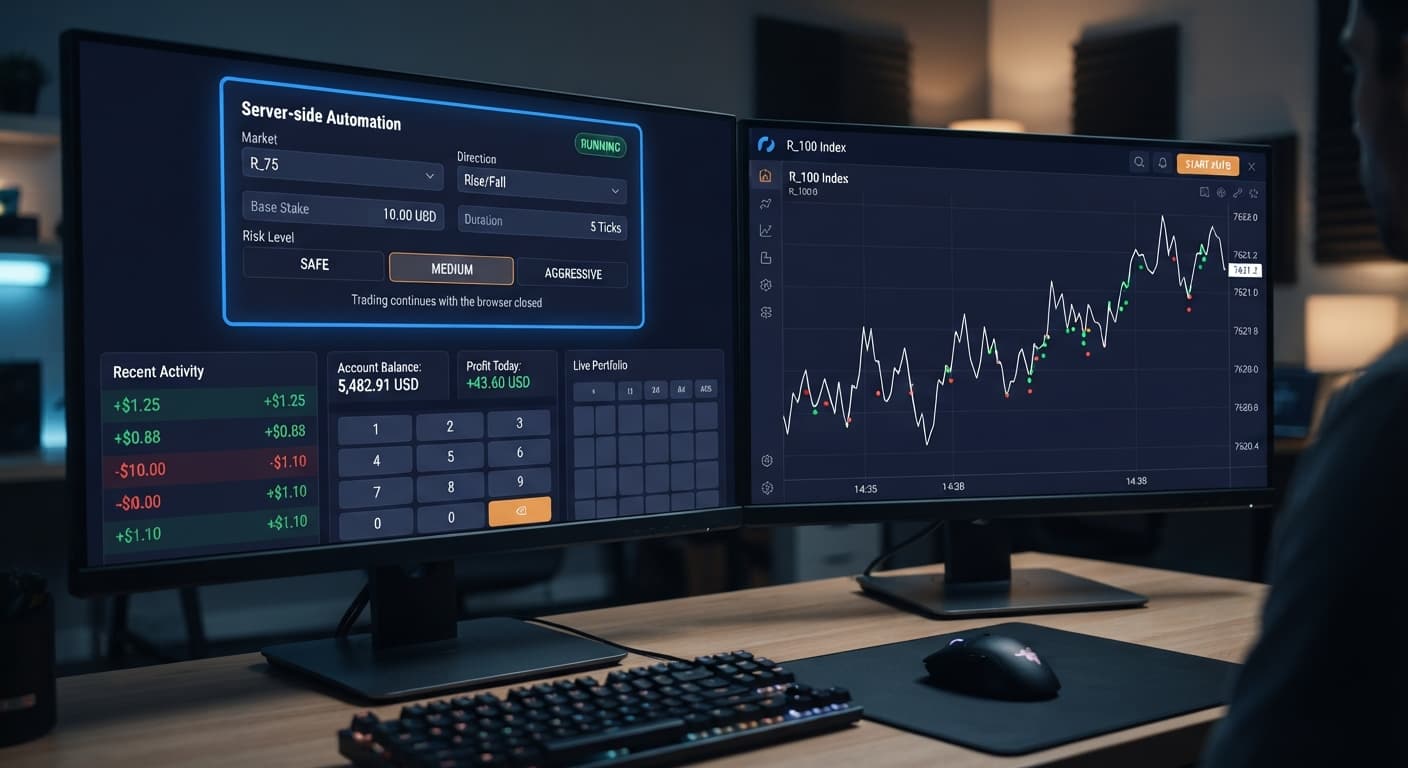
Because this tool executes via Deriv's automation server rather than your local browser, closing your device or losing internet access does not stop the execution cycle. If your strategy hits an unexpected losing streak while you are away, trades will continue until a hard ceiling is reached.
Deploying aggressive risk profiles directly on a real balance without analyzing stake behavior often leads to unexpected margin calls during rapid market turns.
Running automated strategies across deriv bots requires consistent oversight of your exposure parameters. The Volatility 10 Index offers relatively smooth tick movements, but market micro-trends can still produce consecutive losing trades that test your balance.
Treat every session as a controlled experiment. Always set strict risk parameters on the main interface, keep your base stakes low relative to your total equity, and let the server-side automation handle execution strictly within your predetermined rules. You can analyze tick movement speed across alternative assets using tools like the Tick Picker tool to compare index behavior, or check broader tool suites in the free bot library.
To begin running automated Rise/Fall strategies on server-side execution, test the settings directly on AutoPilot.
If you do not have an active trading balance or API key yet, create a free Deriv account to start testing on a demo account.
Trading involves risk. Past performance does not guarantee future results.
Related: Autopilot for Beginners: Deriv Rise/Fall Bot Setup
Related: Autopilot Deriv Bots Guide: Build Your First Rise/Fall Bot
Free server-side automated trading bot for Deriv — runs Rise/Fall Martingale with stop loss and take profit, and keeps trading after you close the browser.
Open AutoPilot →When you launch the AutoPilot tool, it executes server-side Rise/Fall contracts directly through Deriv's API. This means your trades keep running even after you turn off your device or close your browser tab.
You'll need to generate a Deriv API token from your account settings that has both read and trade permissions enabled. Once you paste this key into the AutoPilot interface and connect, it links your session to the exchange.
You should set a duration between 5 seconds and 2 minutes in the AutoPilot interface. This gives each Rise/Fall contract enough room to push clear of the entry tick.
You configure your risk by adjusting the Growth Rate slider from 1% to 5% and selecting a risk level of Safe, Medium, or Aggressive. Additionally, you need to enter pre-calculated dollar amounts for your Take Profit and Stop Loss values before launching execution.
Guides closest to this one.
Autopilot for beginners: learn how to set up your first server-side rise fall automated trading bot on Deriv without coding. Try a free deriv bot today.
Follow this autopilot deriv bots guide to set up and launch your first automated rise fall trading bot on BinaryBot.live. Start trading today!
Master autopilot api token setup for your binary bots. Learn how to run automated rise fall trading on Deriv without keeping your browser open. Try it today!