Auto Trading Bots
How to Configure AutoPilot on Volatility 25 Index
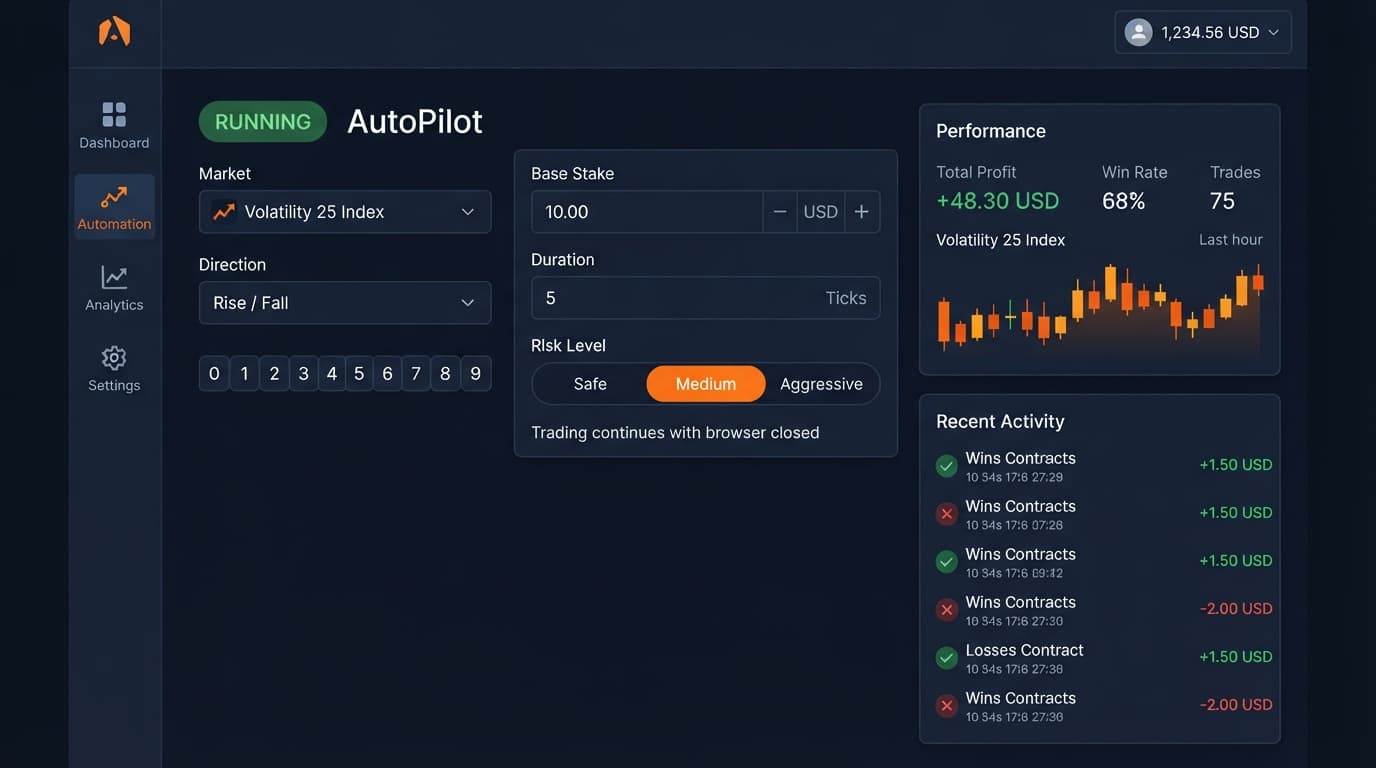
Set the Market to Volatility 25 Index, choose Rise or Fall, and configure strict Stop Loss controls to run autopilot on volatility 25 safely on Deriv.
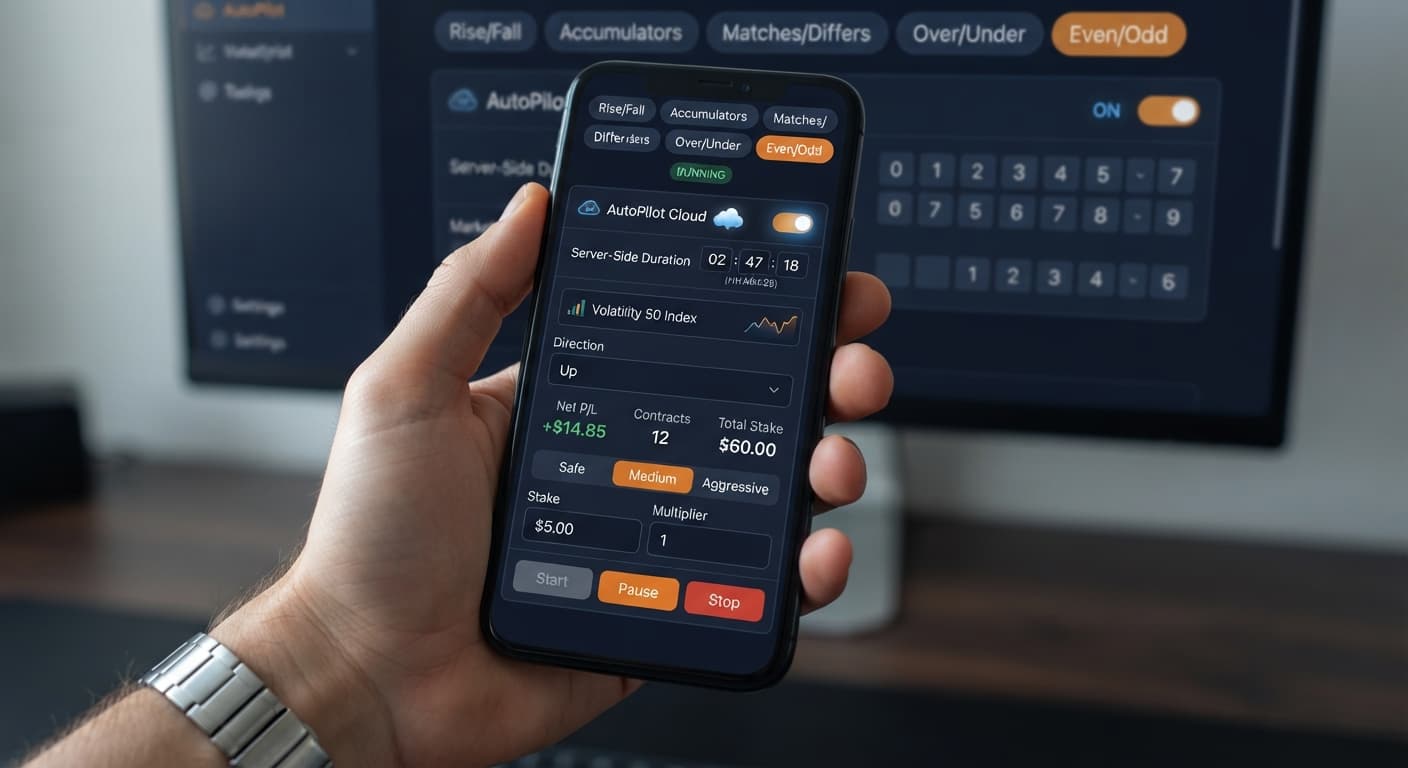
To configure autopilot on volatility 50, select Volatility 50 Index from the Market dropdown on AutoPilot, choose your contract from the Trade type pills, set your Stake and Multiplier parameters, specify your Take Profit $ and Stop Loss $ limits, and click Start. The automated engine sends instructions straight to Deriv's server infrastructure, so your strategy keeps trading on the server even if you shut down your laptop or disconnect from the internet.
This tutorial guides you through configuring automated trading on the Volatility 50 Index (or Volatility 50 (1s) Index) without writing custom XML scripts or building manual logic blocks. By the time you complete these steps, you'll know how to tune every input field, verify live connection states, and deploy server-side automation safely on a demo balance.
Before starting your first automated session, assemble these essential items:
Traders often test strategy variations across different free deriv bots before deploying automation. Using server-side automation eliminates browser performance issues or tab throttling, but you still need a valid API token to grant the bot permission to manage positions on your behalf.
Open the configuration dashboard and locate the top parameter controls. Click on the Market dropdown menu and pick either Volatility 50 Index or Volatility 50 (1s) Index. Next, select your contract rule by clicking one of the Trade type pill buttons across the top row: Rise/Fall, Accumulators, Matches/Differs, Over/Under, or Even/Odd.
For this setup, click the Over/Under pill. The interface updates instantly, hiding irrelevant parameters and displaying the specific digit controls required for contract placement.
[Market: Volatility 50 Index] ---> [Trade type: Over/Under]
Once selected, the control panel updates to show the Barrier digit box alongside standard financial parameters.
With Over/Under active, navigate to the Barrier input field. This contract type evaluates whether the final digit of the index tick lands above or below your chosen barrier number between 0 and 9. Type 5 into the Barrier box.
Next, configure the Direction toggle to choose whether you're buying Over contracts or Under contracts. Selecting Over means every trade wins when the last digit of the Volatility 50 Index tick is strictly greater than 5 (digits 6, 7, 8, or 9). If you switch the Trade type to Rise/Fall later, this field switches to Higher or Lower instead.
You can fill execution parameters manually or click one of the quick options under Risk Level (Safe, Medium, or Aggressive). To maintain direct control over your setup, enter your parameters manually:
Stake box and enter 0.50.Multiplier box and enter 2.1.Duration box and set it to 5 ticks.The Stake sets your position size on the initial trade and after every winning contract. The Multiplier determines how much your stake scales up after a losing trade to follow a standard Martingale sequence. On digit contracts like Over/Under, Duration is strictly defined in ticks, whereas Rise/Fall contracts allow ticks, seconds, or minutes.
Navigate to the risk management section and set your automatic exit boundaries before launching the bot. Click Take Profit $ and type 5.00. Then click Stop Loss $ and type 20.00.
Take Profit $: 5.00 | Stop Loss $: 20.00
Because execution takes place directly on Deriv's server network, these boundary conditions execute automatically at the server level. If your net profit reaches $5.00 or your accumulated drawdown hits $20.00, the server terminates the automation sequence immediately. Never leave these fields empty when running automated binary bots.
Scroll to the API connection section and paste your Deriv API token into the prompt field. Double-check that your token has trade permissions granted, then click the Start button.
The interface confirms active connection status immediately:
Start to Stop, revealing a Pause option beside it.Net P/L, Contracts, and Total Stake.Monitoring an automated run requires understanding what the interface presents while active. Unlike standalone digit analysis web apps, AutoPilot does not display digit frequency grids, 0-9 heatmaps, or hot/cold statistical counters. Trades are executed strictly on the chosen Barrier or Prediction digit using algorithmic server requests.
When you launch autopilot on volatility 50, monitor the diagnostic displays to confirm execution integrity.
| Screen Indicator / Element | Interface Visual State | Meaning / Diagnostic Status | Required User Action |
|---|---|---|---|
| Start / Stop Button | Solid Red labeled Stop |
Active server socket connection; trades running live. | Leave active or click Pause to hold execution after current trade. |
| Net P/L Readout | Green text (e.g., +$2.10) |
Cumulative profit above starting session balance. | None required; monitor progress toward Take Profit $. |
| Net P/L Readout | Red text (e.g., -$4.50) |
Cumulative loss incurred during current session. | Verify Stop Loss $ setting is active to cap maximum loss. |
| Contracts Counter | Numerical count (e.g., 12) |
Total number of contracts executed in current session. | Check against expected tick speed to monitor contract frequency. |
| API Status Warning | Red banner: "Zero Balance" | Account balance is empty or API token lacks trade rights. | Deposit funds on Deriv or generate a token with trade scope. |
| Connection Indicator | Stalled / Amber pulse | Network latency between client and Deriv socket. | Server trades continue, but interface counters update slowly. |
If you switch browser tabs or close your window entirely, execution on Deriv's server continues uninterrupted. When you return and reload the page on AutoPilot, re-entering your API token reattaches your web view to the ongoing server session, populating the current numbers for Net P/L, Contracts, and Total Stake.
Automated strategies react instantly to market movements, but running fixed stake multiplication parameters introduces specific risks. Here's how to protect your capital against common automation mistakes when configuring autopilot on volatility 50.
Martingale sequences increase position sizes aggressively following consecutive losses. For instance, using the Aggressive preset applies a Multiplier of 3.5x starting from a $2.00 base stake. If you experience just three consecutive losses, your initial $2.00 stake escalates rapidly:
In this scenario, you've already lost $33.50, and the fourth trade risks $85.75. On a smaller account balance, a short series of adverse ticks can trigger account liquidation.
Multiplier between 1.6 and 2.1, and set a strict Stop Loss $ capped at 10% to 20% of your account balance.A common error among traders using binary bots is assuming that if the last digit has been under 5 for several consecutive ticks, an Over digit is "due" to appear. Synthetic indices like the Volatility 50 Index rely on cryptographic pseudo-random number generators where every single tick is completely independent of the last.
Because server-side processing keeps trading when your device sleeps or loses internet access, launching a session without fixed bounds can lead to unexpected losses while you're offline.
Stop Loss $ and Take Profit $ fields contain valid numerical limits before clicking Start. Never launch an unmonitored session with zero risk bounds.Setting an Over contract with a high Barrier (like Barrier 8) yields a higher payout per winning contract, but winning outcomes occur roughly 10% of the time. Running a standard Martingale sequence on low-probability setups causes rapid stake scaling because losing trades happen far more frequently.
Barrier close to 4 or 5 to keep probability outcomes near 50%, preventing long losing streaks from inflating position sizes.Test these configurations directly on AutoPilot using a virtual demo balance before placing real capital.
If you don't have a trading account yet, create a free Deriv account to generate your API token and begin testing.
Trading involves risk. Past performance does not guarantee future results.
Related: Autopilot Deriv Bots Guide: Build Your First Rise/Fall Bot
Free server-side automated trading bot for Deriv — runs Rise/Fall Martingale with stop loss and take profit, and keeps trading after you close the browser.
Open AutoPilot →You can configure it by selecting the Volatility 50 Index from the Market dropdown on AutoPilot, choosing your trade type, and setting your stake, multiplier, take profit, and stop loss limits before clicking start.
No, you don't need to keep your laptop open or stay connected to the internet. The automated engine sends instructions straight to Deriv's server infrastructure, so your strategy keeps trading on the server even if you disconnect.
You need an active Deriv trading account, a Deriv API token with read and trade scopes enabled, a web browser session to access AutoPilot, and a sufficient account balance. Using a virtual demo balance is strongly advised during setup.
You can generate a Deriv API token directly from your Deriv account security settings. Just make sure you enable both read and trade scopes so the bot has permission to manage positions on your behalf.
Guides closest to this one.
Set the Market to Volatility 25 Index, choose Rise or Fall, and configure strict Stop Loss controls to run autopilot on volatility 25 safely on Deriv.
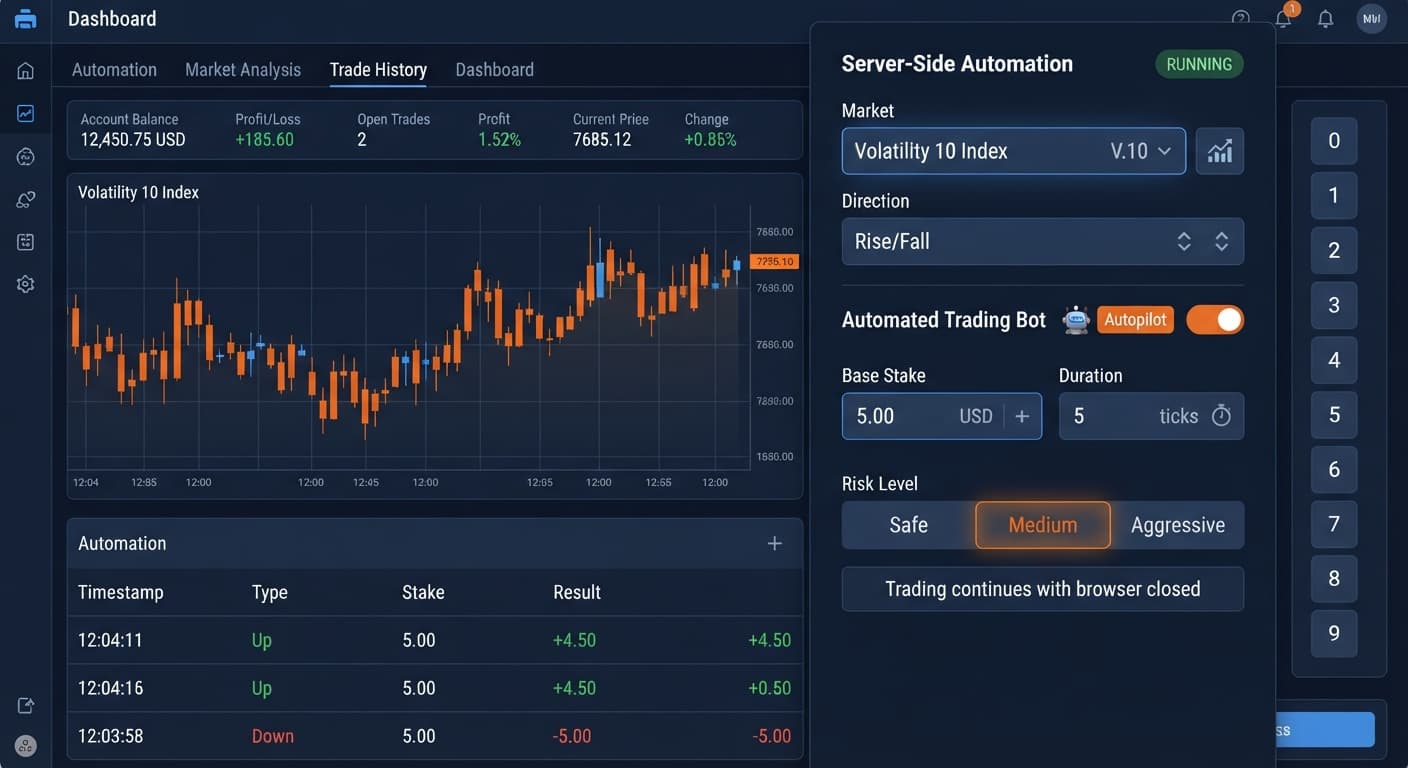
Learn how to set up autopilot on volatility 10 using this free automated trading bot for Deriv. Configure your rise fall bot today. Try it now!
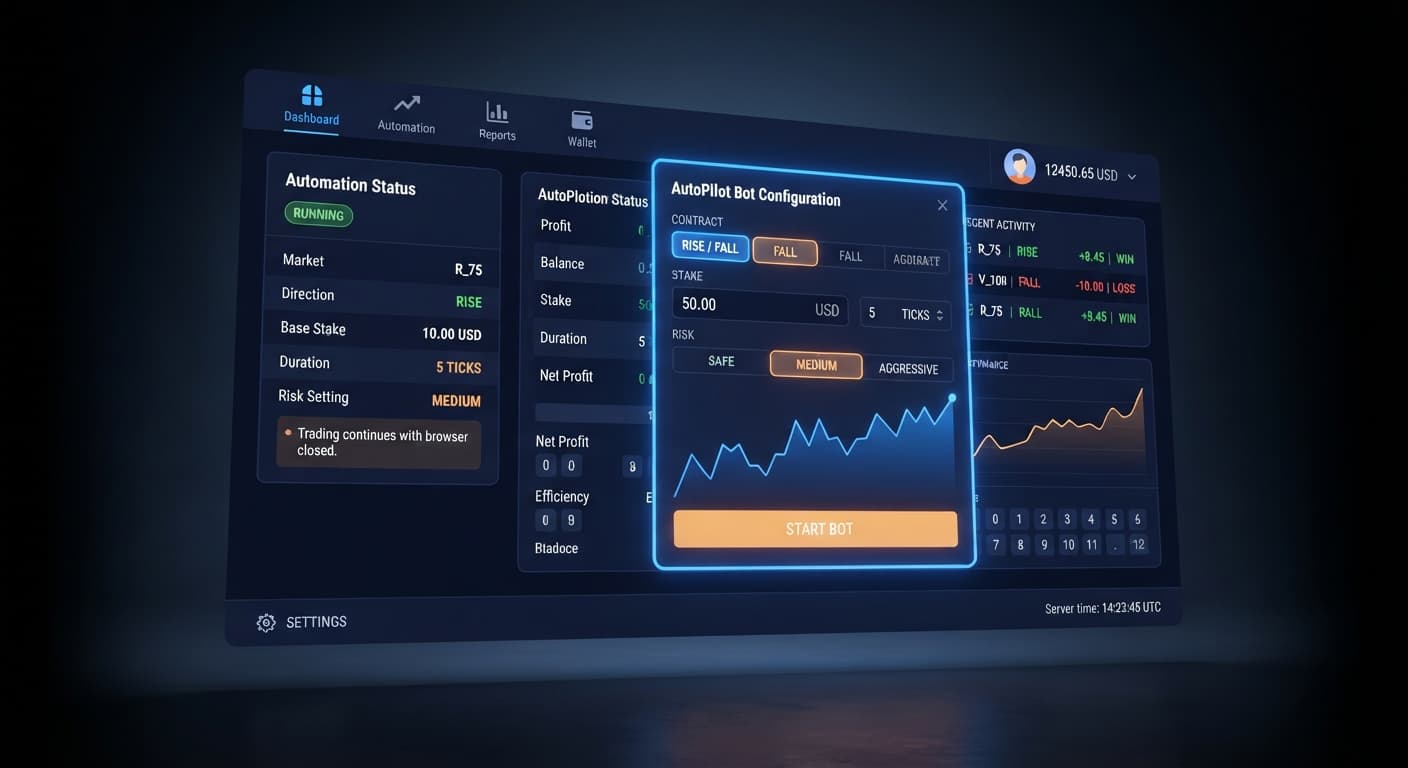
Follow this autopilot deriv bots guide to set up and launch your first automated rise fall trading bot on BinaryBot.live. Start trading today!