Digit Analysis
LDP Analyzer Pro vs Solid Trading Bot on Deriv Bots
Compare ldp analyzer pro vs solid trading bot on Deriv synthetic indices. Learn live 0-9 heatmap analysis versus rule-based execution. Test it today.
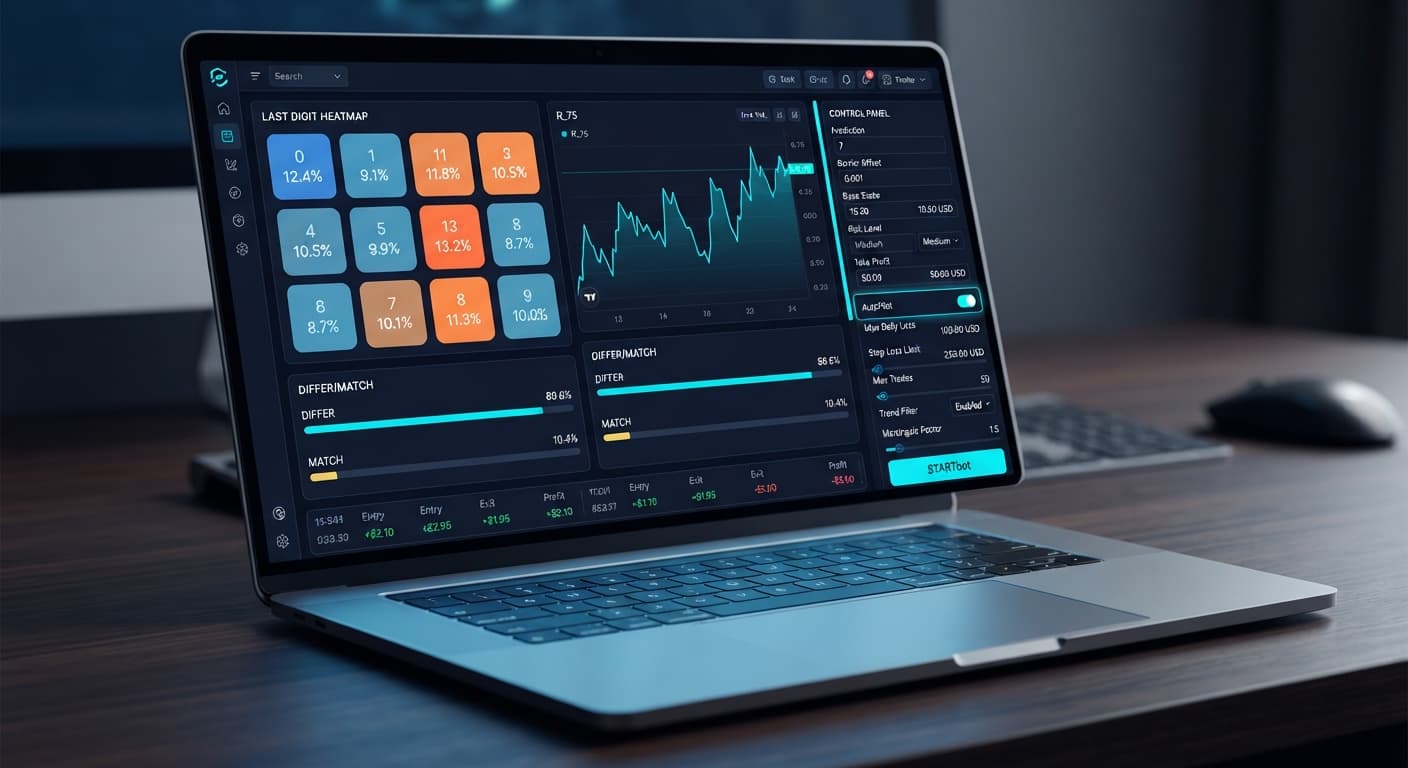
To set up AutoPilot and risk parameters using this ldp analyzer pro deriv bots guide, select your synthetic asset, define your Base Stake and Risk Level, and enter strict limits inside Take Profit ($) and Stop Loss ($). Once activated, AutoPilot runs server-side and places contracts whenever AI signal confidence crosses your entry threshold. This walkthrough covers every parameter you must configure to keep your capital protected while automated deriv bots run on your account.
Most traders open LDP Analyzer Pro, turn AutoPilot on, and leave default risk settings completely untouched. They expect the digit heatmap to predict every upcoming tick. That's a quick way to lose your balance. When you trade synthetic assets like Volatility 100, past tick statistics don't alter the probability of the next digit. Deriv synthetic index ticks are completely independent random draws.
If you run AutoPilot with an aggressive setup and leave Stop Loss ($) blank, a single cold streak will wipe out hours of small wins. AutoPilot places contracts server-side even if you close your browser tab. That's a great feature when your risk parameters are locked down. It's a disaster if you leave the bot unattended without strict stop controls.
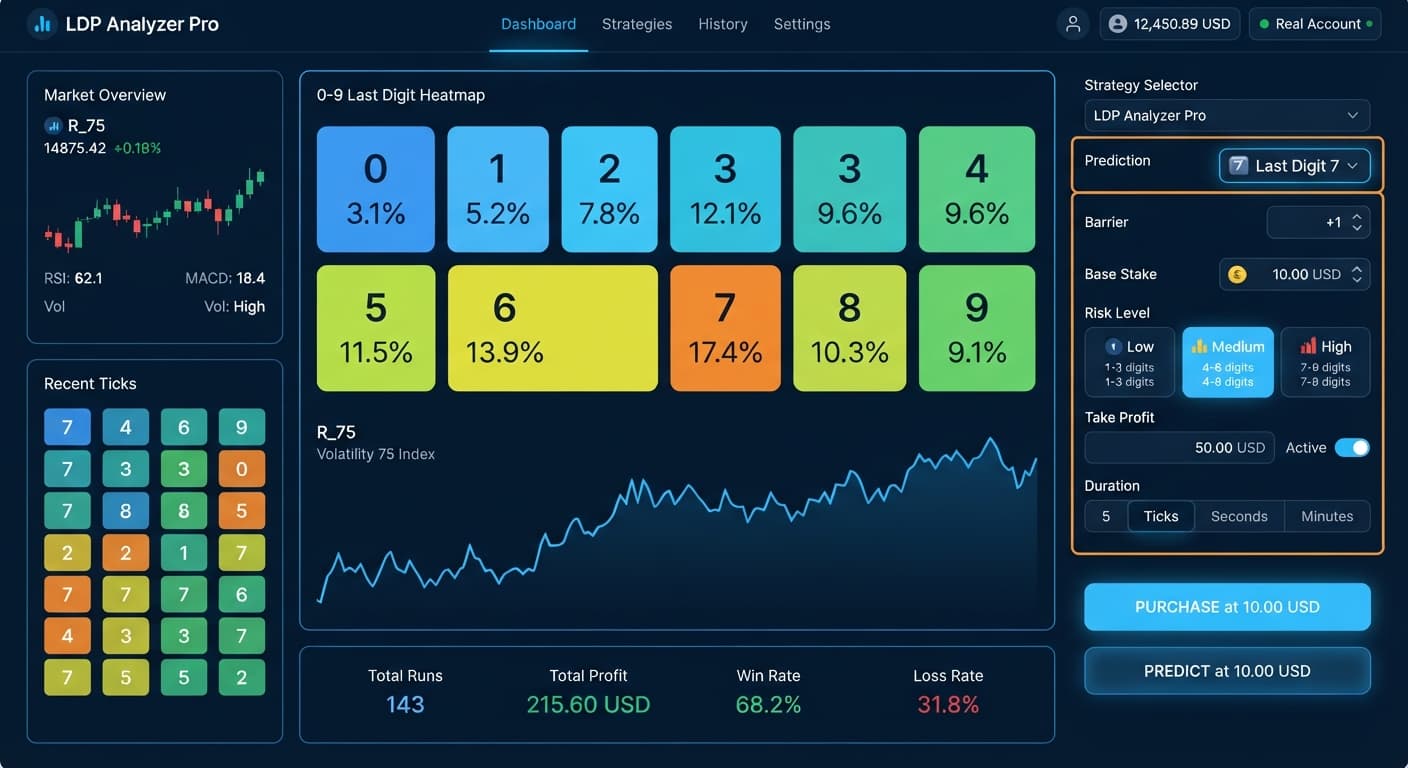
Before toggling automated execution, you must fill in every parameter field on the control panel. Start by selecting your synthetic market—such as Volatility 75 or Vol 10 (1s)—and choosing a strategy mode like Over/Under or Match/Differ. Next, enter a conservative Base Stake relative to your total session account balance.
You'll then pick your Risk Level: Conservative (1.5x), Moderate (2x), or Aggressive (2.5x). This selection updates the Multiplier field, which dictates how the bot increases your Stake after a losing contract. Finally, enter hard dollar limits into Take Profit ($) and Stop Loss ($). Never leave Stop Loss ($) blank.
| Parameter Control | Recommended Setup Value | Functional Purpose |
|---|---|---|
| Selected Market | Volatility 50 or Vol 25 (1s) | Determines market tick speed and digit generation rate |
| Mode | Over/Under or Match/Differ | Specifies contract types like DIGITOVER, DIGITUNDER, or DIGITDIFF |
| Base Stake | $1.00 (or 1% of balance) | Starting order amount placed on the initial trade |
| Initial Stake | $1.00 | Matches Base Stake to establish standard contract sizing |
| Risk Level | Conservative (1.5x) | Applies a 1.5x stake multiplier following an unsuccessful trade |
| Duration (ticks) | 10 or 20 | Sets order length in ticks (10, 20, 30, 50, or 100 selectable) |
| Take Profit ($) | $10.00 | Automatically stops AutoPilot when session profit hits target |
| Stop Loss ($) | $15.00 | Kills server-side automation immediately if losses cross limit |
Load LDP Analyzer Pro and paste your official Deriv API token into the connection box. The bot connects directly to Deriv over their official API, keeping your funds inside your own Deriv account at all times. Test this process on a Deriv demo account first so you don't risk real money while getting used to the interface.
Once connected, open the market dropdown menu. Choose your target market from the available options: Volatility 10, Volatility 25, Volatility 50, Volatility 75, Volatility 100, or 1-second markets like Vol 10 (1s) or Vol 75 (1s). Traders using binary bots for the first time usually start with Volatility 10 or Volatility 25 because tick changes occur at a steady, readable pace.
Select your preferred trading logic from the available modes: Over/Under, Even/Odd, Match/Differ, Rise/Fall, or AutoPilot. If you're configuring settings before switching to full automation, pick Over/Under or Match/Differ.
Set your Prediction or Barrier level. For example, in Over/Under mode, setting Barrier to 2 means DIGITOVER wins on digits 3 through 9 (OVER wins > N, UNDER < N). In Match/Differ mode, selecting Prediction 5 means a DIGITDIFF contract wins whenever the last digit lands on any number other than 5. Match/Differ modes yield high win rates, but a single loss requires several consecutive wins to recover lost ground.
Move down to the financial input fields. Type your opening stake into Base Stake and Initial Stake. Keeping this starting number at 1% or less of your account balance gives you plenty of margin to absorb quiet periods.
Next, select your Risk Level. You have three explicit settings: Conservative (1.5x), Moderate (2x), and Aggressive (2.5x). Your pick changes the Multiplier field value. Selecting Conservative (1.5x) ensures that after an unsuccessful contract, the next stake scales up moderately. Aggressive (2.5x) recovers losses faster but puts serious pressure on your account equity during consecutive losing trades.
This step is where traders make their biggest mistake. Enter an exact dollar target into Target Profit and Take Profit ($). For example, if you want to cap your trading session after earning $10.00, type 10 into Take Profit ($).
Right below that, enter your Stop Loss ($) limit. Type 15 if you want the system to stop trading after losing $15.00. Never start an automated session without filling in Stop Loss ($). If left empty, AutoPilot won't know when to cut off losing contracts. Setting these numeric limits is essential when executing automated orders with binary bots.
Check your settings one last time: Duration (ticks) set to 10 or 20, Risk Level set to Conservative (1.5x), and both dollar caps active. Click the mode menu and choose AutoPilot (server-side auto-trader).
Click the start button. Once engaged, AutoPilot operates on server-side infrastructure. It compares AI signal confidence levels against incoming market digits before placing contract types like DIGITEVEN, DIGITODD, DIGITOVER, DIGITUNDER, DIGITMATCH, or DIGITDIFF. You can close your browser tab or turn off your computer, and the server will keep evaluating signals until it hits your Take Profit ($) or Stop Loss ($) cap.
When AutoPilot is running, you don't have to guess whether the system is placing contracts correctly. The user interface displays visual status badges and live counts. Monitoring these indicators lets you confirm that AI signals meet confidence thresholds before contracts hit your account.
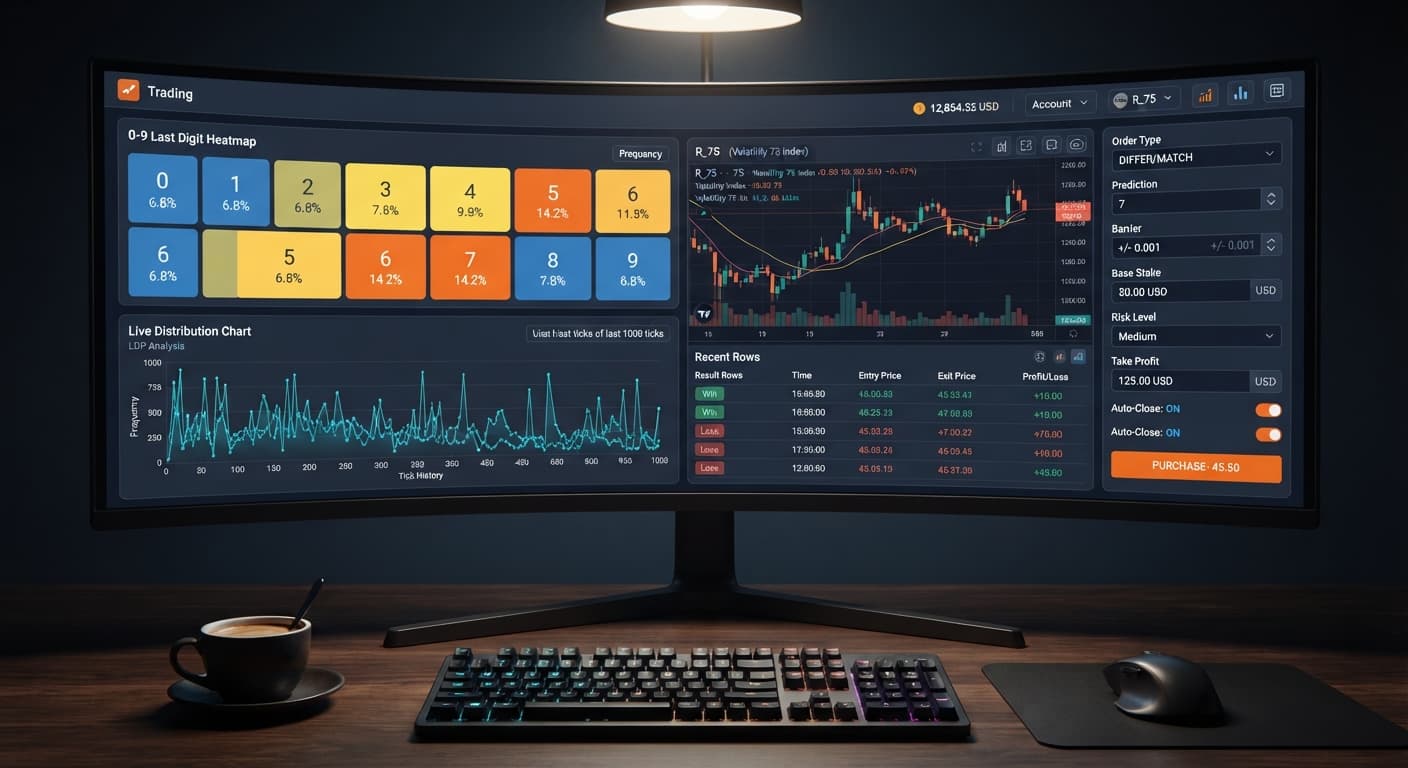
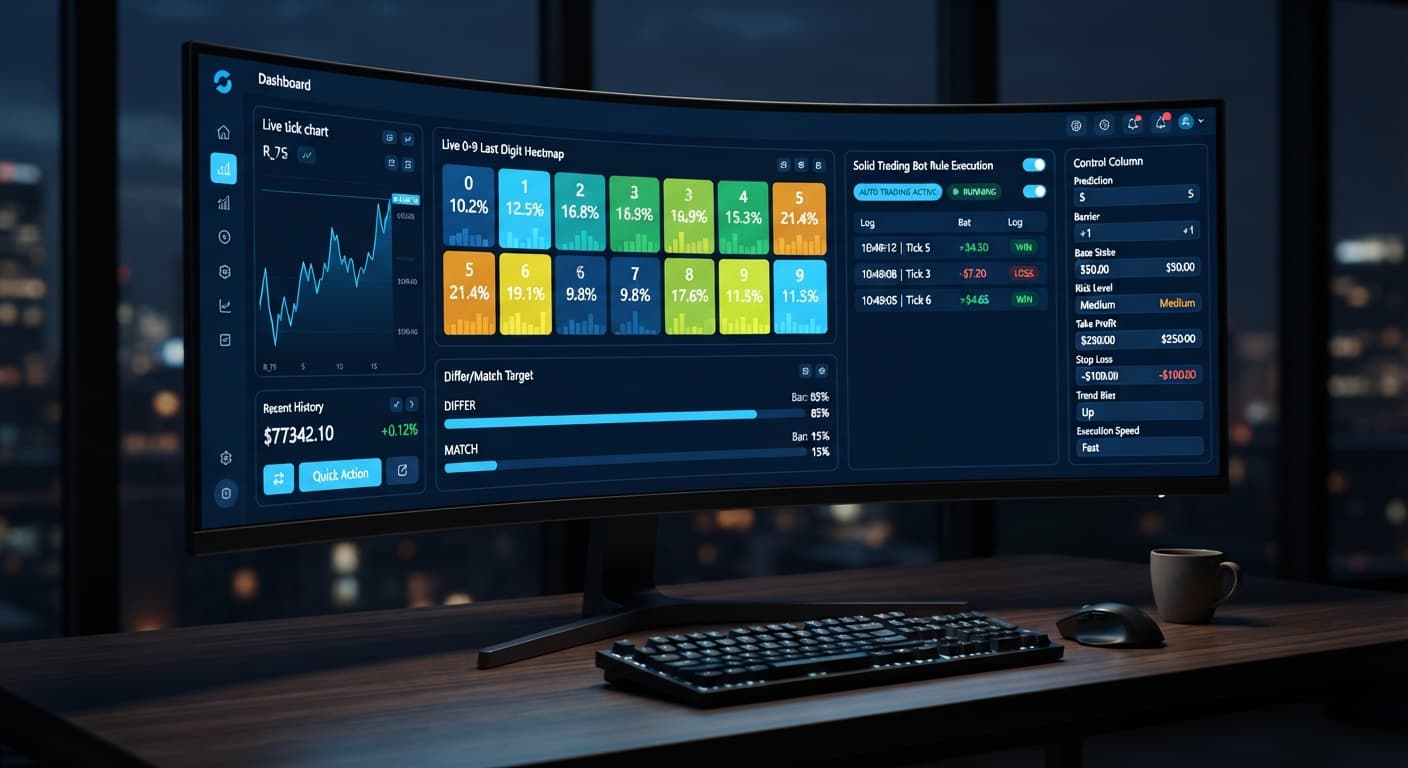
The top digit heatmap shows live 0-9 percentages updated every tick. DIFFER and MATCH targets display their specific hit percentages alongside active signals. Below the main display, the status light remains solid green during an active stream. If your connection drops, the status indicator turns red, and automated ordering pauses.
| Visual Dashboard Element | Current UI State | Meaning / System Condition | Required Action |
|---|---|---|---|
| Connection Status Indicator | Solid Green | Websocket connected directly to Deriv API | No action needed; server streaming live ticks |
| Connection Status Indicator | Flashing Red / Red | Connection lost or invalid API token | Re-enter API token and reconnect |
| Heatmap Frequency Bar | Highlighted Digit Percentages | Live distribution of digits 0-9 over past ticks | Monitor digit bias; no manual adjustment needed |
| AutoPilot Status Badge | Active (Blue/Green) | Server-side execution loop is active | Let bot process AI signal confidence levels |
| Take Profit / Stop Loss Field | Highlighted Red Banner | Session hit Take Profit ($) or Stop Loss ($) cap | AutoPilot stopped; review overall session stats |
| Trade Execution Log | New Row Added | Contract placed (e.g., DIGITDIFF, DIGITOVER) | Confirm returned stake, entry digit, and payout |
If you want to test other tools in the suite, check out the full free Deriv bot library or use the standard LDP Analyzer for basic digit analysis. Following this ldp analyzer pro deriv bots guide workflow ensures your automated trading stays inside strict, planned limits.
AutoPilot works well on consistent digit distributions when you want hands-off trade placement. However, automated deriv bots aren't suitable for every market situation or bankroll size.
Don't use AutoPilot if your total account balance is too low to survive a series of losses under your chosen Risk Level. Even with Conservative (1.5x), a streak of four unsuccessful ticks scales up your required stake fast. If your account balance can't absorb those changes without breaking your risk plan, stick to manual order placement using tools like Digit Pad or Tick Picker.
Also, avoid running AutoPilot during choppy market conditions if you're trying to spot tight digit biases. Highly irregular tick sequences can cause signal indicators to turn on and off rapidly, firing off multiple contracts in a short window. If you prefer manual speed entries where you trigger every order yourself, switch to direct execution tools like Sniper Bot V3 or the Solid Trading Bot.
Try it yourself on LDP Analyzer Pro using a demo balance first. If you don't have one yet, create a free Deriv account. Trading involves risk. Past performance does not guarantee future results.
Related: LDP Analyzer Pro Review: Digit Differs Binary Bots
Related: LDP Analyzer Pro Settings: Deriv Bots Stake & Risk Guide
A fast Deriv digit-analysis tool and trading bot with a live 0-9 last-digit heatmap, DIFFER/MATCH targets, even-odd and over-under signals, and a 3-strategy auto-trader with risk controls.
Open LDP Analyzer Pro →You set up AutoPilot by connecting your official Deriv API token, selecting a synthetic asset, and defining your Base Stake and Risk Level. Be sure to enter strict limits inside the Take Profit and Stop Loss fields before activating it.
Leaving your Stop Loss blank while running AutoPilot can quickly wipe out your account balance during a cold streak. Because the bot runs server-side even if you close your browser, a single unattended losing streak without strict stop controls is a disaster.
You can pick from three risk levels: Conservative at 1.5x, Moderate at 2x, or Aggressive at 2.5x. This selection updates the multiplier field, which determines how the bot increases your stake after an unsuccessful trade.
Yes, you should test the process on a Deriv demo account first so you don't risk real money while getting used to the interface. You just paste your official Deriv API token into the connection box to link the bot directly to your account over their official API.
Guides closest to this one.
Compare ldp analyzer pro vs solid trading bot on Deriv synthetic indices. Learn live 0-9 heatmap analysis versus rule-based execution. Test it today.
Read our ldp analyzer pro review to evaluate the 0-9 heatmap accuracy, digit analysis features, and risk controls for Deriv synthetic indices.
Master ldp analyzer pro settings for Deriv bots. Learn how to configure stake, risk level, and duration for precise digit analysis. Get started today.