Digit Analysis
LDP Analyzer Pro for Beginners: Zero Experience Guide
Learn ldp analyzer pro for beginners with zero prior experience. Master digit analysis on Deriv bots safely. Read the complete guide today.
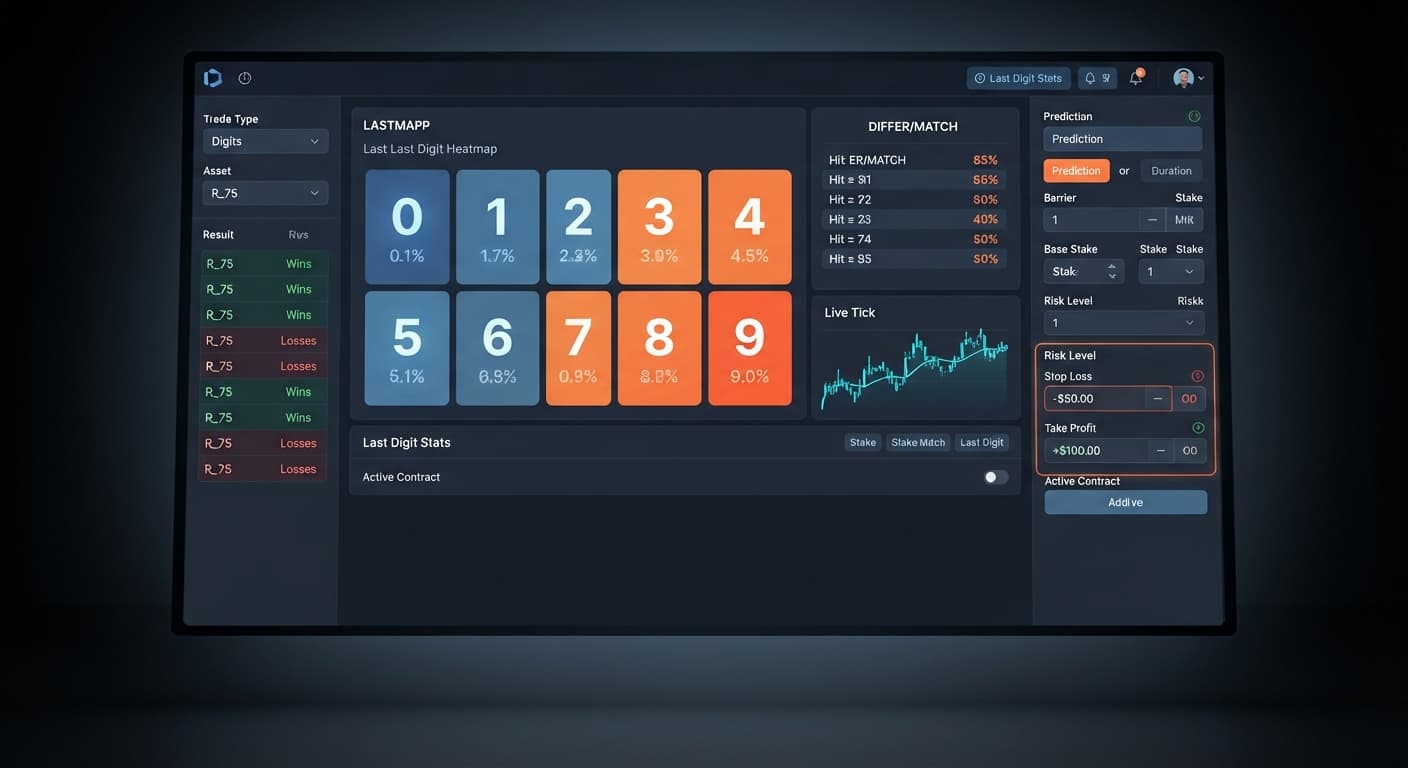
To complete an ldp analyzer pro stop loss setup on Deriv, enter your maximum dollar loss into the Stop Loss ($) field and your profit ceiling into Take Profit ($) before launching the bot. These numeric controls monitor your net session total and shut down contract execution the moment your limits are hit. Leaving these fields blank leaves your account vulnerable to compounding recovery stakes during bad market runs.
Most traders look up this setting after watching a account balance drop fast during an unexpected losing streak. Default automated configurations without hard dollar caps will keep placing trades indefinitely, assuming a win will eventually clear the deficit. Synthetic markets don't work on debt collection—they draw random numbers. Setting explicit boundary controls upfront isolates your capital from uncontrolled drawdown.
Before you start trading live, anchor your risk boundaries inside the dashboard. Here is how to configure your ldp analyzer pro stop loss setup step by step.
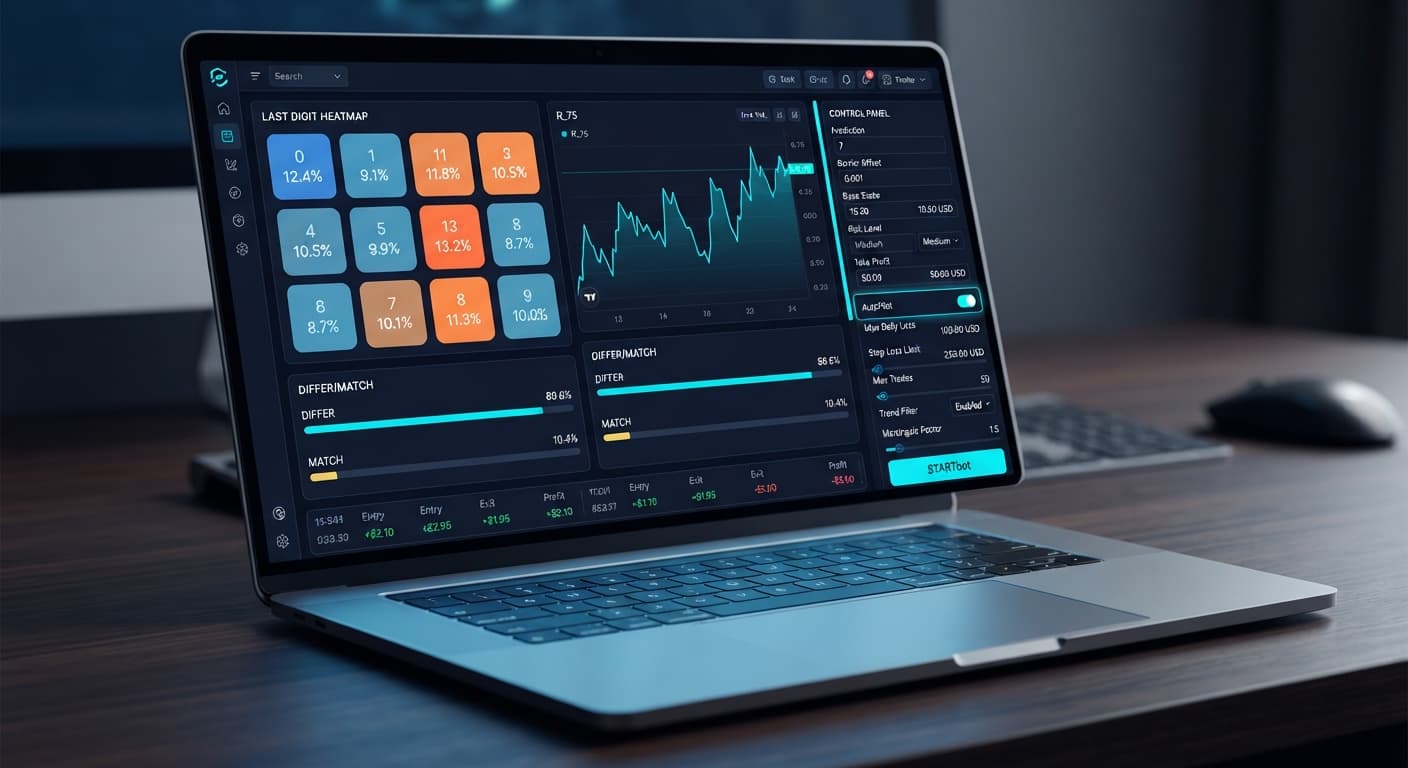
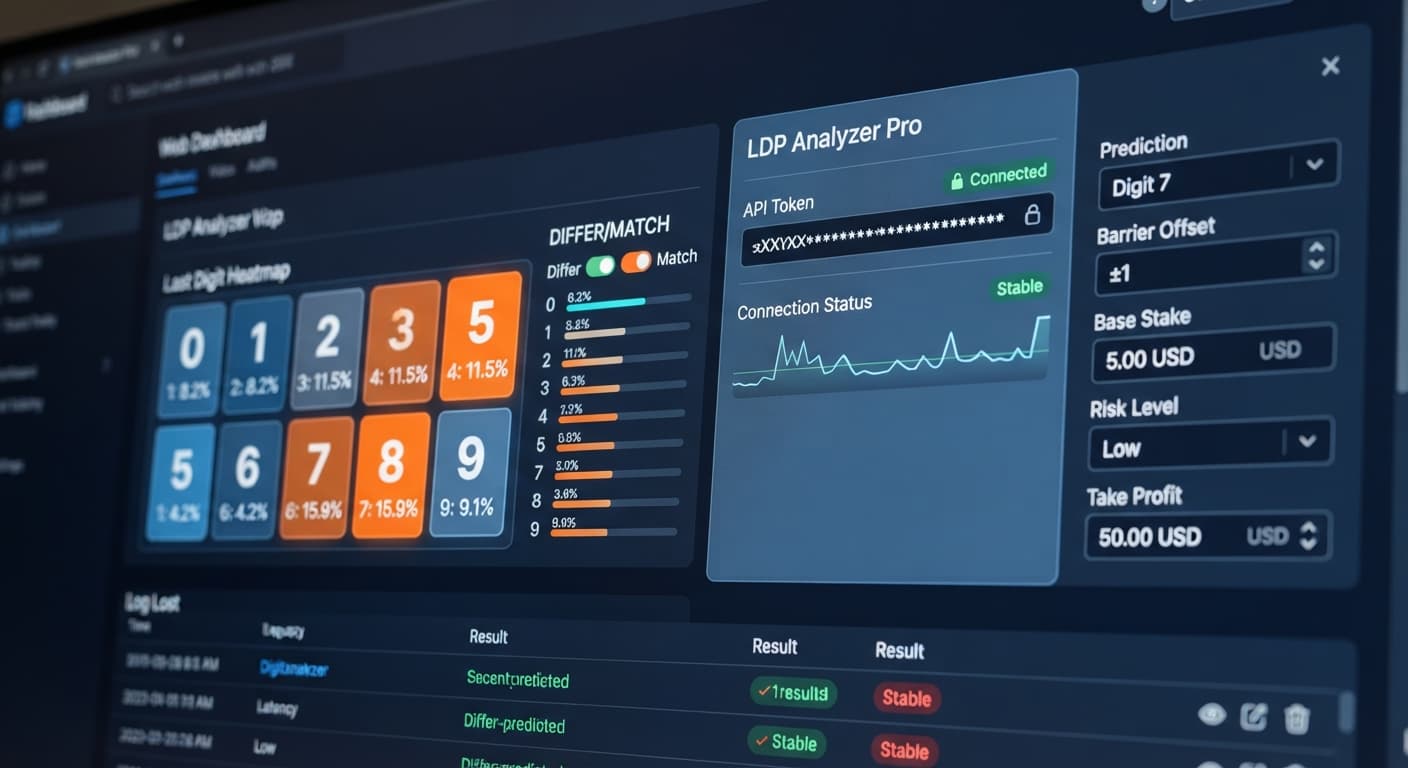
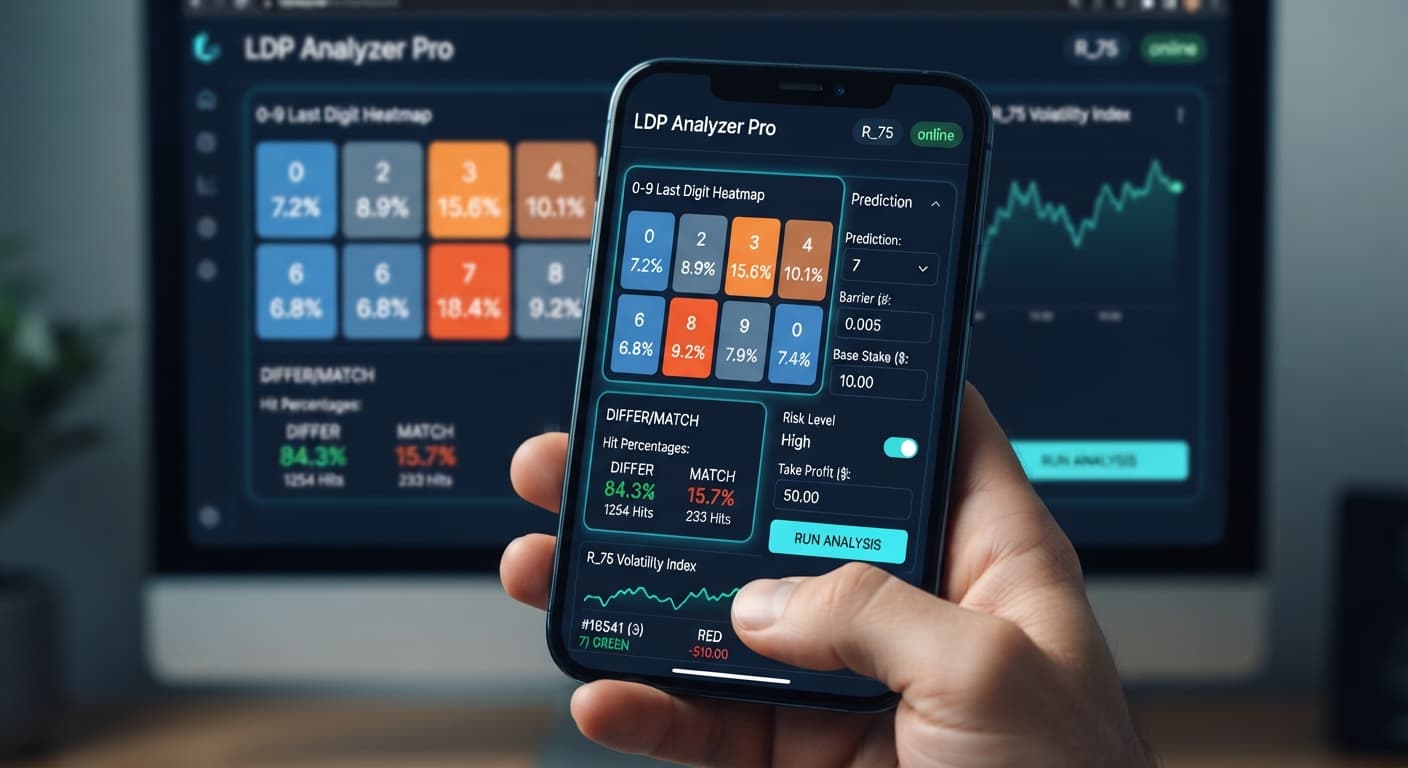
Open LDP Analyzer Pro and choose your target index from the market dropdown, such as Volatility 75 or Vol 10 (1s). Next, choose your trading mode from the available options: Over/Under, Even/Odd, Match/Differ, or Rise/Fall. If you plan to use automated digit entries, turn on AutoPilot to run execution server-side.
Locate the Base Stake and Initial Stake input fields. Enter your standard entry value here—for instance, $1.00. The Base Stake serves as your reset value after any winning contract, while Initial Stake sets the starting trade amount for your current session. Keeping these numbers identical keeps your session tracking simple.
Select your preferred multiplier growth speed under Risk Level. You can pick Conservative (1.5x), Moderate (2x), or Aggressive (2.5x). This choice dictates how quickly your Stake increases after a loss to recover previous losses. A Moderate (2x) setting doubles your stake on each loss, while Aggressive (2.5x) expands it even faster.
Input your preferred earnings goal into Take Profit ($) and Target Profit. For a $100 total balance, setting a Take Profit ($) of $10 represents a realistic 10% gain for a single session. Once your cumulative gains hit $10.00, the system ceases all trading activity and disconnects the automated execution queue.
Navigate to the Stop Loss ($) control box. Enter the maximum total dollar amount you are willing to lose in a single run before the bot turns off. For a $100 starting bankroll, a $30.00 value acts as a strict guardrail. If consecutive losses accumulate to $30.00, trade execution halts immediately, preserving the remaining $70.00 in your account.
When running automated deriv bots, risk accumulates through position scaling, not single trades. Using multiplier stake adjustments means drawdown builds rapidly during consecutive losses.
Consider a practical example on Volatility 75 using Over/Under mode. You start with a $100 account balance, a $2.00 Base Stake, and select Moderate (2x) as your Risk Level. The digit heatmap displays live 0-9 frequency with real percentages, but past digit draws do not dictate the next tick—synthetic indices represent completely independent random draws.
Here is how six consecutive losing trades impact your account balance without a stop loss taking effect:
| Trade Number | Contract Result | Stake ($) | Cumulative Loss ($) | Remaining Account Balance ($) |
|---|---|---|---|---|
| 1 | Loss | $2.00 | $2.00 | $98.00 |
| 2 | Loss | $4.00 | $6.00 | $94.00 |
| 3 | Loss | $8.00 | $14.00 | $86.00 |
| 4 | Loss | $30.00 total down | $16.00 | $70.00 |
| 5 | Loss | $32.00 | $62.00 | $38.00 |
| 6 | Execution Failed | $64.00 (Required) | $62.00 | $38.00 (Insufficient Funds) |
By trade four, you have lost $30.00 across the run. By trade five, your cumulative loss hits $62.00, leaving just $38.00 in your balance. When the bot attempts to place trade six, it requires a $64.00 stake—far higher than your remaining $38.00 balance. The trade fails, leaving your balance depleted.
If you had configured an ldp analyzer pro stop loss setup with Stop Loss ($) set to $30.00, the session would have terminated immediately after trade four. You would walk away with $70.00 intact, ready to trade another day, instead of watching your balance hit zero on trade six.
Always test your stake multipliers and drawdown thresholds on a Deriv demo account before executing contracts with real funds.
Once you define your risk limits and click start, the interface changes how it processes contract results. The software compares your total session profit or loss against your exact inputs after every closed tick.
If your strategy lands a series of successful trades and crosses your Take Profit ($) value, the system disengages the execution loop. An on-screen confirmation informs you that the net gain cap was reached, and AutoPilot turns off server-side. Your accumulated winnings remain locked directly in your Deriv trading account balance.
When market conditions produce consecutive losses that equal or exceed your Stop Loss ($) figure, execution stops instantly. The bot blocks any pending orders, cancels incoming signal triggers, and stops stake recalculations. You'll see the trade log stop updating, freezing your remaining balance right where you set your limit.
Because AutoPilot operates server-side, your defined risk limits execute even if your browser closes or your internet drops out. The API token link maintains your preset Stop Loss ($) and Take Profit ($) limits directly on the backend execution layer.
A correct ldp analyzer pro stop loss setup can still fail if paired with incompatible session parameters. Two settings frequently throw off risk calculation for traders using automated binary bots:
Selecting an incorrect value under Duration (ticks)—such as 100 ticks instead of 10 or 20 ticks—drastically changes how long your trades remain open. In fast-moving markets like Vol 100 (1s) or Volatility 75, extended durations increase your exposure to short-term market reversals. Longer durations also slow down the bot's ability to trigger stake recovery moves, keeping capital locked up while market trends shift against your prediction.
Choosing Aggressive (2.5x) under Risk Level alongside a tight Stop Loss ($) creates an immediate mathematical conflict. On a $2.00 Base Stake, an Aggressive multiplier expands your required stakes exponentially ($2.00, $5.00, $12.50, $31.25). A four-trade losing streak generates $50.75 in total losses. If your Stop Loss ($) was set to $30.00, the bot hits its hard stop on trade four, cutting the run short before the strategy can attempt a recovery trade.
Align your stake multiplier with your account size. Conservative (1.5x) or Moderate (2x) settings provide more room to absorb normal statistical variance without triggering early stop-loss limits.
Try configuring your risk limits on LDP Analyzer Pro using a virtual account first.
If you don't have one yet, create a free Deriv account to start testing digit tools safely.
Trading involves risk. Past performance does not guarantee future results.
A fast Deriv digit-analysis tool and trading bot with a live 0-9 last-digit heatmap, DIFFER/MATCH targets, even-odd and over-under signals, and a 3-strategy auto-trader with risk controls.
Open LDP Analyzer Pro →To set your stop loss, enter your maximum dollar loss into the Stop Loss ($) field on the dashboard before launching the bot. This numeric control monitors your net session total and shuts down contract execution the moment your limit is hit.
Leaving these fields blank leaves your account vulnerable to compounding recovery stakes during bad market runs. Without hard dollar caps, the bot will keep placing trades indefinitely assuming a win will eventually clear the deficit.
Your risk level dictates how quickly your stake increases after a loss to recover previous losses. You can choose Conservative (1.5x), Moderate (2x), or Aggressive (2.5x) to control that stake expansion speed.
For a $100 starting bankroll, setting a Take Profit ($) of $10 represents a 10% gain, while a $30 Stop Loss ($) acts as a strict guardrail. Once your cumulative gains or consecutive losses hit those limits, trade execution halts immediately to preserve your remaining balance.
Guides closest to this one.
Learn ldp analyzer pro for beginners with zero prior experience. Master digit analysis on Deriv bots safely. Read the complete guide today.
Follow this ldp analyzer pro deriv bots guide to configure AutoPilot and risk controls for precise digit analysis on Deriv. Start trading smarter today.
Complete ldp analyzer pro api token setup guide for Deriv bots. Learn secure browser-based digit analysis and last digit prediction today.