Digit Analysis
LDP Analyzer Pro Demo Account Setup for Deriv Bots
Complete ldp analyzer pro demo account setup guide for binary bots. Learn digit analysis, configure last digit prediction, and test safely on Deriv today.
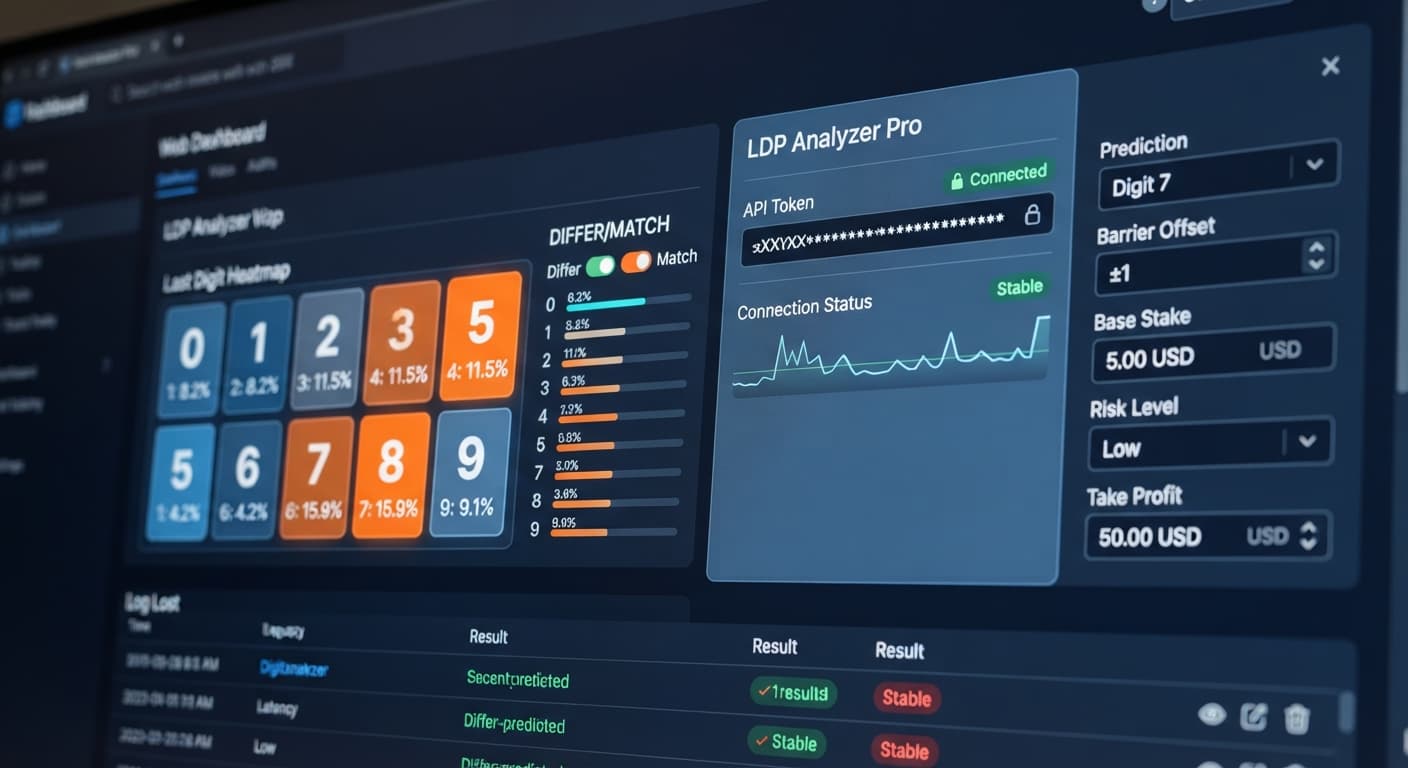
To complete your ldp analyzer pro api token setup, copy a Read and Trade API token from your Deriv account security settings and paste it into the token input field on LDP Analyzer Pro. This token authorizes the analyzer to stream tick data and execute contracts directly on your account without exposing your login password or granting withdrawal privileges. Once verified, the dashboard connects directly to Deriv over their official API, allowing you to run automated digit strategies on real or virtual funds.
The most common failure during API setup happens when traders select the wrong token permission scopes inside their Deriv dashboard. Deriv API tokens carry specific authorization levels: Read, Trade, Payments, Admin, and Trading Information. If you check "Admin" or "Payments" when creating a token, any browser extension or third-party tool with access to that token string gains full access to your account transfers. That's an unnecessary security risk.
The opposite mistake is equally frustrating. If you grant only "Read" access and forget to tick "Trade", the dashboard will display live market data and digit heatmaps, but every trade execution will fail instantly. When automated deriv bots attempt to trigger contracts like DIGITOVER or DIGITUNDER, the platform will reject the trade. If this happens mid-sequence during a martingale progression, the system won't be able to execute recovery trades or trigger your Stop Loss ($), leaving your trading session halted at an active loss.
Before pasting your credentials into the interface, map out your trading limits. You'll enter these values directly into the dashboard controls to establish explicit boundaries for trade sizing, loss limits, and automated contract multipliers.
The table below outlines the safe baseline values you should enter into the dashboard controls when testing strategies on a demo account.
| On-Screen Control | Recommended Value (Demo Test) | Function in Execution |
|---|---|---|
| Base Stake | $1.00 | Initial trade amount for contract entries |
| Duration (ticks) — 10 / 20 / 30 / 50 / 100 | 10 | Contract lifespan measured in market ticks |
| Risk Level — Conservative (1.5x), Moderate (2x), Aggressive (2.5x) | Conservative (1.5x) | Multiplier applied to the wager after a lost trade |
| Take Profit ($) | $10.00 | Cumulative profit target that halts execution |
| Stop Loss ($) | $20.00 | Maximum total loss limit before the session terminates |
Log into your Deriv account, navigate to Account Settings, and select API Token under the Security menu. Tick the boxes for Read and Trade only. Leave Admin, Payments, and Trading Information unchecked. Type "LDP Pro Token" in the Name field and click Create. Copy the generated alphanumeric token string immediately.
Navigate to LDP Analyzer Pro in your browser. Locate the API token input box at the top of the interface, paste your copied key, and click Connect. The interface validates the credentials over the official API. Once connected, your account balance and account type (Virtual or Real) will display on the control panel.
Use the market dropdown to select your target volatility index. Supported markets include Volatility 10, Volatility 25, Volatility 50, Volatility 75, Volatility 100, as well as 1-second indices like Vol 10 (1s) through Vol 100 (1s). Next, select your entry speed using the Duration (ticks) — 10 / 20 / 30 / 50 / 100 setting. Choosing 10 ticks delivers fast contract evaluations while maintaining stable data feeds.
Enter your initial trade size into Base Stake. Input your session profit cap into Take Profit ($) and your absolute safety limit into Stop Loss ($). Select your post-loss scaling behavior using Risk Level — Conservative (1.5x), Moderate (2x), Aggressive (2.5x). This setting determines how binary bots manage contract sizing when recovering from an unsuccessful tick.
Choose your strategy mode from the menu: Over/Under, Even/Odd, Match/Differ, or Rise/Fall. Depending on your choice, specify target fields like Prediction or Barrier (OVER wins > N, UNDER < N). Finally, activate AutoPilot (server-side auto-trader). Because AutoPilot executes server-side, your active session continues running on Deriv servers even if your local browser tab is closed.
Let's examine what actually happens to your balance during an extended losing streak when using automated stake multipliers. Assume you begin with a $100 total balance, select Volatility 75, set a Base Stake of $2, and pick Over/Under mode targeting DIGITOVER contracts. You set Risk Level — Conservative (1.5x), Moderate (2x), Aggressive (2.5x) to Moderate, which applies a 2x multiplier after every lost tick.
Here is the exact step-by-step balance trajectory over five consecutive losses:
Base Stake of $2. The tick loses. Loss: $2. Running account loss: $2. Remaining balance: $98.Stake to $4. The tick loses. Loss: $4. Running account loss: $6. Remaining balance: $94.Stake to $8. The tick loses. Loss: $8. Running account loss: $14. Remaining balance: $86.Stake to $16. The tick loses. Loss: $16. Running account loss: $30. Remaining balance: $70.Stake to $32. The tick loses. Loss: $32. Running account loss: $62. Remaining balance: $38.At this exact moment, you have lost $62 out of your initial $100 capital. To place the sixth trade in the sequence, the system requires a $64 stake (2x $32). However, your remaining balance is only $38. The bot cannot place the contract, the automated sequence breaks, and you are left with a 62% account drawdown in five ticks. This demonstrates why setting an explicit dollar value in Stop Loss ($) before hitting start is mandatory.
A common mistake among digit traders is assuming that historical frequency changes future tick probability. It does not. Synthetic index tick generation relies on cryptographically secure random number generators. Each tick is an independent draw.
If the digit 9 has not appeared for 40 consecutive ticks on Volatility 100, the probability of the next tick ending in 9 is still exactly 10%. The digit frequency heatmap on LDP Analyzer Pro displays past distribution, not future certainty. Relying on heatmaps to guarantee the next digit will lead to blown accounts during unexpected statistical clustering.
AutoPilot configurations can also fail during periods of severe market volatility or internet connectivity drops. If you select Aggressive (2.5x) under Risk Level without defining Stop Loss ($), a rapid succession of losses will consume a small bankroll in seconds. If you want to experiment with different contract types like DIGITDIFF or DIGITMATCH across various index speeds, test your rules using our free bot library on virtual funds before exposing actual balance.
Try it yourself on LDP Analyzer Pro using a demo balance first. If you don't have one yet, create a free Deriv account. Trading involves risk. Past performance does not guarantee future results.
Related: LDP Analyzer Pro for Beginners: Zero Experience Guide
Related: Step-by-Step Guide on How to Use LDP Analyzer Pro for Deriv Bots
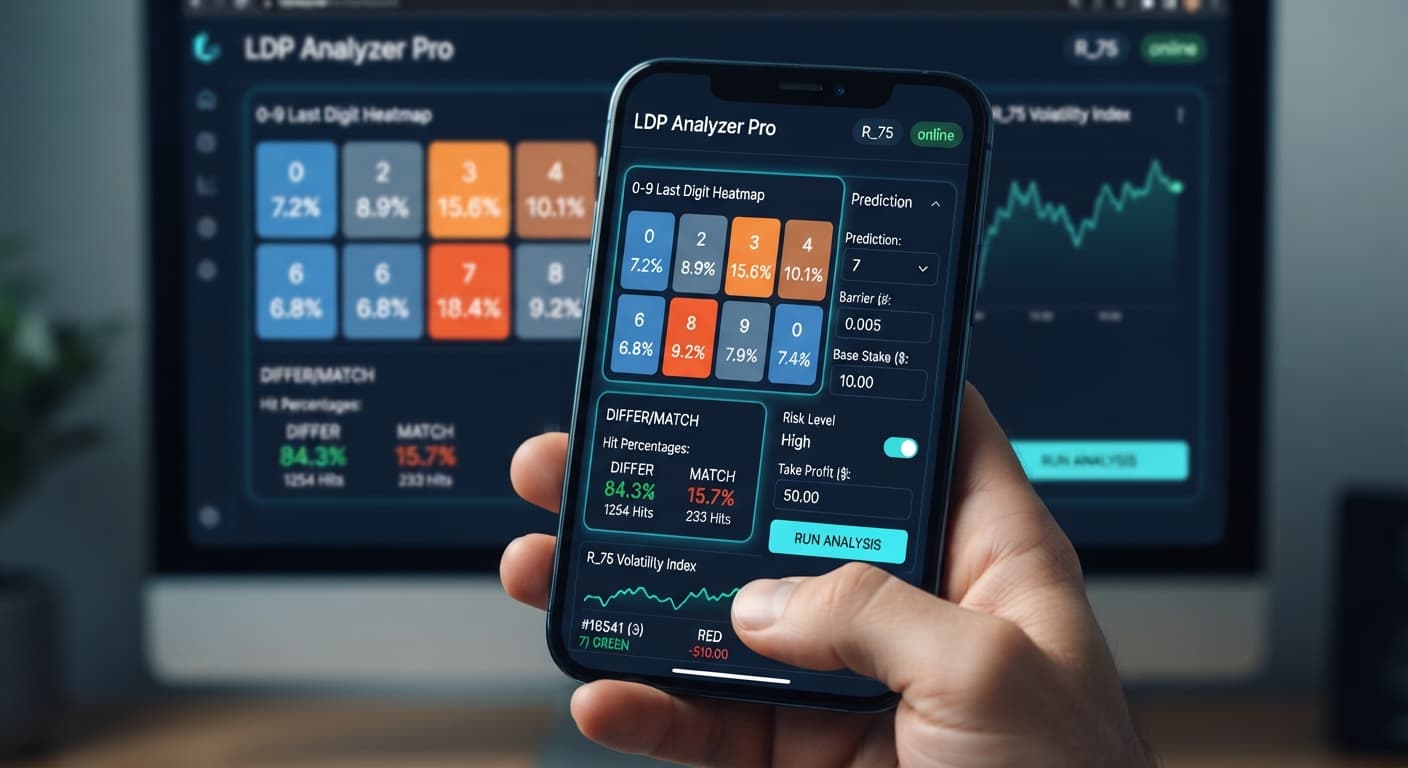
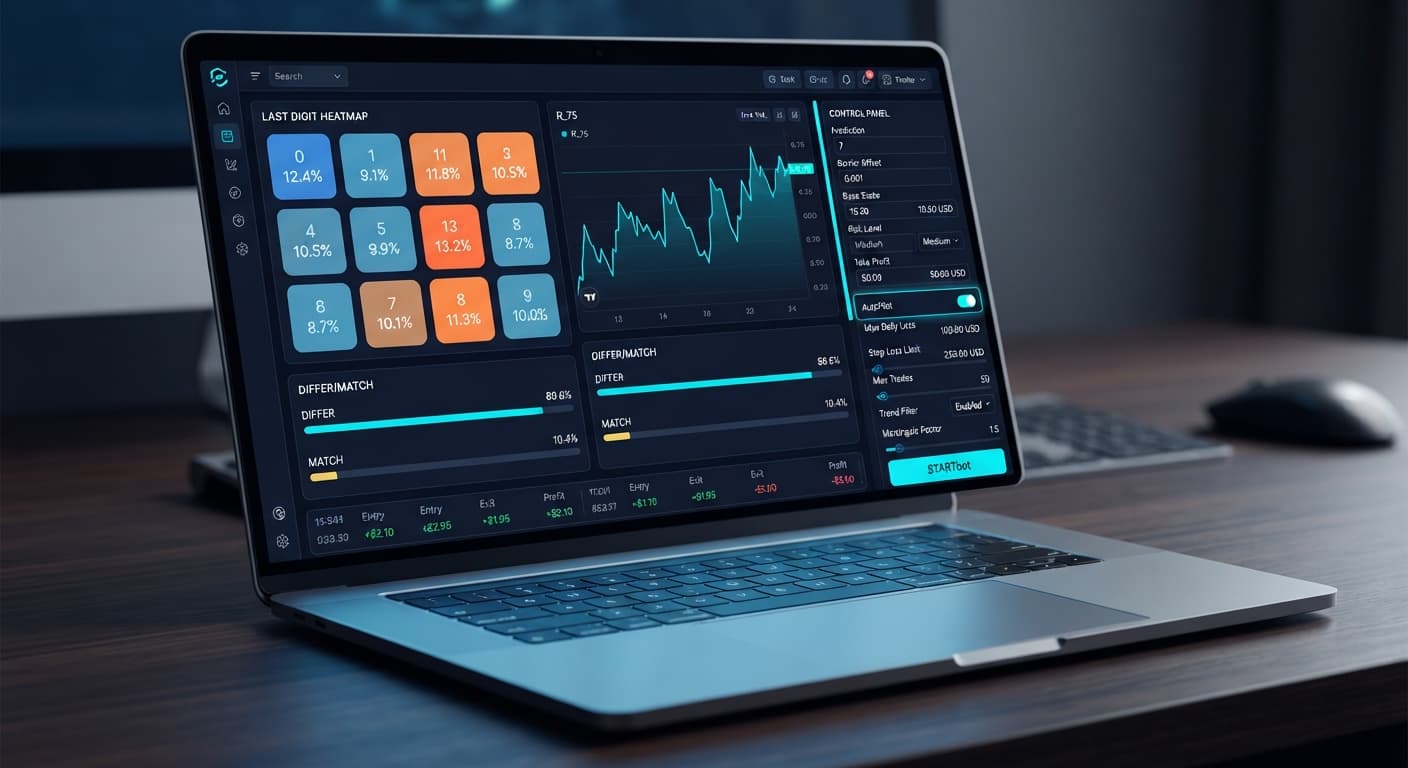
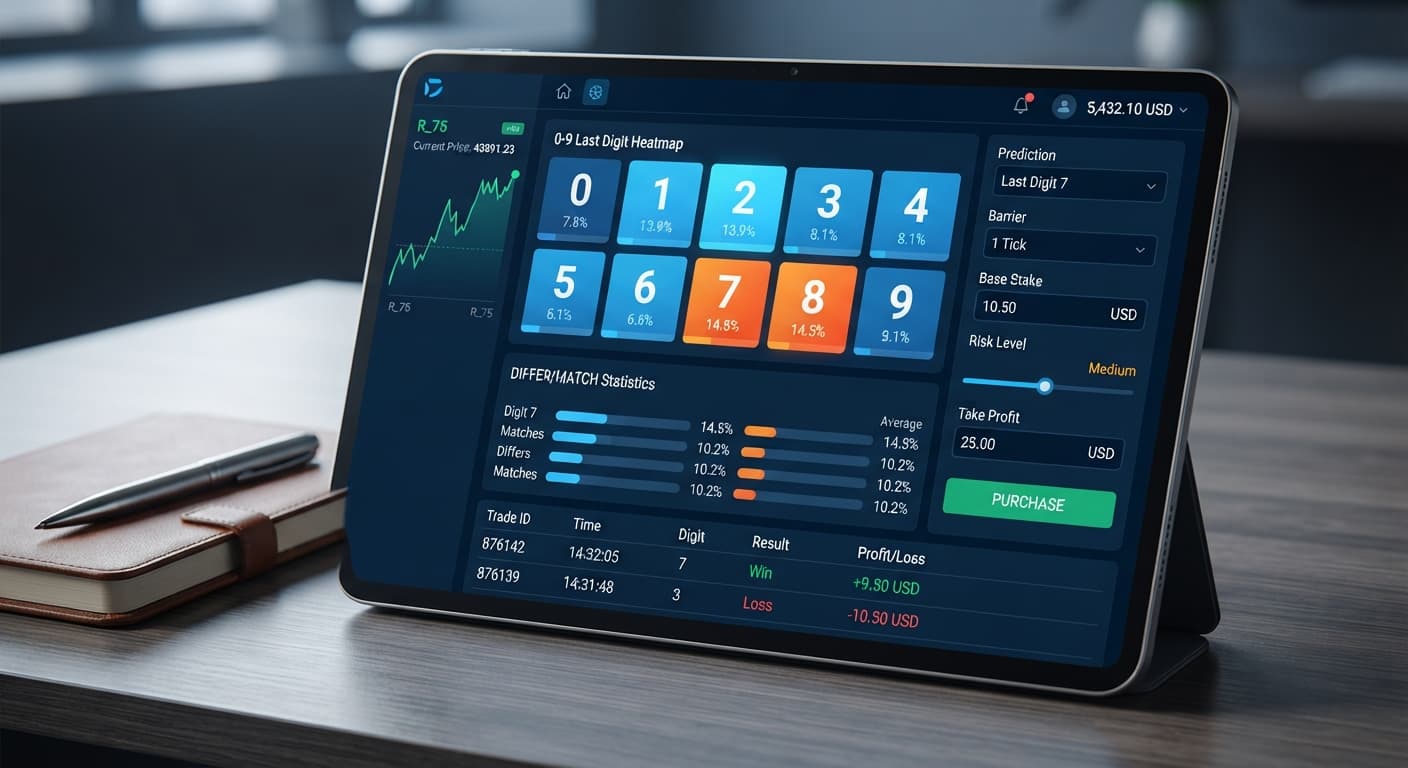
A fast Deriv digit-analysis tool and trading bot with a live 0-9 last-digit heatmap, DIFFER/MATCH targets, even-odd and over-under signals, and a 3-strategy auto-trader with risk controls.
Open LDP Analyzer Pro →Log into your Deriv account, go to account settings, and select API Token under the security menu. Tick the Read and Trade boxes only, name the token, create it, and then paste the copied string into the token input field on LDP Analyzer Pro.
You need to check the Read and Trade permissions only. Leave Admin, Payments, and Trading Information unchecked to keep your account secure and prevent unnecessary risks like exposing account transfers.
This happens if you only granted Read access and forgot to tick the Trade permission when creating your token. Without the Trade scope, automated Deriv bots can't execute contracts and trade requests will be rejected instantly.
For a safe baseline during demo testing, set your Take Profit to $10.00 and your Stop Loss to $20.00. You'll also want to use a $1.00 base stake, a 10-tick duration, and a conservative 1.5x risk level.
Guides closest to this one.
Complete ldp analyzer pro demo account setup guide for binary bots. Learn digit analysis, configure last digit prediction, and test safely on Deriv today.
Learn ldp analyzer pro for beginners with zero prior experience. Master digit analysis on Deriv bots safely. Read the complete guide today.
Follow this ldp analyzer pro deriv bots guide to configure AutoPilot and risk controls for precise digit analysis on Deriv. Start trading smarter today.