Digit Analysis
LDP Analyzer Pro for Beginners: Zero Experience Guide
Learn ldp analyzer pro for beginners with zero prior experience. Master digit analysis on Deriv bots safely. Read the complete guide today.
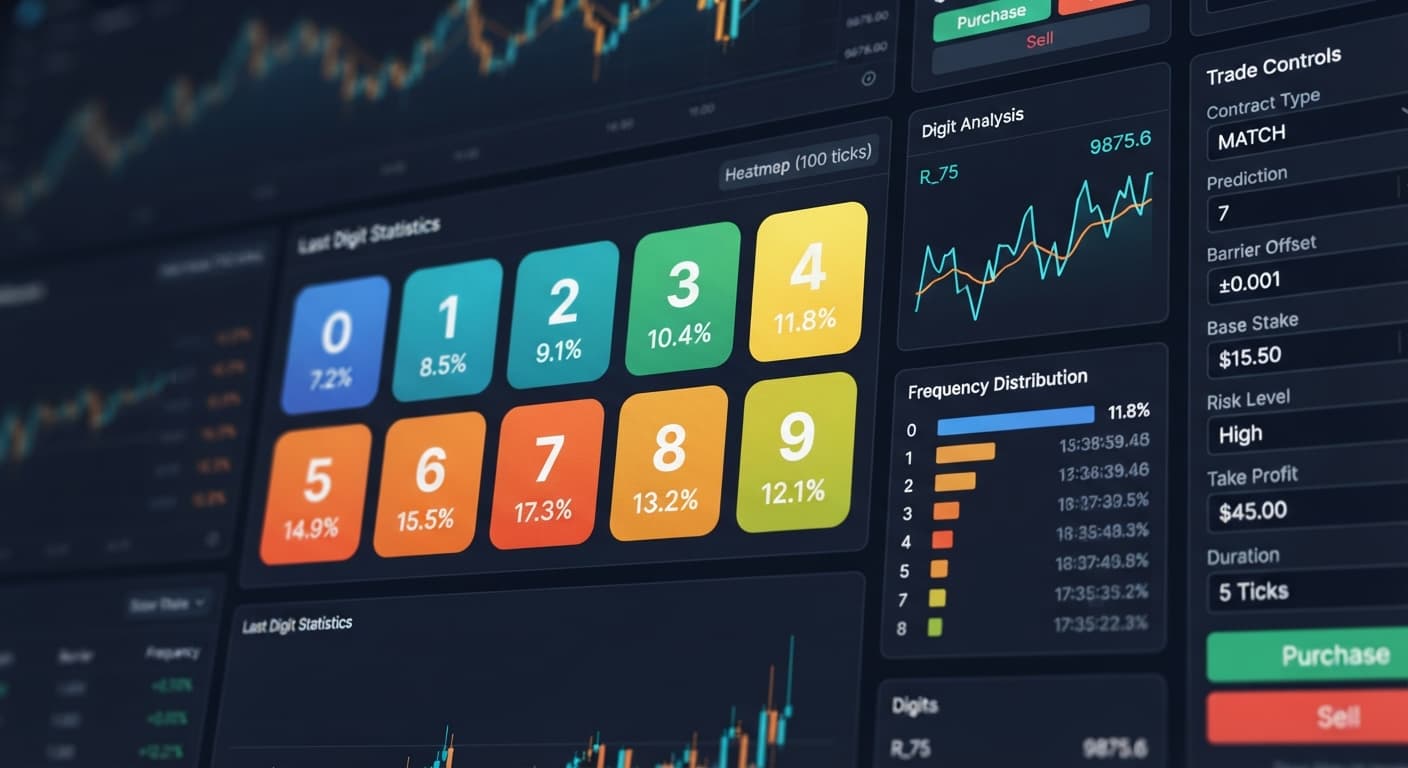
Learning how to use ldp analyzer pro comes down to three steps: pasting your Deriv API token, choosing a synthetic index market, and setting your risk parameters like Base Stake and Stop Loss before launching the automated trader. The application operates in your browser without installs or registration, analyzing live tick streams to show last-digit statistics. Once your settings are configured, the auto-trader executes trades based on digit frequency signals or predefined strategy rules.
This tutorial guides you through configuring each on-screen control step by step. By the end of this guide, you'll know how to interpret the live digit heatmap, select effective strategy parameters, and deploy a strategy safely on a virtual balance. If you want to build automated setups using binary bots, mastering these risk settings first will save you real money.
Before opening the interface, gather these basic prerequisites:
You can inspect the tool layout directly by visiting the LDP Analyzer Pro dashboard.
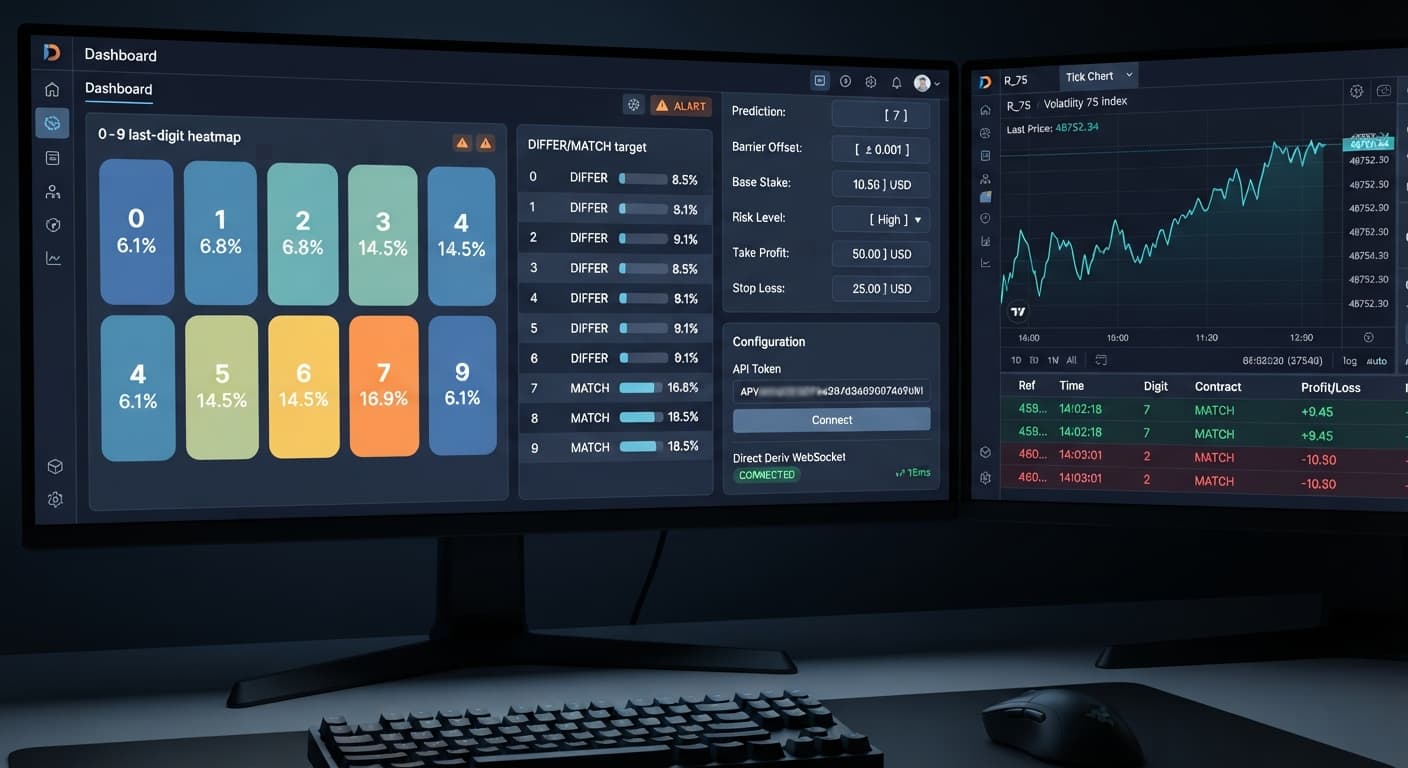
Open the dashboard and paste your token into the API Token field. This connects the interface straight to Deriv so contracts place instantly on your account.
Next, pick your target asset from the dropdown list. The tool supports ten synthetic index markets:
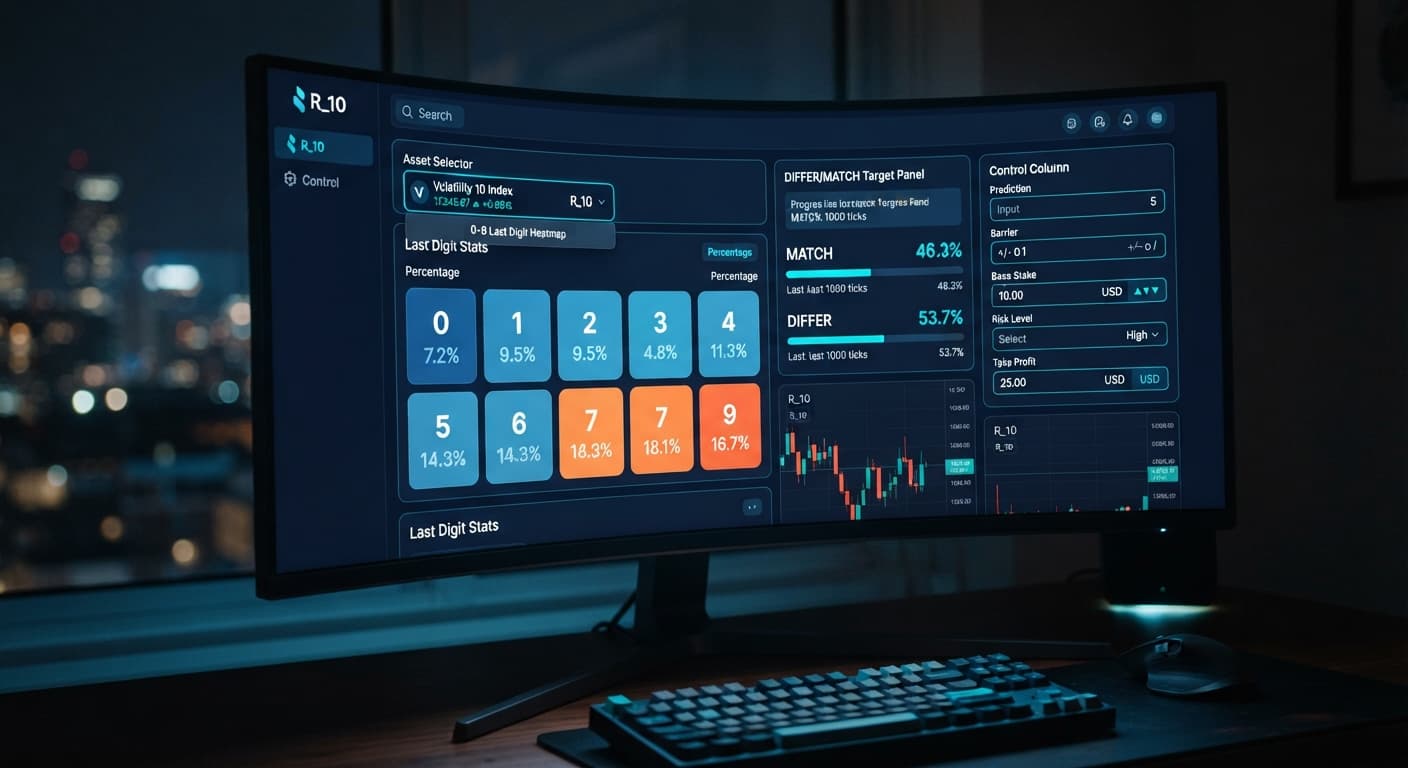
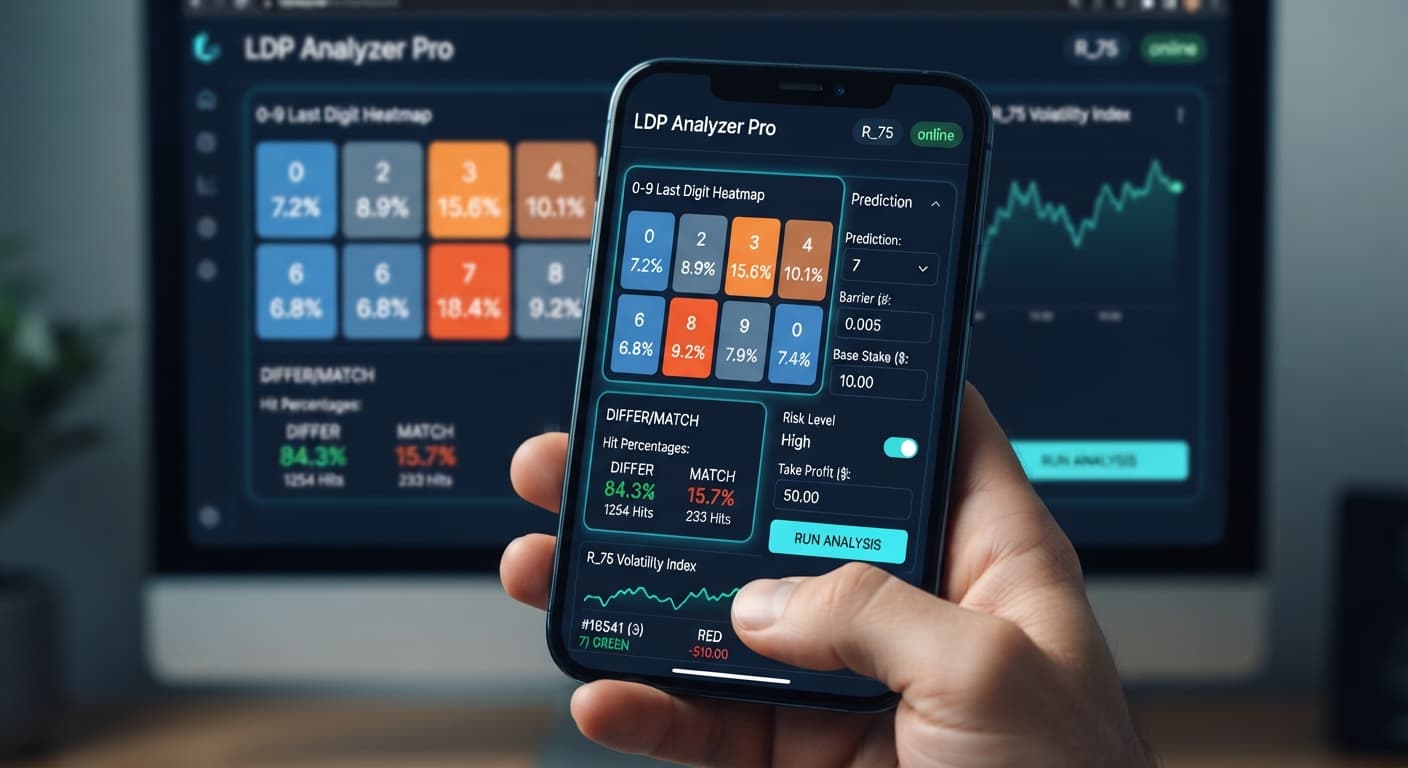
Once connected, look at the live digit heatmap. It displays the real-time frequency distribution of digits 0 through 9 as percentages. The tool highlights the least-frequent and most-frequent digits instantly, alongside specific target statistics for DIFFER and MATCH contracts.
Select your trading strategy mode from the available selection list:
If you select Over/Under, adjust the Barrier control. Setting a Barrier of 2 for DIGITOVER means any tick ending in 3 through 9 wins the contract.
For Match/Differ setups, use the Prediction control to select your target digit (0–9). For instance, setting Prediction to 5 on a Match/Differ mode prepares the bot to issue DIGITDIFF or DIGITMATCH contracts against that digit.
Remember that past digit distribution never guarantees what happens next. Synthetic index ticks are independent random draws. A digit that hasn't appeared in twenty ticks has the exact same 10% probability of showing up on the next tick as any other digit. The visual analysis tool shows recent historical bias, not future certainty.
Locate the Duration (ticks) selector. You can set execution speed across five explicit options:
Shorter tick counts clear contracts faster, but longer tick selections give you room to observe market momentum over time.
Now enter your capital parameters. Input your opening contract amount in the Base Stake field. If you are resuming a session or adjusting starting parameters mid-way, sync the Initial Stake and Stake fields to match your preferred entry size. For a $100 starting account balance, a Base Stake of $0.35 to $1.00 is a safe standard.
Select your loss recovery profile using the Risk Level selector. This setting maps directly to your recovery Multiplier:
If you prefer custom stake sizing, manually adjust the Multiplier numerical box.
When using deriv bots, loss-recovery multipliers scale your position sizes quickly. Choosing Moderate or Aggressive multiplies your financial exposure fast if you hit a streak of bad ticks.
Before hitting start, enter your protective boundaries:
Once these fields are set, launch the executor. If you selected the AutoPilot mode, the execution engine runs server-side. That means your trades continue running smoothly even if you close your web browser tab or disconnect your local device. The built-in AI signals filter trade triggers, automatically checking signal confidence against configured thresholds before firing DIGITDIFF, DIGITMATCH, DIGITEVEN, DIGITODD, DIGITOVER, DIGITUNDER, CALL, or PUT contracts.
To see why setting Stop Loss ($) before starting is vital, let me show you real numbers on a standard martingale sequence.
Suppose you trade Volatility 75 using Over/Under with a $100 account balance. You set your Base Stake to $1.00 and choose Risk Level Moderate (2x multiplier).
Here is what happens during a seven-trade losing streak:
| Trade # | Stake | Outcome | Loss on Trade | Total Cumulative Down | Remaining Account Balance |
|---|---|---|---|---|---|
| 1 | $1.00 | Loss | $1.00 | $1.00 | $99.00 |
| 2 | $2.00 | Loss | $2.00 | $3.00 | $97.00 |
| 3 | $4.00 | Loss | $4.00 | $7.00 | $93.00 |
| 4 | $8.00 | Loss | $8.00 | $15.00 | $85.00 |
| 5 | $16.00 | Loss | $16.00 | $31.00 | $69.00 |
| 6 | $32.00 | Loss | $32.00 | $63.00 | $37.00 |
| 7 | $64.00 | Insufficient balance to place trade ($37.00 left) | -- | $63.00 | Account compromised |
Notice how six consecutive losses wiped out $63 out of a $100 balance. The seventh trade required a $64 stake, which exceeded the remaining balance. A single cold run destroyed the account.
If you drop the Risk Level to Conservative (1.5x), six consecutive losses on a $1.00 stake cost $1.00 + $1.50 + $2.25 + $3.38 + $5.06 + $7.59 = $20.78 total loss. That leaves $79.22 in your account—giving you plenty of capital to keep operating.
If you are discovering how to use ldp analyzer pro for the first time, stick to conservative parameters. Test these baseline values on a demo balance before trading real money.
| Setting Name | Recommended Value | Direct Reason |
|---|---|---|
| Market | Volatility 10 (1s) | Stable tick frequency for clear real-time digit analysis |
| Mode | Over/Under | High theoretical win probability when setting wide barriers |
| Barrier | 2 (for OVER) | Gives a statistical win condition on digits 3, 4, 5, 6, 7, 8, 9 |
| Duration (ticks) | 10 | Fast contract resolution without lag |
| Base Stake | $0.35 | Minimizes starting exposure to minimum platform limits |
| Risk Level | Conservative (1.5x) | Prevents rapid account wipeouts during losing sequences |
| Stop Loss ($) | $5.00 | Caps maximum session drawdown at 5% on a $100 account |
| Take Profit ($) | $2.00 | Locks in small, realistic targets before statistical variance hits |
Trading automated digit strategies carries distinct financial risks. Here are the three most common mistakes traders make when running binary bots, along with the exact settings to fix them.
Traders set aggressive multipliers hoping to recover losses in a single tick. A bad streak doubles the required stake until the account balance runs out.
Seeing digit 9 show up zero times in the last 100 ticks makes traders assume digit 9 must appear soon. They place DIGITMATCH contracts on 9 repeatedly and lose repeatedly. Synthetic digits have no memory; every draw is completely random.
Leaving a strategy running indefinitely without session limits eventually leads to a statistical drawdown that erases early profits.
Test these tools and strategies on a virtual account first to get comfortable with the controls before placing live stakes.
Try out digit automation risk-free by launching LDP Analyzer Pro on a Deriv demo balance today.
If you don't have an active trading account yet, create a free Deriv account to generate your API token.
Trading involves risk. Past performance does not guarantee future results.
Related: How to Configure LDP Analyzer Settings on BinaryBot.live
Related: Step-by-Step Guide: Reading Live Ticks with LDP Analyzer
Related: Zero Experience Needed: Deriv Bots for Beginners on BinaryBot.live
Related: Step-by-Step: How to Use Digit Pad on BinaryBot.live for Deriv Bots
Related: LDP Analyzer Pro Best Market: Choosing Deriv Volatility Indices
Related: LDP Analyzer Pro for Beginners: Zero Experience Guide
A fast Deriv digit-analysis tool and trading bot with a live 0-9 last-digit heatmap, DIFFER/MATCH targets, even-odd and over-under signals, and a 3-strategy auto-trader with risk controls.
Open LDP Analyzer Pro →You connect by generating a Deriv API token with read and trade scopes, then pasting it directly into the API Token field on the LDP Analyzer Pro dashboard. The interface links straight to your account so contracts place instantly.
The tool supports ten synthetic index markets, including Volatility 10, 25, 50, 75, and 100, alongside their corresponding 1s variants like Vol 10 (1s) and Vol 100 (1s). You can select your target asset from the dropdown list once your token is entered.
The platform features five strategy modes: Over/Under, Even/Odd, Match/Differ, Rise/Fall, and AutoPilot. Depending on your selection, you can adjust parameters like barriers, predictions, tick durations, and base stakes.
No, LDP Analyzer Pro operates entirely in your web browser without requiring any software installations or user registration. You just open the dashboard, input your API token, and configure your parameters to start.
Guides closest to this one.
Learn ldp analyzer pro for beginners with zero prior experience. Master digit analysis on Deriv bots safely. Read the complete guide today.
Follow 3 simple steps to run ldp analyzer pro on volatility 10 by linking your Deriv token, setting predictions, and configuring risk controls.
Is LDP Analyzer Pro safe? Technically yes via API security, but financial risk remains high if you run unchecked stake recovery setups.