Auto Trading Bots
Why Sniper Bot V2 Keeps Losing: Fix Your Risk Settings
If your sniper bot v2 keeps losing, fix unchecked stop loss boxes, aggressive martingale multipliers, or missing virtual loss buffers with a four-step audit.
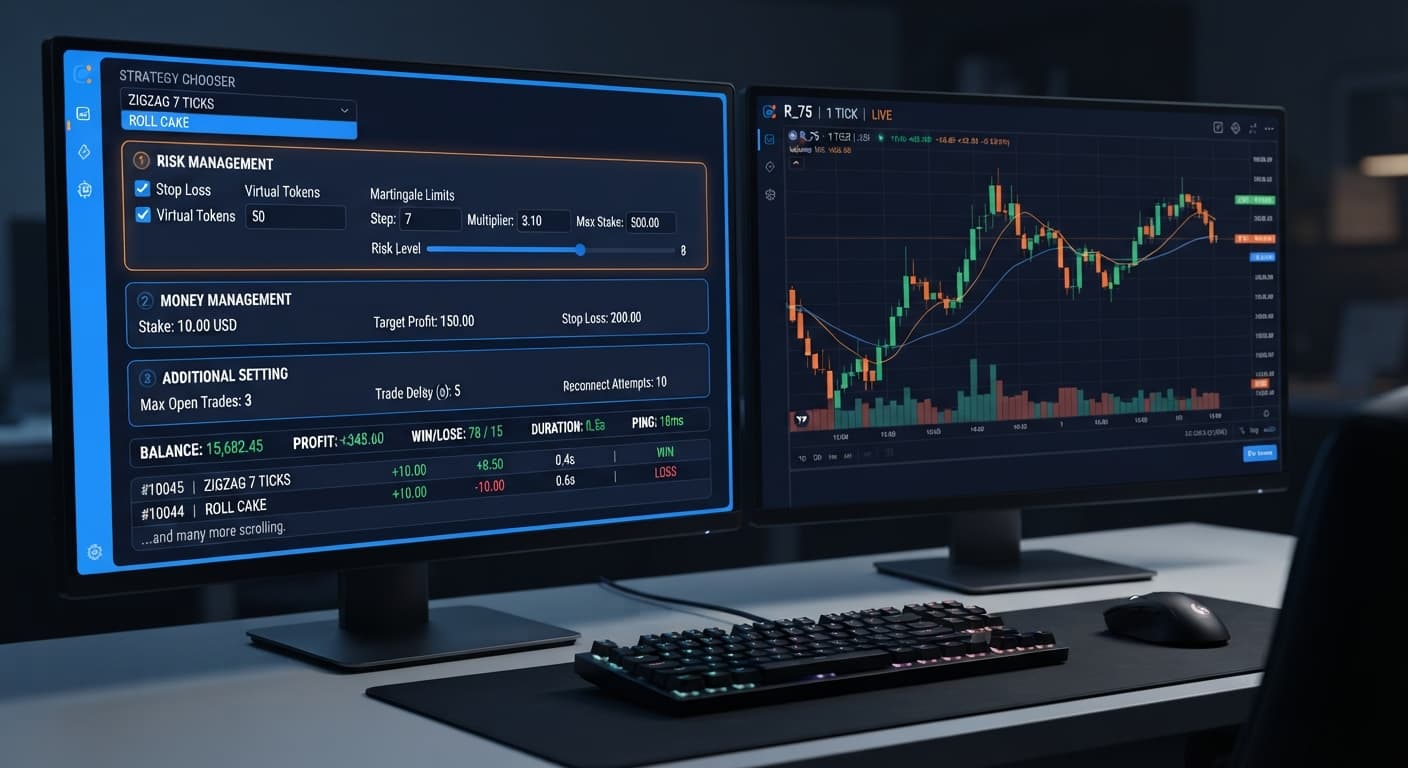
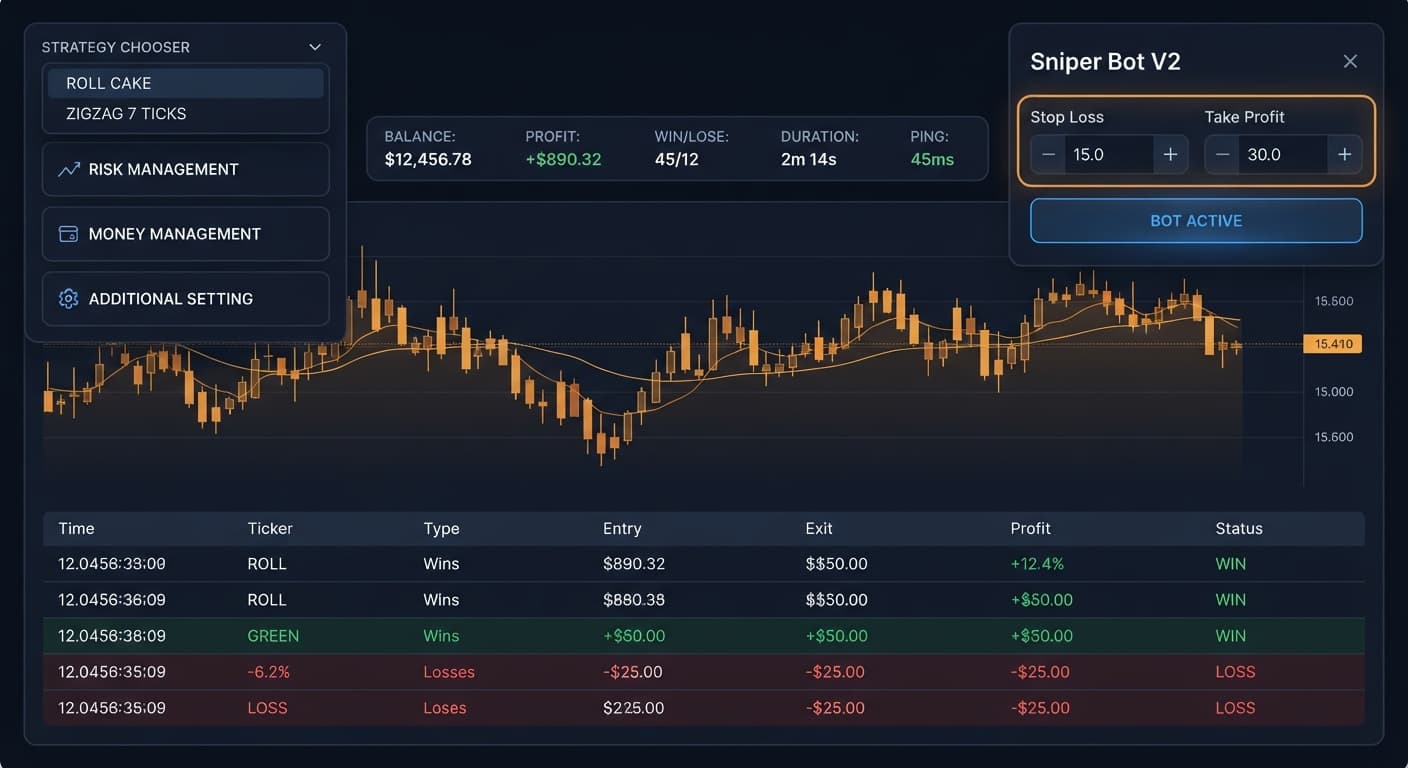
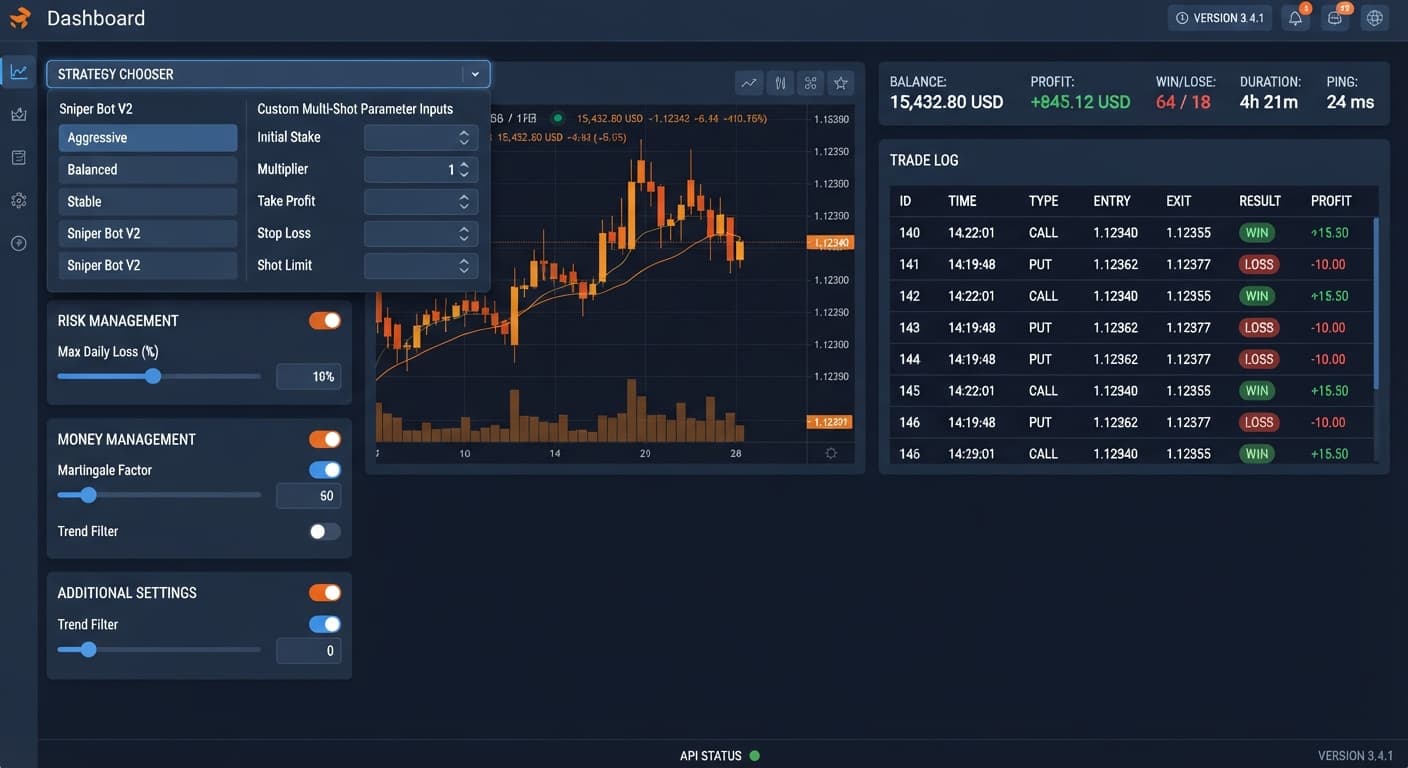
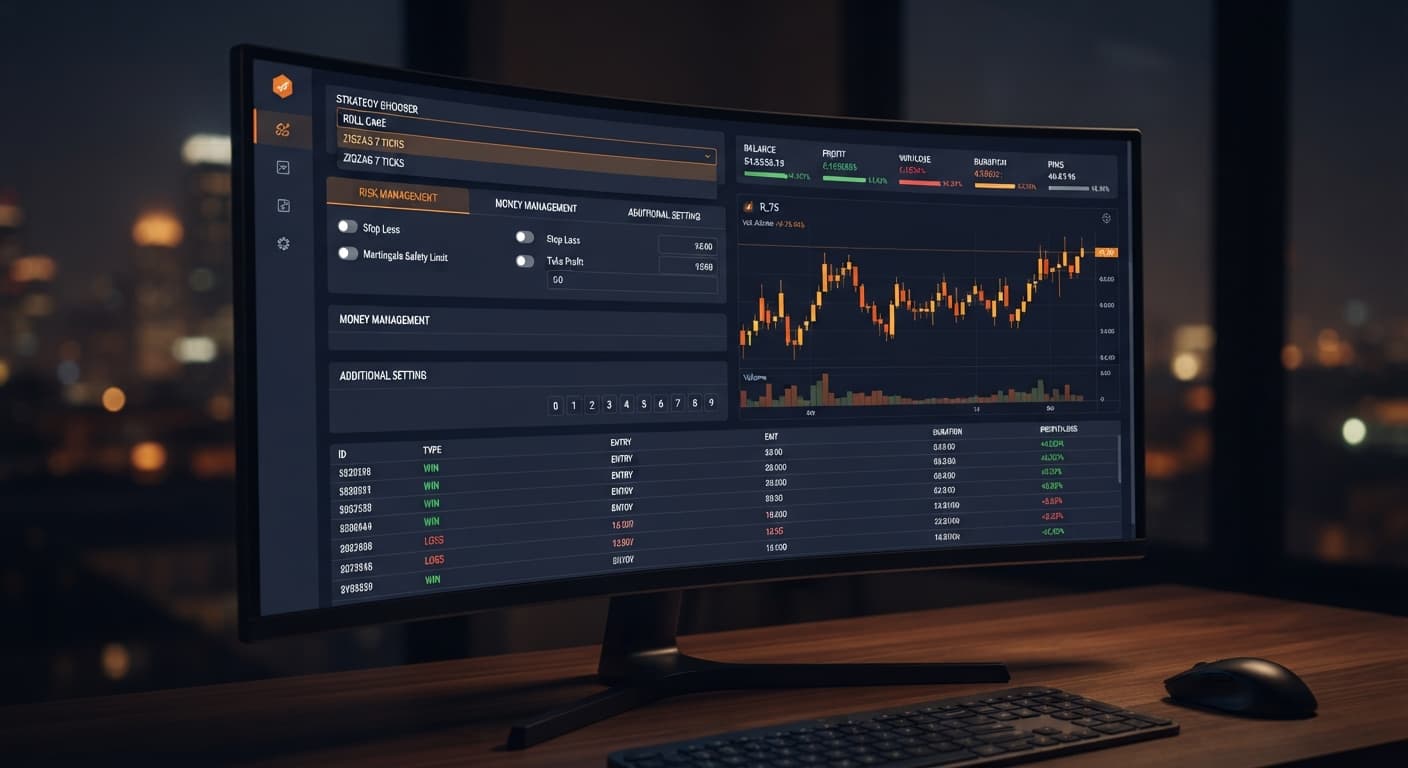
If you are asking is sniper bot v2 safe, the simple answer is that it's as safe as the parameters you toggle, but dangerous if you leave default safety settings inactive. When you open Sniper Bot V2, the browser tool connects directly to Deriv over their official API and presents a live header strip tracking your BALANCE, PROFIT, WIN, LOSE, DURATION, and connection PING. Right beneath that readout sits the Your Token Here input box with its VALIDATE button, followed by the STRATEGY CHOOSER dropdown menu and three configuration blocks: RISK MANAGEMENT, MONEY MANAGEMENT, and ADDITIONAL SETTING. The software itself never stores your money because every contract executes straight on your account through your token. However, launching popular deriv bots or binary bots without checking safety toggles means the script will execute trades non-stop until your session runs out of funds.
Safety on automated interfaces depends entirely on how you limit continuous execution. The table below outlines how specific control combinations alter the bot's behavior during a live trading session.
| Setting Selection | Operational Behavior | Target Trader Profile |
|---|---|---|
EVEN/ODD - ZIGZAG 7 TICKS + Virtual Loss (in a row) set to 3 |
Waits for 7 alternating ticks, paper-trades until 3 consecutive virtual losses occur, then places live trades | Conservative traders prioritizing signal filtering over high trade volume |
DIGIT DIFFER - ROLL CAKE + delay (seconds) after win contract set to 5 |
Fires continuous digit differ contracts with a forced 5-second rest period after every win | Traders seeking fast setups while preventing rate-limit connection throttling |
martingale will active after X real loss set to 2 |
Keeps base Stake flat during early live losses and delays multiplier triggers until 2 real losses occur |
Risk-conscious traders attempting to prevent rapid multiplier escalation |
BACK TO VIRTUAL set to IF REAL WIN/LOSE |
Reverts execution back to the paper-trading environment after every single live win or loss | Capital preservation specialists avoiding back-to-back live exposure |
Take Profit (checked) + Stop Loss (checked) |
Forces an immediate script termination when pre-set profit or drawdown limits are hit | All live traders avoiding uncapped automated trading sessions |
I always choose BACK TO VIRTUAL set to IF REAL WIN/LOSE alongside a Virtual Loss (in a row) count of 3 on EVEN/ODD - ZIGZAG 7 TICKS. This setup ensures that every single live stake requires paper-trading qualification before real capital gets committed.
The most dangerous mistake traders make is typing numbers into parameter boxes without enabling their accompanying controls. Here is how to lock down your setup properly before running any strategy.
Paste your API key into Your Token Here and click VALIDATE. You'll see your current balance appear in the BALANCE readout at the top of the interface. If you want to use paper trading filters, paste a second token into virtual token inside the ADDITIONAL SETTING panel so the bot can place simulated contracts on a virtual account.
Select your preferred trading logic from STRATEGY CHOOSER. Options include digit modes like OVER/UNDER - ZIGZAG 7 TICKS or contract types like RISE/FALL - ROLL CAKE, HIGHER/LOWER - ROLL CAKE, and TOUCH/NO TOUCH - ZIGZAG 7 TICKS.
Enter your base initial trade value in Stake. Next, enter numbers for Take Profit and Stop Loss. Crucially, you must tick the small checkbox right next to both Take Profit and Stop Loss. If those boxes remain unchecked, the bot ignores your numbers and trades indefinitely.
In the ADDITIONAL SETTING panel, set Virtual Loss (in a row) to a number such as 2 or 3. Pick your execution rule under BACK TO VIRTUAL—selecting IF REAL WIN/LOSE is the safest option. Finally, set delay (seconds) after win contract and delay (seconds) after lose contract to at least 2 seconds to keep execution smooth.
It's easy to assume that typing 20 into the Stop Loss field means your session will stop after a $20 drawdown. That isn't how the interface works. The text field sets the numerical boundary, but the checkbox activates the guardrail. If that box is clear, the system records your input but lets trades run straight past your threshold.
Fix: Look closely at RISK MANAGEMENT. Verify that blue checkmarks appear inside the selection boxes directly beside Take Profit and Stop Loss before hitting start.
Martingale increases your stake after losses to recover lost capital, but firing it immediately on your first loss is a fast way to wipe an account. Standard binary bots often default to immediate multiplier scaling, doubling or tripling stakes on short losing runs.
Fix: Open MONEY MANAGEMENT. Change martingale will active after X real loss from 0 or 1 to 2 or 3. Set maximum martingale level to 2 or 3 so the stake caps out, and keep martingale multiplier around 2.0. This keeps your base Stake flat during minor market choppy periods.
Selecting a strategy like DIGIT DIFFER - ROLL CAKE or OVER/UNDER - ROLL CAKE means the bot looks for continuous trade entries. If BACK TO VIRTUAL is left on NEVER, the script stays in live mode indefinitely after its first real trade, ignoring the paper-trading filter you built.
Fix: In ADDITIONAL SETTING, set BACK TO VIRTUAL to IF REAL WIN/LOSE or IF REAL WIN. This forces the bot to fall back to your demo token after live executions, holding real funds back until your virtual loss count triggers again.
When traders run RISE/FALL - ZIGZAG 7 TICKS or EVEN/ODD - ZIGZAG 7 TICKS, they sometimes think waiting for 7 alternating ticks makes the next tick guaranteed. That's false. Deriv synthetic indices rely on independent random draws; past tick direction does not alter future digit probabilities.
Fix: Treat patterns as entry timing rules, not statistical guarantees. Protect against sudden tick spikes by setting stop after thresholds or entering cooling timers in delay (seconds) after lose contract.
Before putting real funds on the line, you should verify your safety settings inside a controlled demo test. This proves your limits actually stop the bot when hit.
Your Token Here and click VALIDATE.EVEN/ODD - ZIGZAG 7 TICKS under STRATEGY CHOOSER.RISK MANAGEMENT, set Stake to 1, Take Profit to 5, and Stop Loss to 3. Tick both enable checkboxes.martingale will active after X real loss to 1, with a martingale multiplier of 2.0 and maximum martingale level of 2.ADDITIONAL SETTING, set Virtual Loss (in a row) to 1, and set BACK TO VIRTUAL to IF REAL WIN/LOSE.PING stays stable (under 300ms).PROFIT hits +5 or reaches -3. Confirm that the bot completely halts execution the moment either limit is touched.If the script stops on cue, your parameters are configured correctly. You can explore other strategy builds in the free Deriv bot library to test different market conditions using these exact setup rules.
Try it yourself on Sniper Bot V2 using a demo balance first.
If you don't have one yet, create a free Deriv account.
Trading involves risk. Past performance does not guarantee future results.
Related: Why Sniper Bot V2 Keeps Losing: Fix Your Risk Settings
Related: Sniper Bot V2 Stop Loss Setup for Deriv Bots
Related: Sniper Bot V2 India: Zero-Knowledge Beginner Guide
Related: Sniper Bot V2 vs Multi Shot: Preset vs Custom Setup (2026)
The original Sniper automated trading bot for Deriv — a named strategy chooser with ROLL CAKE and ZIGZAG 7 TICKS entry patterns across Rise/Fall, Higher/Lower, Touch/No Touch and digit contracts, with virtual-token paper trading before real stakes.
Open Sniper Bot V2 →Sniper Bot V2 is safe only if you use proper safety settings, but it's dangerous if you leave default safety toggles inactive. The software doesn't store your money because every contract executes straight on your Deriv account through your API token, meaning it will trade non-stop until your funds run out if you don't set limits.
You can force an immediate script termination when drawdown limits are hit by checking the Take Profit and Stop Loss boxes. The most dangerous mistake is typing numbers into parameter boxes without enabling their accompanying controls, so make sure to check the boxes before running your strategy.
You can enable paper trading filters by pasting a second token into the virtual token field inside the ADDITIONAL SETTING panel so the bot can place simulated contracts on a virtual account. For instance, setting virtual loss requirements or using the BACK TO VIRTUAL setting ensures the bot paper-trades before committing real capital.
The software itself never stores your money because every contract executes straight on your account through your token. When you paste your API key into the input box and click validate, the browser tool simply connects directly to Deriv over their official API to track your balance and execute trades.
Guides closest to this one.
If your sniper bot v2 keeps losing, fix unchecked stop loss boxes, aggressive martingale multipliers, or missing virtual loss buffers with a four-step audit.
Master your sniper bot v2 stop loss setup on BinaryBot.live. Learn to configure risk controls on this free deriv trading bot safely. Start configuring today.
Sniper bot v2 vs multi shot: compare 11 preset strategies with virtual loss switching against custom manual contract construction on Deriv.