Auto Trading Bots
Sniper Bot V2 API Token Setup for Deriv Bots
Complete sniper bot v2 api token setup guide for deriv bots. Learn how to connect and validate your virtual token safely on BinaryBot.live today.
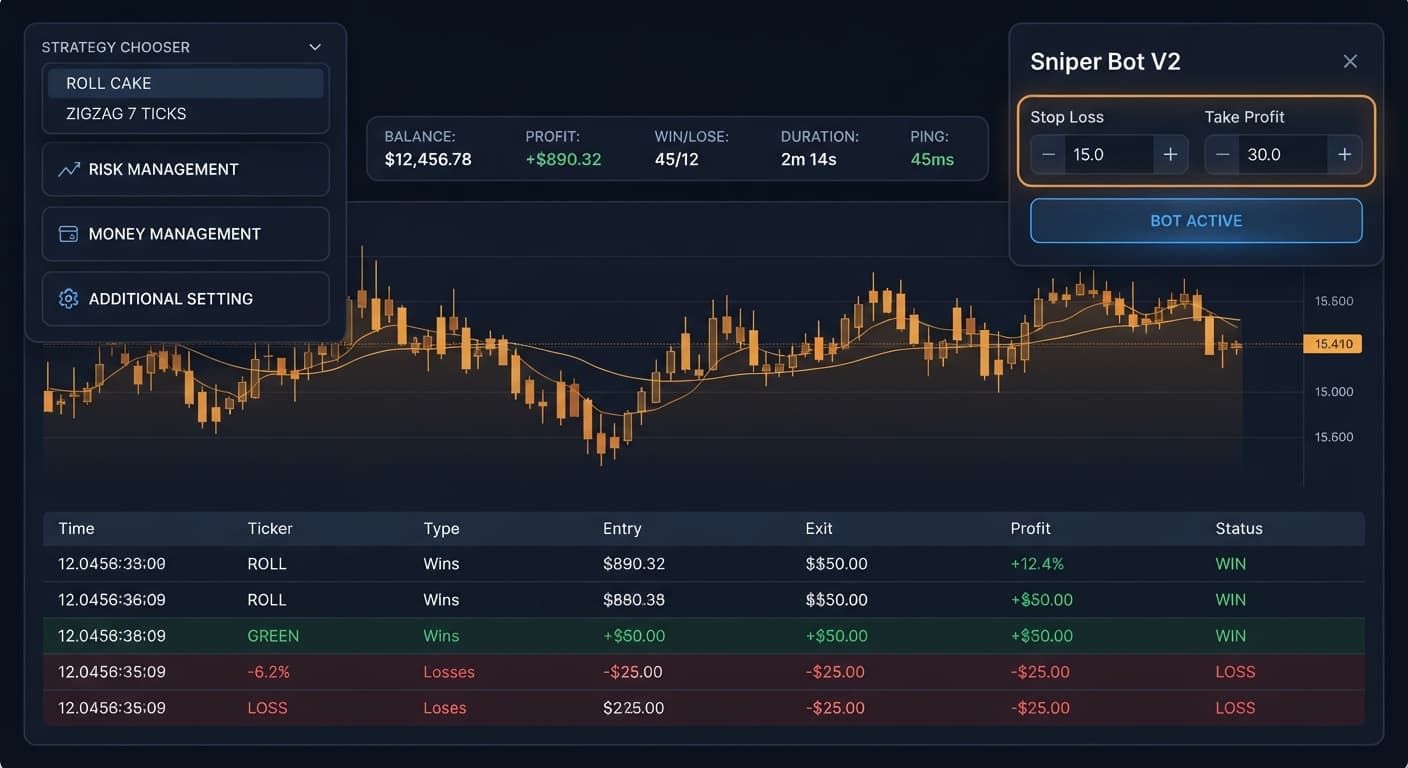
Completing your sniper bot v2 stop loss setup requires checking the small box next to Stop Loss inside the RISK MANAGEMENT panel and entering a hard dollar figure. Entering a dollar amount into the input box without checking that box leaves your account unprotected. The system will keep buying contracts through deep drawdowns because the value field acts as an empty container until enabled. To lock in proper safety parameters on Sniper Bot V2, you must check the box, set your maximum dollar loss, and define your profit target before launching automated execution on deriv bots.
Most traders search for the sniper bot v2 stop loss setup only after watching a session clear out their balance. The default setup on automated tools gives you entry fields for numbers, but leaves the safety triggers turned off. If you type $20 into the stop limit box and hit start without ticking the activation checkbox, the system treats your limit as zero. It won't stop execution when your losses pass $20. It will keep purchasing options until your account runs out of funds.
Synthetic markets like Volatility 75 Index tick every single second, 24 hours a day. When using rapid patterns like RISE/FALL - ROLL CAKE, binary bots can open and settle ten trades in under two minutes. If you run a stake recovery model without a functional stop trigger, five losses in a row can escalate a tiny $2 starting trade into a $62 total loss.
Deriv synthetics are pure continuous random processes. No past tick pattern changes the mathematical probability of the next tick. A run of seven even digits doesn't make an odd digit more likely on the eighth tick. When an adverse run happens, the bot won't magically reverse the trend before your capital vanishes. A hard stop value is the only barrier protecting your session capital from continuous drawdowns.
Follow these exact steps to lock down your protection rules before running live market contracts.
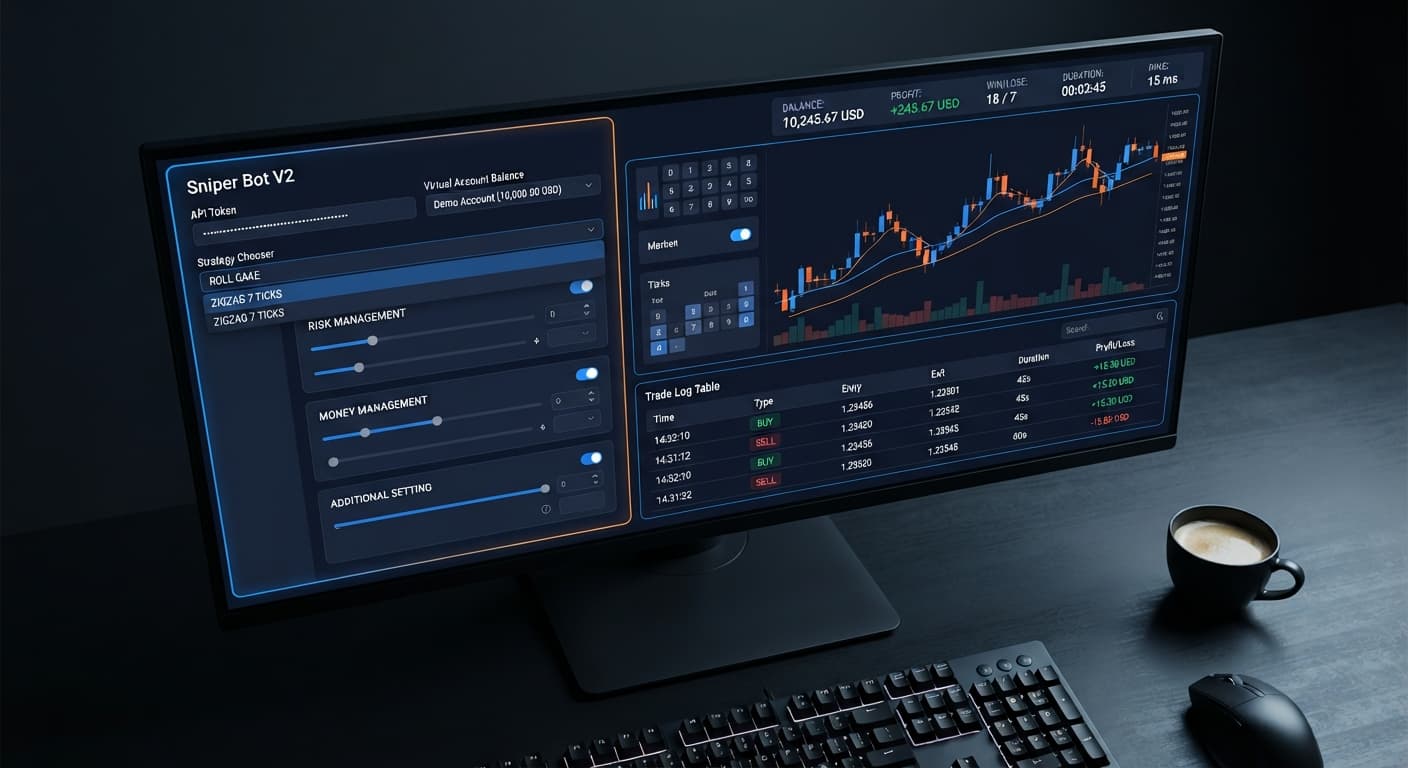
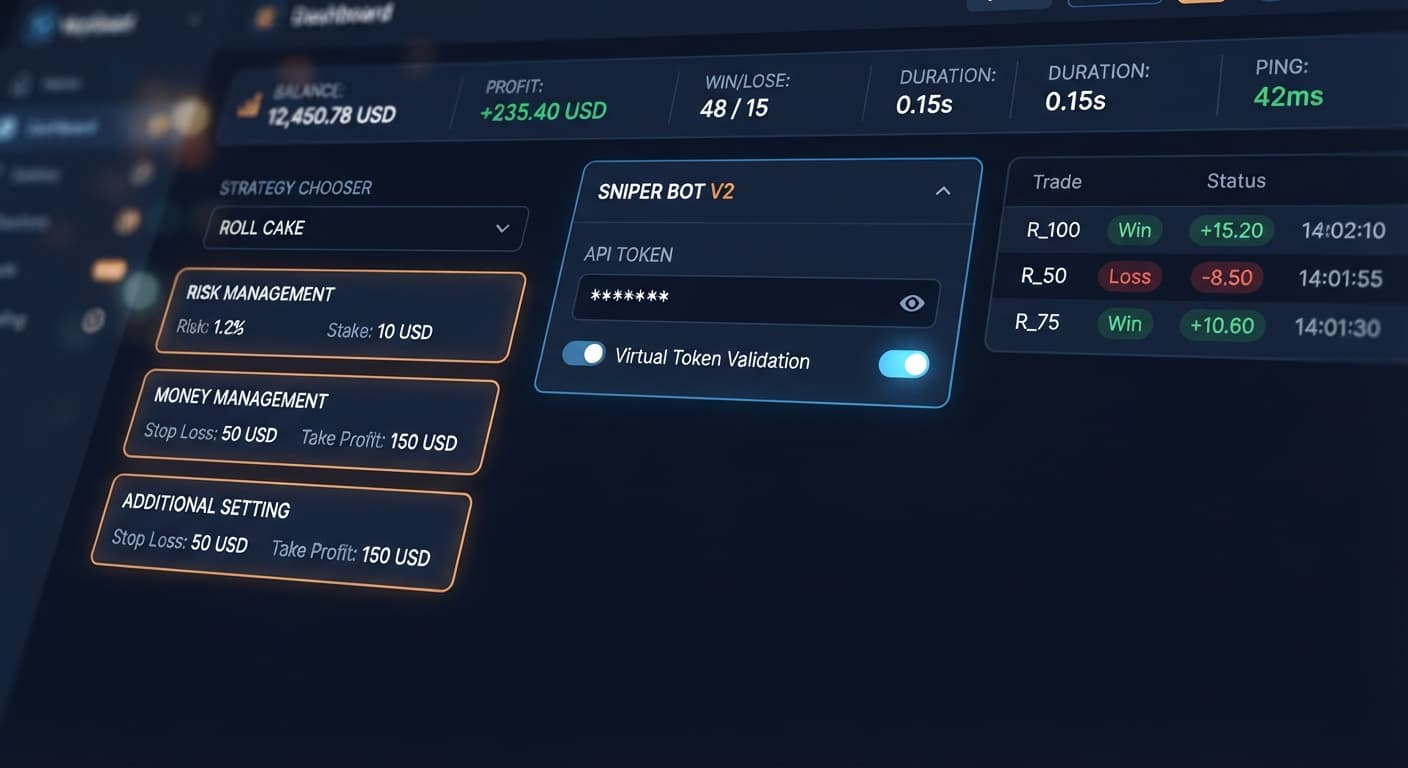
Open the application in your browser and locate Your Token Here. Paste your API key from your Deriv account and click VALIDATE. Check the top header strip to verify that your live BALANCE and active PING connection speed update correctly. Next, open the STRATEGY CHOOSER dropdown and pick your execution model, such as RISE/FALL - ZIGZAG 7 TICKS or EVEN/ODD - ROLL CAKE.
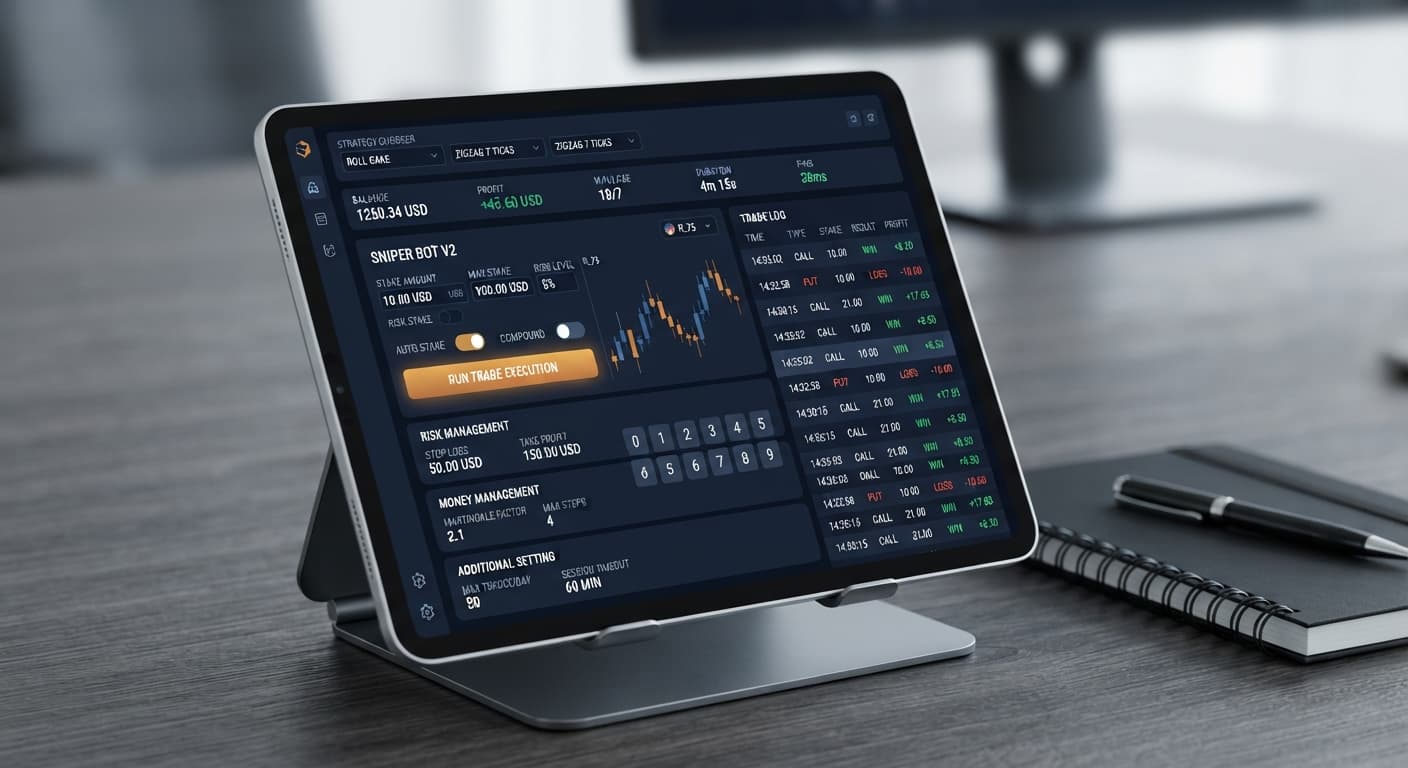
Navigate down to the RISK MANAGEMENT panel. In the Stake field, input your primary contract value. For a $100 account, a standard starting baseline is $1.00 or $2.00. Never start with a stake higher than 2% of your total balance.
Locate the Stop Loss control. Click the checkbox directly adjacent to the input field so a checkmark appears. Once activated, type your exact maximum dollar risk into the numeric field (for example, 20). If this box is unchecked, the bot ignores the $20 figure completely.
Locate the Take Profit section within the same panel. Click the checkbox next to the control to enable the profit ceiling. Input your desired dollar target (for example, 10). Ticking this box ensures that once your session profit reaches $10, execution halts automatically to protect your gains from market pullbacks.
Move to the MONEY MANAGEMENT panel and ADDITIONAL SETTING panel. Set Virtual Loss (in a row) to 2 or 3 if you want the bot to test market execution using paper contracts first. Input your separate virtual token if required, and set BACK TO VIRTUAL to IF REAL LOSE. This keeps your real capital on the sidelines until specified paper trade failures occur.
| Panel Name | Control Name | Action Required | Recommended Value ($100 Account) |
|---|---|---|---|
| RISK MANAGEMENT | Stake | Input base trade size | $2.00 |
| RISK MANAGEMENT | Stop Loss (with enable checkbox) | Tick checkbox & input limit | $20.00 |
| RISK MANAGEMENT | Take Profit (with enable checkbox) | Tick checkbox & input limit | $10.00 |
| MONEY MANAGEMENT | martingale multiplier | Input multiplication factor | 2.0 |
| MONEY MANAGEMENT | maximum martingale level | Input max consecutive steps | 3 |
| ADDITIONAL SETTING | Virtual Loss (in a row) | Input virtual loss threshold | 2 |
To understand why a strict sniper bot v2 stop loss setup is necessary, look at what happens mathematically during a basic loss sequence. Assume you are trading CALL options on the Volatility 75 Index using RISE/FALL - ROLL CAKE with a $100 starting balance. Your base Stake is $2.00, your multiplier is 2.0x, and you forgot to tick the Stop Loss activation checkbox.
Trade 1: Stake $2.00   ---> LOSS  (Session Total: -$2.00,   Balance: $98.00)
Trade 2: Stake $4.00   ---> LOSS  (Session Total: -$6.00,   Balance: $94.00)
Trade 3: Stake $8.00   ---> LOSS  (Session Total: -$14.00,  Balance: $86.00)
Trade 4: Stake $16.00  ---> LOSS  (Session Total: -$30.00,  Balance: $70.00)
Trade 5: Stake $32.00  ---> LOSS  (Session Total: -$62.00,  Balance: $38.00)
Trade 6: Stake $64.00  ---> REJECTED (Required $64.00, Balance is only $38.00)
By the fifth consecutive loss, your accumulated drawdown reaches $62.00. To place the sixth recovery trade, the automated routine attempts to submit a $64.00 stake. Because your remaining balance is only $38.00, the Deriv WebSocket API rejects the contract due to insufficient funds. The session terminates in total failure, leaving you with less than 40% of your initial capital.
Now look at the exact same sequence with a proper sniper bot v2 stop loss setup where Stop Loss was set to $20.00 with the checkbox enabled:
The moment Trade 4 settles, the application detects that total drawdown (-$30.00) exceeds your enabled $20.00 stop threshold. Execution shuts down immediately. Trade 5 ($32.00) never gets placed. You walk away with $70.00 remaining in your account, preserving your equity to trade another day.
Once your safety parameters are locked in and execution begins, monitor the readout bar across the top header of the application interface. You will track six live telemetry values:
BALANCE: Real-time account balance from Deriv.PROFIT: Current session net profit or loss in dollars.WIN: Total number of settled winning contracts.LOSE: Total number of settled losing contracts.DURATION: Active running time of the current automated session.PING: Millisecond latency to the Deriv server.When execution hits your Stop Loss or Take Profit limit, the bot immediately halts contract requests. You'll see the execution button change state, and the trade log will display a final termination notice stating that risk boundaries were reached.
If you choose a pattern-based strategy like EVEN/ODD - ZIGZAG 7 TICKS or TOUCH/NO TOUCH - ZIGZAG 7 TICKS, notice that trades trigger much less frequently than under ROLL CAKE mode. ZIGZAG patterns wait for seven consecutive alternating ticks before issuing a contract. An empty log for several minutes does not mean the system is frozen; it simply means the specific entry condition hasn't printed in the live market stream yet.
Even traders who understand basic risk management frequently make two key configuration mistakes on deriv bots.
The most common mistake on binary bots is filling out the numeric entry boxes while leaving the activation toggles blank. In the interface, Take Profit (with enable checkbox) and Stop Loss (with enable checkbox) each require two distinct inputs: checking the box AND typing the number. If you input 15 into the Stop Loss box but leave the checkbox open, the system treats risk control as disabled. Always visually double-check that the box shows an active tick mark before starting execution.
The second failure point occurs when traders misconfigure the MONEY MANAGEMENT panel. Setting martingale will active after X real loss to a low number like 1 without restricting maximum martingale level will override your balance protection during fast drawdowns. For example, if your base stake is $5 and your multiplier is 2.0x, setting four allowed levels means your fifth loss requires $80. If your enabled stop loss is $30, the fourth trade loss (-$75 total) will halt the bot, but only after taking a loss much larger than your target stop due to poor stake sizing. Always scale your initial Stake and maximum martingale level so that two step-up losses do not exceed your total dollar stop limit.
Try out your configuration on Sniper Bot V2 using a demo balance first.
If you don't have an active account yet, create a free Deriv account to test your automated setups in a risk-free virtual environment.
Trading involves risk. Past performance does not guarantee future results.
Related: Sniper Bot V2 API Token Setup for Deriv Bots
Related: Sniper Bot V2 Deriv Bots Guide: 11 Strategies Setup
The original Sniper automated trading bot for Deriv — a named strategy chooser with ROLL CAKE and ZIGZAG 7 TICKS entry patterns across Rise/Fall, Higher/Lower, Touch/No Touch and digit contracts, with virtual-token paper trading before real stakes.
Open Sniper Bot V2 →You probably typed a dollar amount into the input box without checking the small box next to `Stop Loss`. Leaving that activation box unchecked makes the system treat your limit as zero and ignore the figure completely.
Open the `RISK MANAGEMENT panel`, check the small box directly next to the `Stop Loss` control, and enter your maximum dollar risk into the numeric field. You also need to define your profit target and base stake before launching the bot.
The value field acts as an empty container until enabled, meaning the system won't stop execution when your losses pass your set limit. It will keep purchasing contracts through deep drawdowns until your account runs out of funds.
Locate the `Take Profit` section within the `RISK MANAGEMENT panel` and click the checkbox next to the control to enable the profit ceiling. Input your desired dollar target so execution halts once your session profit reaches that amount.
Guides closest to this one.
Complete sniper bot v2 api token setup guide for deriv bots. Learn how to connect and validate your virtual token safely on BinaryBot.live today.
Master sniper bot v2 demo account setup on BinaryBot.live. Learn to configure virtual tokens for this free deriv trading bot safely.
Learn how to use sniper bot v2 for automated trading on Deriv. Follow this step-by-step tutorial to configure and run your first free binary bot today.