Auto Trading Bots
Sniper Bot V2 API Token Setup for Deriv Bots
Complete sniper bot v2 api token setup guide for deriv bots. Learn how to connect and validate your virtual token safely on BinaryBot.live today.
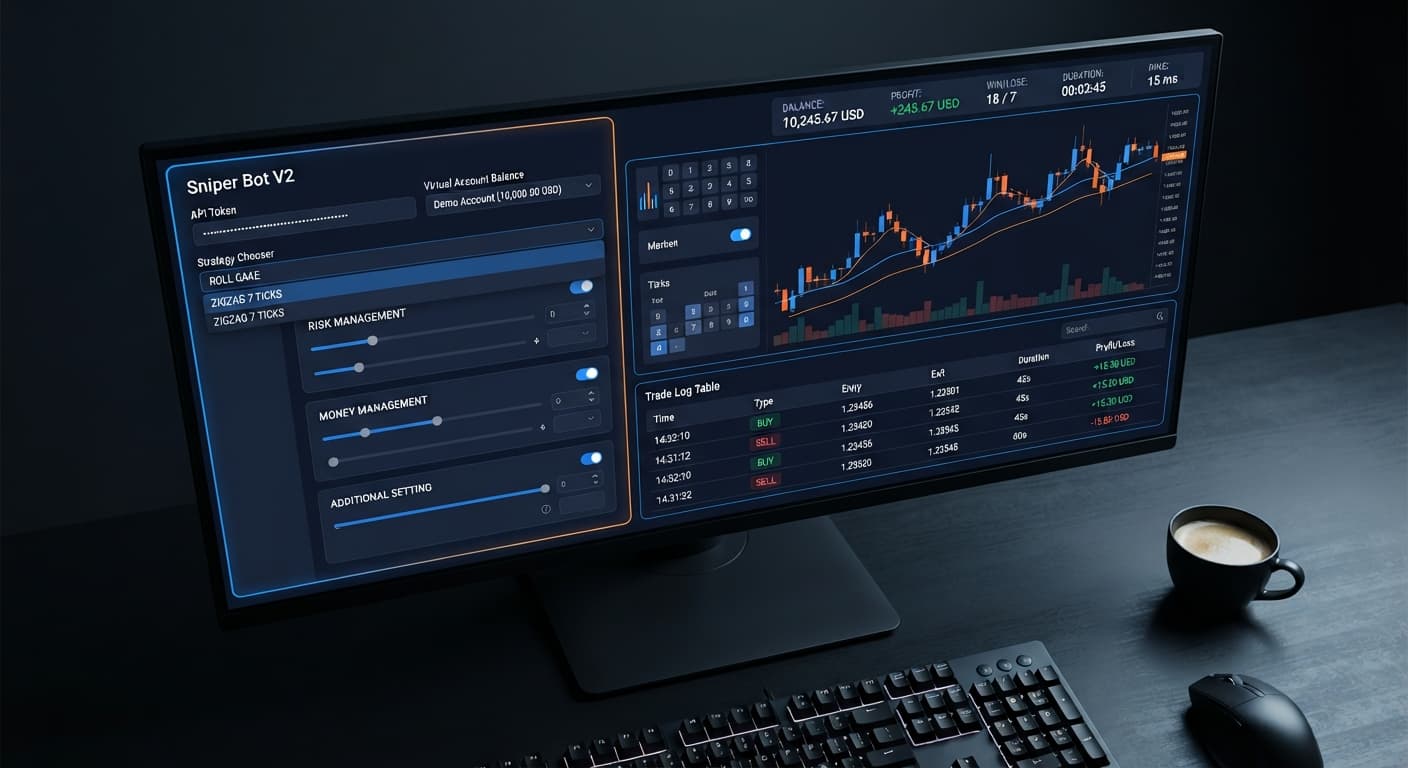
Completing your sniper bot v2 demo account setup requires pasting your API token into the workspace, selecting an execution strategy, and establishing drawdown rules before running automated orders. To do this safely, copy a token from your Deriv virtual account, enter it into the 'Your Token Here' box, and click VALIDATE. This links the tool directly to your demo account balance, allowing you to stress-test entry rules without putting real capital on the line.
If you're testing automated setups on synthetic markets, using a virtual balance first isn't optional—it's how you avoid costly configuration mistakes. Many traders blow through capital simply because they configured a multiplier incorrectly or forgot to turn on their risk limits. This guide walks you step-by-step through setting up paper-trading rules, configuring safety delays, and mapping your parameters on Sniper Bot V2.
Before you begin, gather the exact credentials and account settings needed to run tests safely. You don't need to deposit funds to run paper tests, but you do need an active token from Deriv's backend.
Open the platform and locate the primary credential panel at the top of the screen. Paste your virtual API key directly into the input field labeled Your Token Here, then click the VALIDATE button.
+-------------------------------------------------------+
| Your Token Here: [ xxxxxxxxxxxxxxxx ]  [ VALIDATE ]   |
+-------------------------------------------------------+
| BALANCE: $10,000.00 | PROFIT: $0.00 | WIN: 0 | LOSE: 0 |
+-------------------------------------------------------+
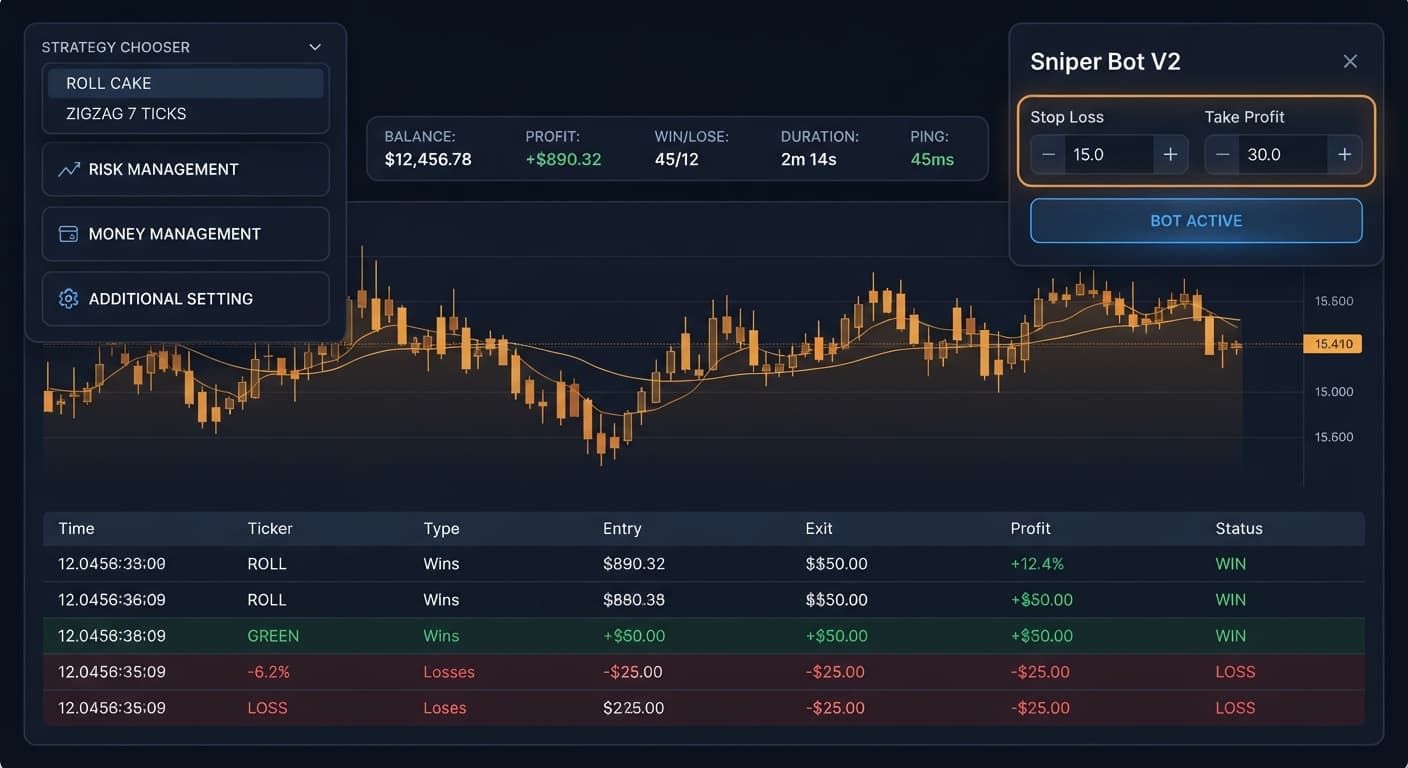
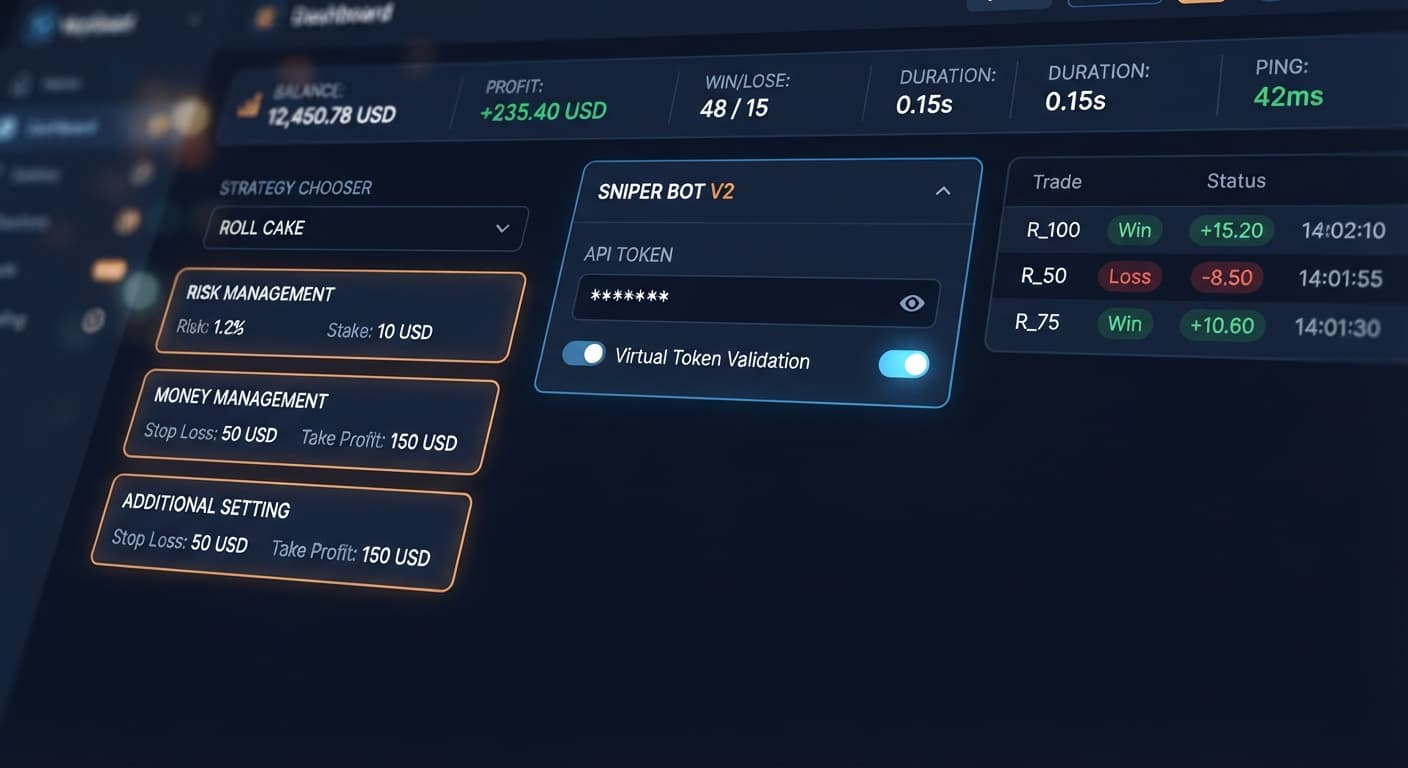
Once validated, the top header bar updates immediately. You'll see active live readouts showing your current BALANCE, PROFIT, WIN / LOSE counts, session DURATION, and current connection PING. If the readouts show your demo balance, your connection is active and ready for configuration.
Move to the STRATEGY CHOOSER panel. Instead of building trade rules from individual blocks, select one pre-built pattern strategy from the drop-down list.
The strategy you choose dictates both the contract type placed on Deriv and the entry filter used:
When setting up your sniper bot v2 demo account setup for the first time, pick a slower pattern like EVEN/ODD - ZIGZAG 7 TICKS so you can watch how the entry filter waits for setup conditions before firing.
Open the RISK MANAGEMENT panel to define your stake size and safety caps. Enter your starting stake dollar value into the Stake box.
Next, set up your target limits:
+-------------------------------------------------------+
| RISK MANAGEMENT PANEL                                 |
| [x] Take Profit: $15.00                               |
| [x] Stop Loss:   $50.00                               |
|     Stake:       $2.00                                |
+-------------------------------------------------------+
Unchecked boxes mean the platform ignores the text value. If you type $50 into Stop Loss but leave the checkbox empty, the software won't halt trading when your losses hit $50.
When you want your bot to paper-trade on demo conditions before taking live risks, open the ADDITIONAL SETTING panel.
Enter the required virtual conditions into these exact fields:
For example, if you set Virtual Loss (in a row) to 3 and select IF REAL WIN under BACK TO VIRTUAL, the system places simulated trades using your secondary token. Once it records 3 paper losses in a row, it switches over to place a live contract. Win or lose, the BACK TO VIRTUAL rule dictates when it drops back into paper mode.
Open the MONEY MANAGEMENT panel to set up your stake recovery rules and timing delays.
Set these values based on your bankroll limit:
Setting a post-loss delay gives the platform time to rest between entries rather than immediately re-entering on volatile ticks.
Understanding mathematical drawdown is critical when configuring recovery multipliers on binary bots. Martingale stake sequences grow exponentially, and a brief losing streak can exhaust a small account balance faster than expected.
Here is a concrete breakdown of a $100 starting demo account using a $2 base stake, a 2.0x multiplier, and a setting where martingale will active after X real loss is set to 1, capped at a maximum martingale level of 4.
| Trade # | Account Status | Stake Amount | Contract Result | Total Loss in Streak | Remaining Balance |
|---|---|---|---|---|---|
| 1 | Normal | $2.00 | Loss | $2.00 | $98.00 |
| 2 | Martingale Level 1 | $4.00 | Loss | $6.00 | $94.00 |
| 3 | Martingale Level 2 | $8.00 | Loss | $14.00 | $86.00 |
| 4 | Martingale Level 3 | $16.00 | Loss | $30.00 | $70.00 |
| 5 | Martingale Level 4 | $32.00 | Loss | $62.00 | $38.00 |
| 6 | Max Level Reached | $64.00 | Insufficient | $62.00 | $38.00 |
Notice what happens on Trade 6. After five straight losses, your cumulative loss stands at $62.00, leaving only $38.00 in your account balance. Because the required next stake is $64.00, the platform cannot place the contract. The sequence fails, leaving you with a 62% drawdown on your starting account.
Synthetic indices run on independent random draws. Past tick history does not force the next digit to change, meaning consecutive loss patterns happen routinely.
Running automated software without double-checking settings leads to simple errors that can drain your account. Here are four common failure points and how to fix them using built-in controls.
+------------------------------------------------------------------------+
| REAL-WORLD ERROR MAP & ON-SCREEN FIXES                                 |
+---------------------------------------------------+--------------------+
| Observed System Behavior                          | Corrective Action  |
+---------------------------------------------------+--------------------+
| Bot keeps trading past specified loss limits      | Check Stop Loss    |
| Zero trades executed after several minutes         | Strategy selection |
| Rapid stake scaling wipes virtual balance         | Martingale level   |
| Bot trades live money when paper testing intended | Token verification |
+---------------------------------------------------+--------------------+
Traders frequently type dollar values into the Take Profit or Stop Loss fields in the RISK MANAGEMENT panel but forget to tick the adjacent checkboxes. Without an active checkmark, the input fields are completely ignored. Always verify that both checkboxes show an active check mark before hitting start.
Selecting ZIGZAG 7 TICKS patterns causes the software to analyze movement without buying contracts until seven alternating ticks occur consecutively. Traders often think the system has frozen and restart the software unnecessarily. If you want high-frequency entries during testing, switch your selection in the STRATEGY CHOOSER to a ROLL CAKE pattern like EVEN/ODD - ROLL CAKE or RISE/FALL - ROLL CAKE.
A common error on binary bots is assuming that five consecutive Odd ticks make an Even tick more likely on the next draw. Synthetic index ticks on Deriv are entirely independent events. To hedge against sudden tick clustering, use the Virtual Loss (in a row) field in the ADDITIONAL SETTING panel to delay real execution until a specific sequence of losses has cleared.
Setting a high martingale multiplier without restricting maximum martingale level in the MONEY MANAGEMENT panel leads to immediate account wipeout during bad runs. Always cap your maximum level to a number your balance can absorb—typically no more than 3 or 4 iterations on a standard bankroll.
Once your sniper bot v2 demo account setup is tuned and tested under simulated conditions, you can evaluate session logs with zero risk to real funds.
Test your strategy rules safely on Sniper Bot V2 using a virtual balance first.
If you don't have a virtual environment ready yet, create a free Deriv account to generate your test tokens.
Trading involves risk. Past performance does not guarantee future results.
Related: Sniper Bot V3 API Token Setup for Deriv Bots
The original Sniper automated trading bot for Deriv — a named strategy chooser with ROLL CAKE and ZIGZAG 7 TICKS entry patterns across Rise/Fall, Higher/Lower, Touch/No Touch and digit contracts, with virtual-token paper trading before real stakes.
Open Sniper Bot V2 →You connect it by copying an API token from your Deriv virtual account, pasting it into the 'Your Token Here' box on Sniper Bot V2, and clicking VALIDATE. This links the tool directly to your virtual balance so you can test safely.
You need a primary API token created under your Deriv account settings with both Read and Trade permissions. You can also create a secondary virtual token if you plan to run automated paper trades before switching to real stakes.
You'll know it's linked because the top header bar updates immediately after validation to show your current demo balance, profit, win and lose counts, session duration, and connection ping.
Sniper Bot V2 features pre-built pattern strategies like Even/Odd, Rise/Fall, Higher/Lower, Touch/No Touch, Digit Differ, and Over/Under. You can choose to run these using either a Roll Cake continuous entry or a Zigzag 7 Ticks filter.
Guides closest to this one.
Complete sniper bot v2 api token setup guide for deriv bots. Learn how to connect and validate your virtual token safely on BinaryBot.live today.
Master your sniper bot v2 stop loss setup on BinaryBot.live. Learn to configure risk controls on this free deriv trading bot safely. Start configuring today.
Learn how to use sniper bot v2 for automated trading on Deriv. Follow this step-by-step tutorial to configure and run your first free binary bot today.