Deriv Basics
Free Binary Bots for Absolute Beginners (2026)
Run free binary bots directly in your browser using Deriv and an API token with read and trade permissions, requiring no software downloads or server setups.
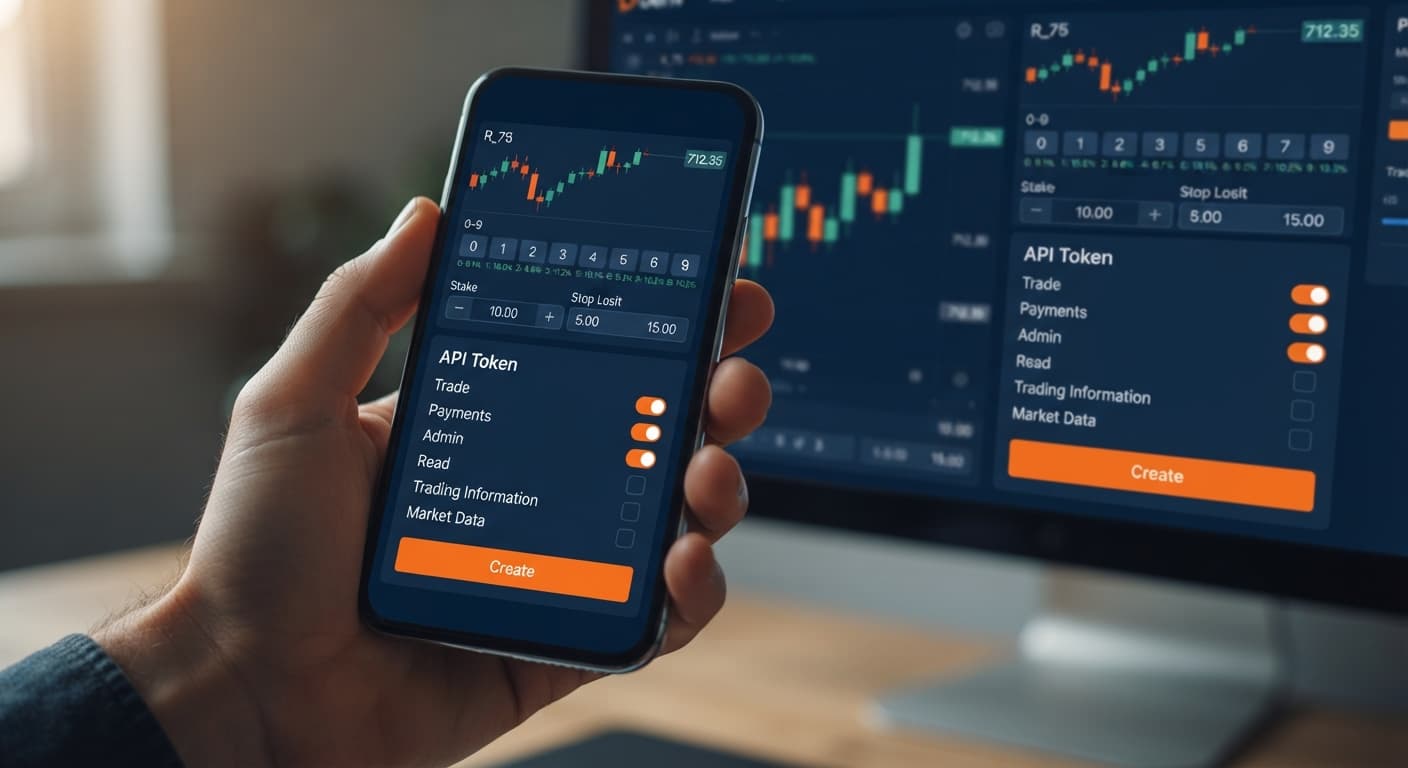
When you set up automated execution on BinaryBot.live, you don't hand over your account login, password, or direct deposit controls. Instead, you create an API token inside your Deriv account.
An API token is an encrypted key string that acts as a secure permission slip. It tells Deriv's servers exactly what a browser app can and cannot do on your behalf. A scope is the individual permission rule assigned to that token. If you grant a token permission to place trades but deny it permission to withdraw funds, any attempt to move money out of your account gets rejected instantly at the server level.
Browser-based trading tools connect directly to Deriv over their official API. Every order—whether it's a DIGITEVEN contract on Volatility 10 Index or a DIGITUNDER contract on Volatility 75 Index—runs directly through your official Deriv account. No funds ever pass through or store on BinaryBot.live.
To start testing strategies safely, you can load your token into a demo account carrying virtual funds. This lets you inspect execution speed and platform behavior before putting real capital on the line. If you're looking to explore different automated setups, you can browse the free bot library to see what tools are available.
Deriv offers five separate API token scopes when you generate a new token in your account settings. Understanding what each scope does keeps your account safe while ensuring your scripts run without interruption.
Deriv Token Scopes:
├── Read                  [REQUIRED for Bots]
├── Trade                 [REQUIRED for Bots]
├── Payments              [NEVER SELECT]
├── Admin                 [NEVER SELECT]
└── Trading Information   [OPTIONAL / UNNEEDED]
Here's how those scopes break down:
To run deriv bots on BinaryBot.live, you need exactly two scopes selected: Read and Trade.
Selecting Read lets tools like LDP Analyzer Pro display your live virtual balance and stream real-time tick digits. Selecting Trade allows tools like Solid Trading Bot to submit purchase requests when your entry criteria trigger.
You should never select Payments or Admin for any web trading script. Third-party automation platforms don't need access to your cashier or your account settings. If a web tool asks for Admin or Payment scopes, don't use it. Keeping those boxes unchecked creates a hard security wall between your automation and your account management.
When you paste your token into a browser tool, the interface shifts through observable visual states. Knowing what the screen looks like when a token works—and when it fails—helps you solve connection issues fast.
| What You See | What It Means | What To Do |
|---|---|---|
| Green status light, balance displays "USD 10,000.00 Demo", live ticks updating | Token validated with Read and Trade scopes active on a demo account. | You're ready to test your digit strategies safely. |
| Red input border, trade log shows "Invalid Token" | Token string was copied incorrectly or revoked in Deriv settings. | Copy the full token string again from your Deriv dashboard. |
| Connected status, but trade log displays "Insufficient Permission" upon entry signal | Token has Read scope enabled, but Trade scope was left unchecked. | Delete the token in Deriv, create a new one with Read and Trade checked, and reconnect. |
| Stalled tick counter, trade log shows "Connection Closed" | WebSocket connection lost due to browser sleeping or network drop. | Refresh the page and re-enter your API token. |
If you run AutoPilot without checking the Trade box, the screen will display live ticks and calculate numbers, but the moment the system attempts to open a DIGITEVEN or DIGITODD contract, the trade log will flag an authorization error. The engine stops instantly because Deriv denies the purchase request.
Follow these steps to generate and connect your token using a virtual balance.
Log into your Deriv dashboard. Click on your account balance dropdown at the top right and select your Demo Account. Never generate your first testing token on a real account. Open the menu, go to Account Settings, and select API Token from the security menu.
In the Token Name field, type a clear label like BinaryBot-Demo-Test. Next, look at the scope checkboxes. Check Read and check Trade. Leave Payments, Admin, and Trading Information unchecked.
Click the Create button. A long string of random alphanumeric characters will appear in your token list. Click the copy icon next to the string. Keep this token private—anyone with this token can execute trades on your account.
Open your selected tool on BinaryBot.live. Find the API Token input box, paste your key, and click Connect. Look at the top bar: the connection indicator should turn green, displaying your virtual demo balance (such as $10,000.00 USD).
Select a basic contract type like DIGITOVER, set your predict digit to 2, and set your stake to 1. Click Start Bot. Watch the execution log for 10 ticks to confirm contracts open and settle correctly.
Some traders check every box on the token screen thinking it prevents access errors. Doing this exposes your cashier and security settings unnecessarily.
Generating your API token while toggled to a real account puts real money at risk during script testing. Software logic bugs can execute fast orders before you can press stop.
Deleting a token inside Deriv while running binary bots causes active browser sessions to disconnect instantly.
If you select Trade but forget Read, the bot can attempt to buy contracts, but it won't be able to fetch your account balance or receive live price streams. The web tool won't know if a contract won or lost.
Try it yourself on the free tools using a demo balance first.
If you don't have one yet, create a free Deriv account.
Trading involves risk. Past performance does not guarantee future results.
Related: Free Binary Bots for Absolute Beginners (2026)
Related: LDP Analyzer Best Time to Trade: Beginner's Guide (2026)
The groundwork every bot guide assumes you already have — creating a Deriv API token, choosing demo vs real, and connecting safely.
Start with a Free Bot →You need to select exactly two scopes: Read and Trade. Read lets the app view your balance and tick streams, while Trade allows it to purchase and manage digit contracts.
No, you should never select Payments or Admin scopes for a web trading script. Third-party automation platforms do not need access to your cashier or account settings.
Yes, you can load your token into a demo account carrying virtual funds to test strategies safely. This lets you inspect execution speed and platform behavior before risking real capital.
No, you don't hand over your account login, password, or direct deposit controls. Instead, you create an encrypted API token that acts as a secure permission slip for the browser app.
Guides closest to this one.
Run free binary bots directly in your browser using Deriv and an API token with read and trade permissions, requiring no software downloads or server setups.
Deriv synthetic index digit contracts settle against the final decimal digit of a tick from 0 to 9, supporting Even, Odd, Over, Under, Match, and Diff types.
The ldp analyzer best time to trade is when short-term statistical variance creates digit frequency imbalances across a 50-tick to 100-tick window.