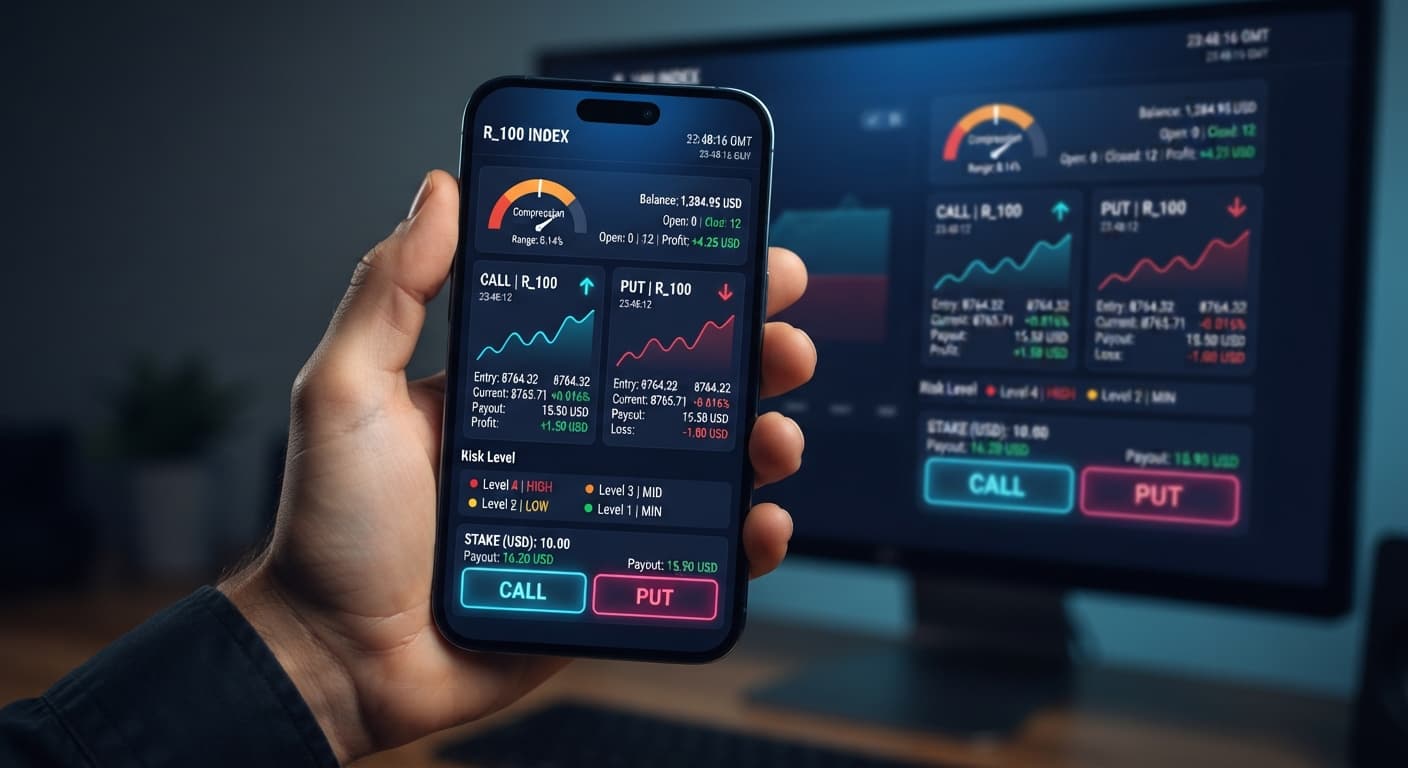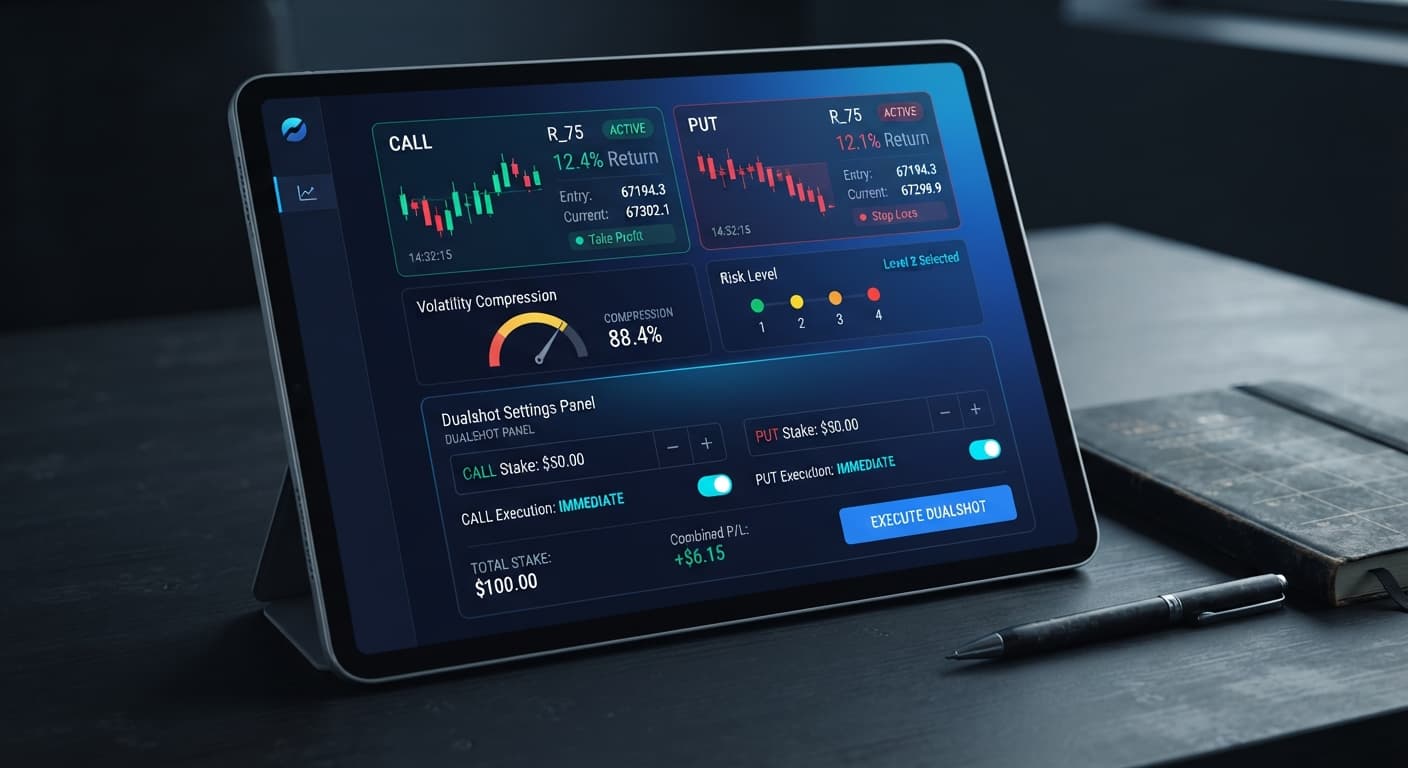
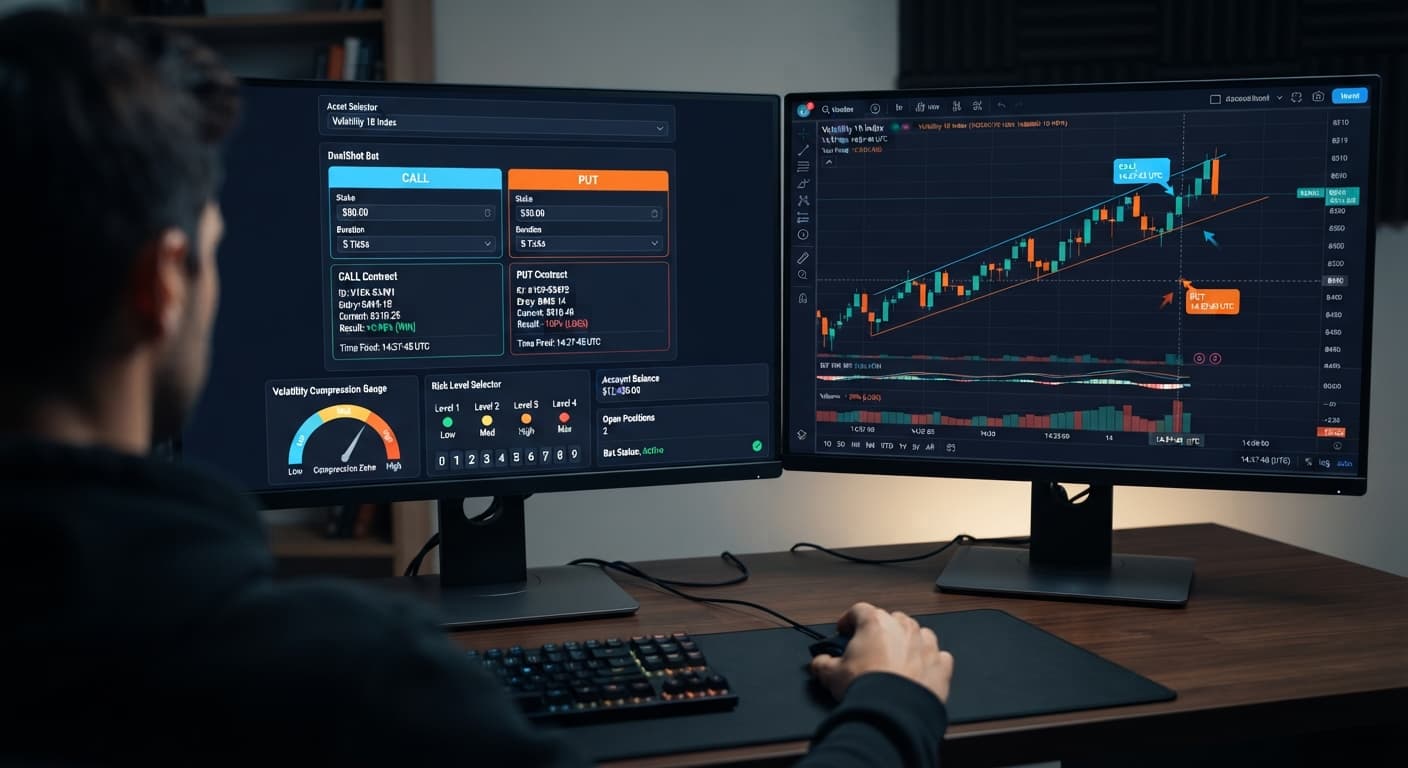
Auto Trading Bots
DualShot on Volatility 10: Simultaneous CALL and PUT Setup
Set Risk Level to Low Risk (Safer) when running dualshot on volatility 10 to catch true expansion breaks and avoid losing stakes on flat market micro-ticks.
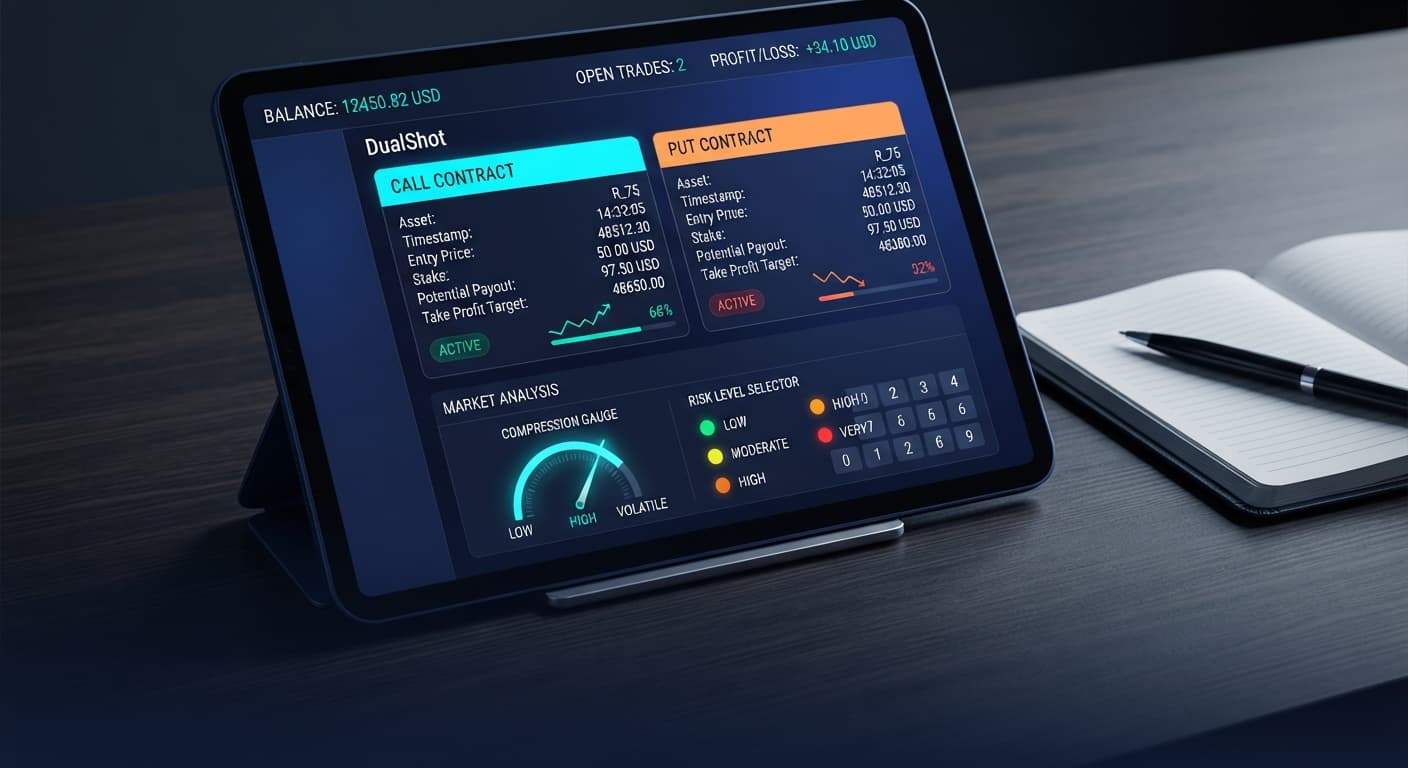
Configuring your dualshot take profit settings comes down to balancing double-contract exposure against real-time volatility expansion on synthetic indices. Because DualShot fires two contracts simultaneously in one click—a CALL and a PUT on the same market—your net session target relies on catching strong directional moves that outpace flat market drift. You'll want to lock in a profit goal based on fixed contract burst cycles rather than letting the bot run unattended through quiet price action.
When you execute simultaneous CALL and PUT positions on binary bots, every entry doubles your total stake outlay. If you place a $10 trade, the bot opens one $10 CALL and one $10 PUT at the exact same tick, creating a $20 combined risk. The outcome depends on the size of the move, not its direction. If market volatility drops and price stays flat during contract duration, both legs can fail or yield an incomplete offset.
That's why target calculations differ from single-direction trading systems. To profit on a dual execution, price must move far enough to push one contract deep into the payout zone while the opposing leg expires loss-bound. A standard payout of 95% returns $19.50 on a winning $10 leg, meaning a single isolated burst carries a narrow gap unless tied to strong expansion filters. Setting realistic dualshot take profit settings means targeting three to five successful expansion triggers per session and stopping immediately once reached.
Navigating the tool requires zero software installation or third-party extension downloads. The software connects directly to Deriv over their official API, running straight inside your web browser. You can test execution logic on a Deriv virtual account or switch to live trading through the same panel.
All core execution logic is handled by two primary inputs on the main interface:
Stake ($): Determines the dollar amount allocated to each trade leg. Remember, setting this field to 10 means your account balance commits 20 across the simultaneous CALL and PUT orders.Risk Level: A four-stage toggle that determines how strict the algorithm's compression detection must be before triggering an order.There aren't any hidden martingale multipliers or stake progression menus on this screen. Profit management depends strictly on controlling your base stake and setting your stop threshold manually before starting execution.
The Risk Level setting acts as the primary gatekeeper for trade frequency and entry precision. When you run an automated trading bot, setting risk levels too low leads to long waiting periods between signals. Setting them too high fires contracts into flat, dead markets where dual losses accumulate quickly.
To optimize dualshot take profit settings, match your chosen risk tier to the specific volatility index you're trading. Here is how the four settings evaluate market compression and breakout signals:
| Risk Level Setting | Compression Sensitivity | Breakout Threshold | Market Fit | Entry Frequency |
|---|---|---|---|---|
| 🟢 Low Risk (Safer) | High filter strictness | Large price expansion | High volatility indices (e.g. Volatility 100) | Low (1-3 signals per hour) |
| 🟡 Medium Risk | Moderate filter strictness | Medium price expansion | Standard synthetic indices (e.g. Volatility 75) | Balanced (4-8 signals per hour) |
| 🟠 High Risk | Loose filter strictness | Minor price expansion | Trending markets with steady momentum | High (10+ signals per hour) |
| 🔴 Very High Risk | Minimal filter strictness | Micro tick fluctuations | Fast scalping during high-volume periods | Very High (Immediate trigger) |
If you're using 🟢 Low Risk (Safer), the bot waits until ticks consolidate into a tight range before detecting a breakout burst. This setting produces fewer total trades, but each trigger occurs when expansion momentum is highest. That makes hitting your session target cleaner, as individual breakout wins cover market fees far more consistently.
On 🔴 Very High Risk, the compression filter is almost disabled. Trades fire rapidly during minor price ticks. In a flat market, firing dual contracts without compression leads to double-sided drawdown because price fails to move far enough in either direction.
Follow these steps to configure your targets safely before starting any automated sequence on deriv bots.
Paste your Deriv API token into the top connection field and select your virtual demo account. Never run a new configuration on a live account until you've verified performance on virtual funds.
Click the Stake ($) field and enter your single-leg value. If your session bankroll is $200, set Stake ($) to 5. This places a $10 total exposure per dual-shot execution, keeping risk at 5% of bankroll per trigger.
Toggle the Risk Level control to 🟢 Low Risk (Safer) or 🟡 Medium Risk. These options enforce strict compression detection, ensuring contracts fire only when price volatility expands significantly.
Decide your exit threshold before pressing start. A disciplined target is 10% to 15% net gain on your active bankroll per session. If starting with $200, stop the bot manually the moment account balance reaches $220. Set a strict hard stop loss at $170 to protect capital if choppy markets hit consecutive legs.
Click to activate the bot. Watch the real-time execution log to verify that CALL and PUT contracts deploy simultaneously without execution delays. Stop trading as soon as your pre-set profit target displays in the account dashboard.
When running DualShot, precision monitoring requires watching clear visual feedback on the interface. Understanding screen responses keeps you from running contracts during bad API states or quiet market phases.
Here is what you'll observe on screen during normal operation versus connection anomalies:
| What You See on Screen | Interface Meaning | Required Trader Action |
|---|---|---|
| Green API light with stable ping time | Active WebSocket connection established | Safe to configure settings and run trades |
| Yellow status tag: "Analyzing Compression" | Bot evaluating recent tick volatility | Allow algorithm to process incoming tick updates |
| Dual green log rows with matching time tags | Successful simultaneous CALL and PUT deployment | Monitor trade duration and outcome log |
| Red stake field highlight or validation error | Invalid entry in Stake ($) control box |
Re-check number format and balance limits |
| Orange status banner: "API Latency Detected" | Slow data response from socket stream | Pause execution until connection stabilizes |
Watch the trade log closely during your first three trades. You should see two distinct contract IDs generated within milliseconds of each other. If you see only one trade register or notice a delay between legs, stop the bot immediately—network lag degrades the dual-entry edge.
When your profit target is reached, click the stop control and log out of the API connection. Leaving an automated trading bot running indefinitely in the background invites sudden drawdowns during low-volatility market shifts.
Try testing your strategy on DualShot using a demo account first. If you don't have an active account, create a free Deriv account to begin.
Trading involves risk. Past performance does not guarantee future results.
Related: DualShot vs Manual Trading on Deriv Bots
Related: DualShot Settings: Configure BinaryBot.live Deriv Bots
Related: DualShot Not Working: Fix Deriv Bots Simultaneous Trades
Deriv best strategy bot with advanced analysis tools — executes 2 simultaneous trades in one click, firing CALL and PUT contracts at the same time with real-time volatility detection.
Open DualShot →DualShot take profit settings rely on catching strong directional moves that outpace flat market drift during fixed contract burst cycles. Because the bot fires simultaneous CALL and PUT contracts, you'll want to target three to five successful expansion triggers per session and stop immediately once you reach them.
The Stake setting determines the dollar amount allocated to each trade leg. If you set your stake to $10, the DualShot bot commits $20 total across both the simultaneous CALL and PUT orders.
The Risk Level is a four-stage toggle ranging from Low to Very High Risk that determines how strict the algorithm's compression detection must be before triggering an order. Matching your chosen risk tier to the specific volatility index helps you avoid firing contracts into dead markets where dual losses can accumulate.
No, there aren't any hidden martingale multipliers or stake progression menus on the interface. Profit management with DualShot depends strictly on controlling your base stake and setting your stop threshold manually before execution starts.
Guides closest to this one.
Set Risk Level to Low Risk (Safer) when running dualshot on volatility 10 to catch true expansion breaks and avoid losing stakes on flat market micro-ticks.
Compare dualshot vs manual trading for Deriv bots. Learn how executing simultaneous CALL and PUT trades differs from single-direction execution. Try it free.
Learn how to configure dualshot settings on BinaryBot.live for automated trading bot strategies. Set up your free deriv bot today. Start now!