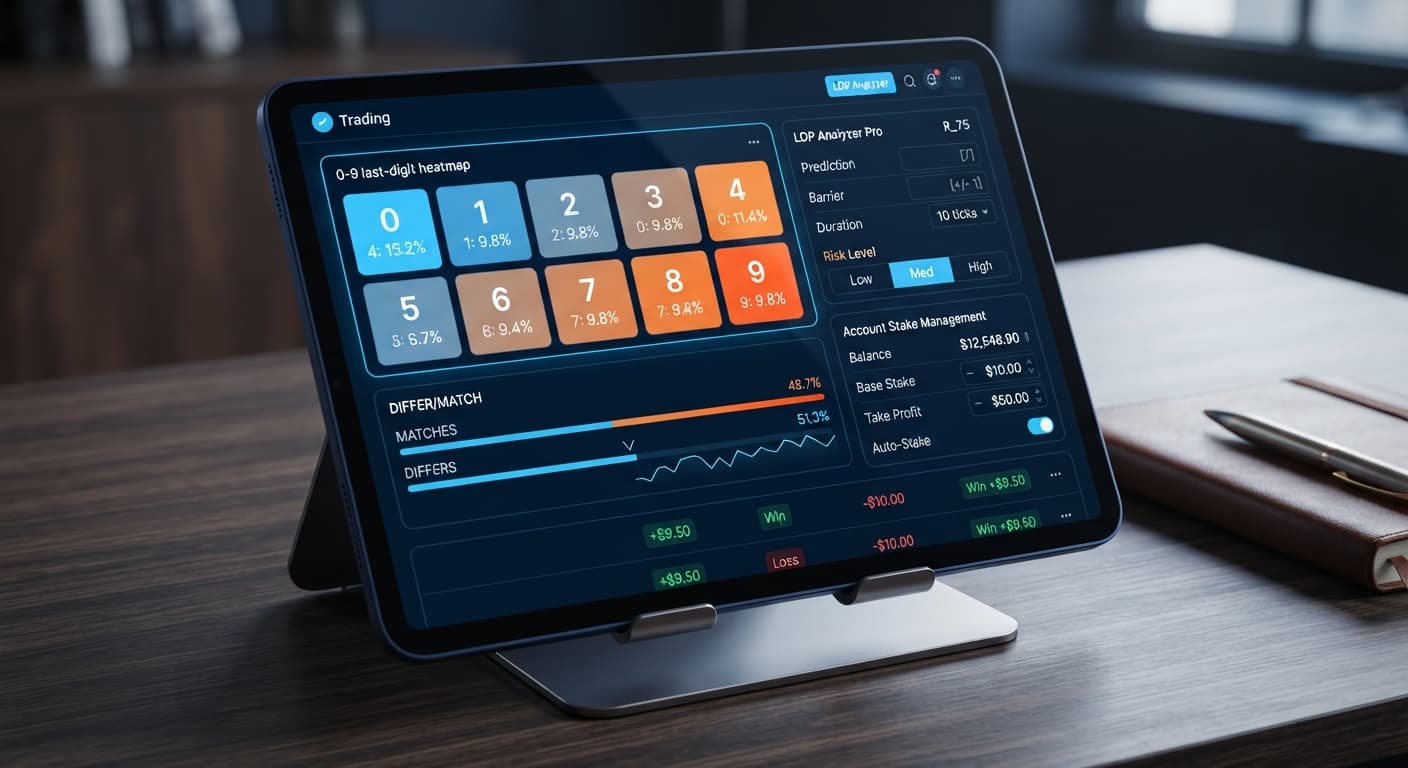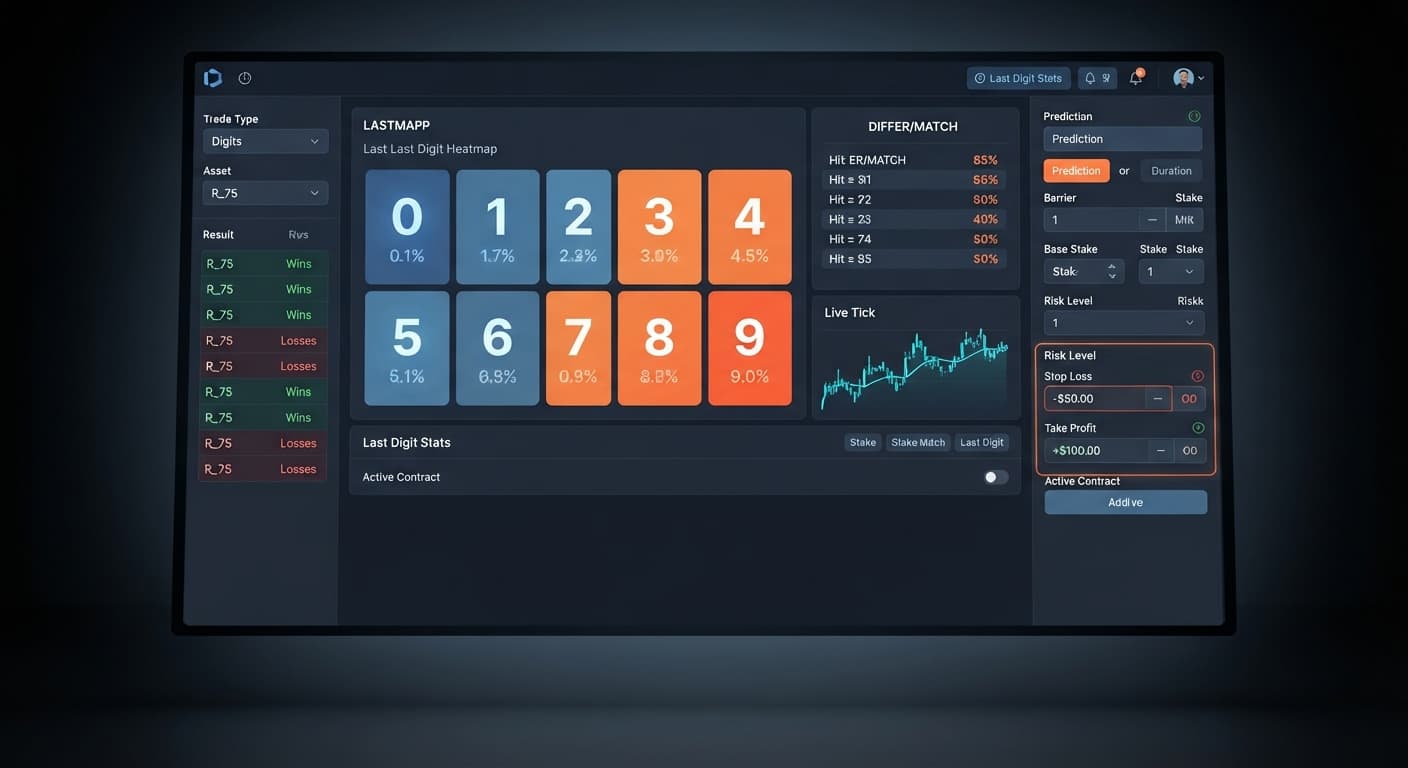
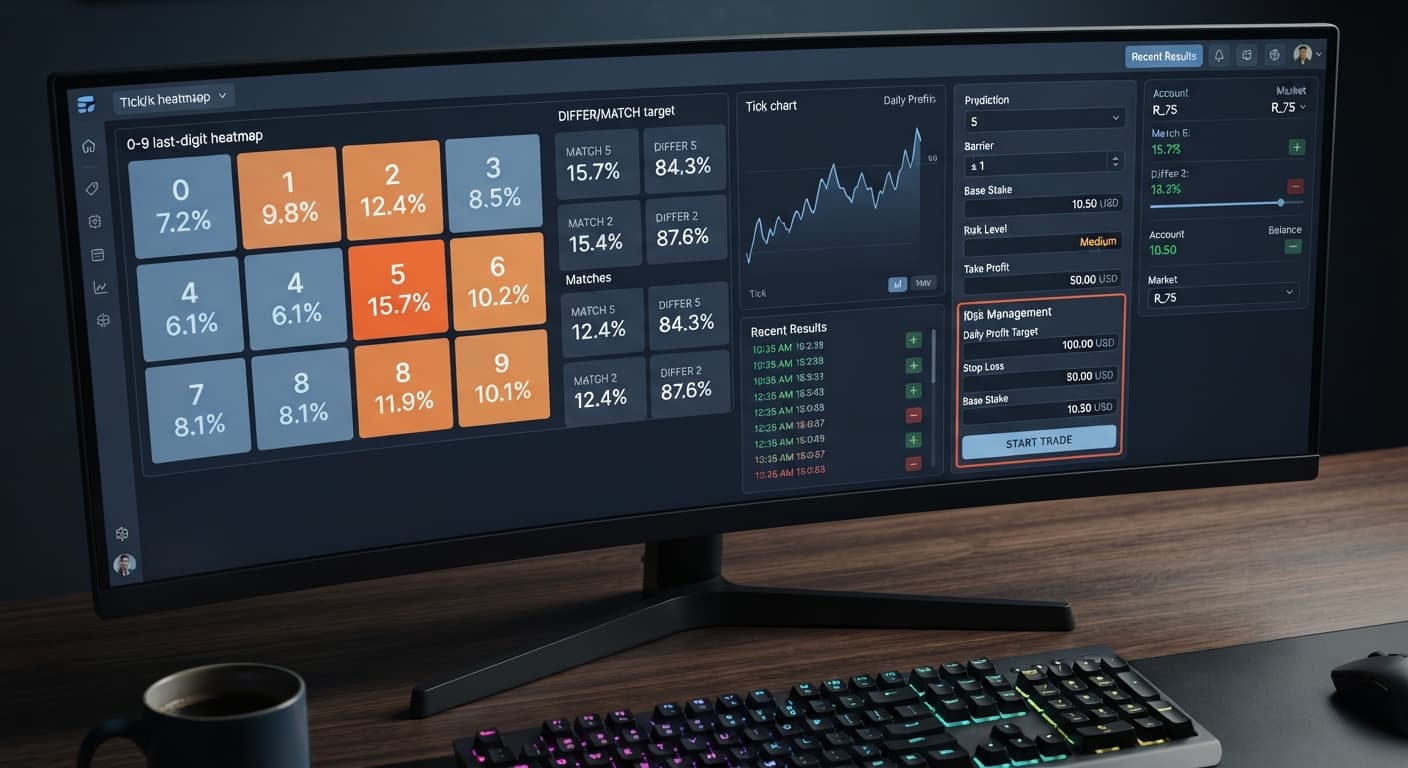
Digit Analysis
LDP Analyzer Pro Daily Profit Target Setup Guide
Define Base Stake, Target Profit, and Stop Loss to complete your ldp analyzer pro daily profit target setup and lock in wins automatically.
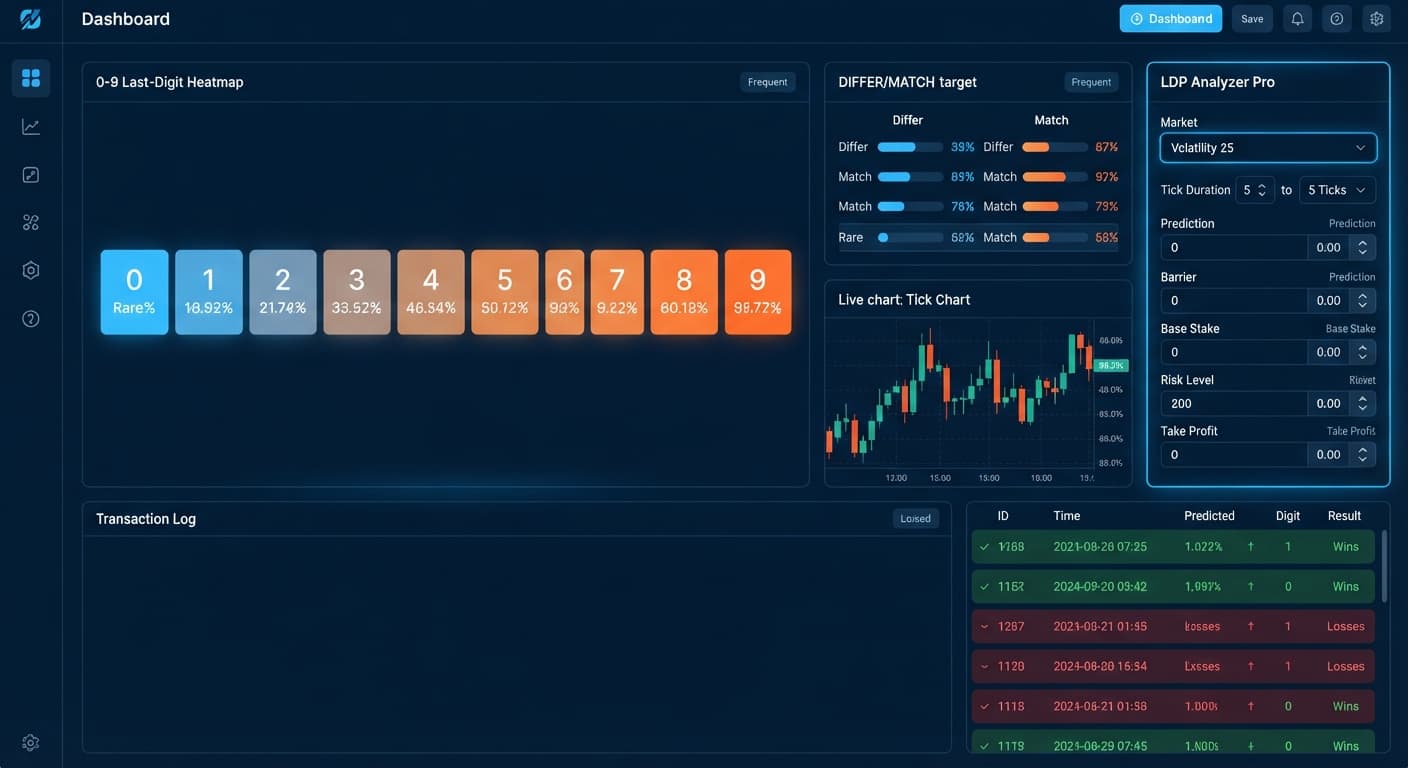
To configure LDP Analyzer Pro on Volatility 25, select Volatility 25 from the market dropdown, set Duration (ticks) to 10 or 20, choose your strategy mode like Match/Differ, and enter your Base Stake alongside strict Stop Loss ($) limits. This tool connects directly to Deriv over their official API, reading live tick data to auto-fire DIGITDIFF, DIGITMATCH, or OVER/UNDER contracts without execution lag. It takes less than two minutes to configure, giving you a structured digit strategy backed by visual frequency indicators.
By the time you finish this guide, you'll have a fully configured digit-trading script running on either a virtual or real balance. This walk-through caters to traders who want to clear out emotional guessing and deploy automated deriv bots keyed specifically to Volatility 25's movement profile.
Before touching any configuration controls on the dashboard, confirm you have these assets ready:
Open the market dropdown menu at the top of the panel and select Volatility 25. Next, click the strategy selector to choose your execution mode: Over/Under, Even/Odd, Match/Differ, or Rise/Fall. When running the ldp analyzer pro on volatility 25, Match/Differ and Over/Under are the primary choices for digit traders.
Choosing Match/Differ instructs the engine to place DIGITDIFF or DIGITMATCH contracts, while Over/Under deploys DIGITOVER or DIGITUNDER orders. Unlike basic binary bots that require manual click speed, this interface instantly locks onto Volatility 25's stream and renders the live 0-9 digit heatmap for that asset. You'll see green and red percentage highlights appear across digits 0 through 9 on the panel immediately.
Locate the Duration (ticks) selector and pick your execution length from the available options: 10, 20, 30, 50, or 100 ticks. On Volatility 25, setting Duration (ticks) to 10 or 20 ticks keeps contract exposure short while drawing fresh statistical samples from the heatmap.
The live heatmap calculates digit frequencies in real-time. If digit 0 shows an unusually low percentage over recent ticks, setting Duration (ticks) to 10 lets you enter a DIGITDIFF order quickly against that cold digit before local distribution shifts. The lower status bar on screen will confirm your selected duration as soon as you click the value.
Input your starting capital into the Base Stake and Initial Stake fields (for example, $1.00). Next, choose your Risk Level setting: Conservative (1.5x), Moderate (2x), or Aggressive (2.5x).
The Risk Level selection maps directly to the stake multiplier used during loss-recovery cycles:
Multiplier.Multiplier to 2.0x.Multiplier to 2.5x.Choosing Conservative drops your Multiplier to 1.5x, which reduces equity drops during consecutive losses compared to standard 2x martingale setups seen in generic binary bots. Your current selection updates the Stake preview calculation box right below the input controls.
If you selected Over/Under mode, enter your target number into the Barrier field (where OVER wins > N, and UNDER wins < N). For instance, setting Barrier to 2 means DIGITOVER contracts win whenever the tick ends on 3, 4, 5, 6, 7, 8, or 9.
If you chose Match/Differ mode instead, enter your digit of choice into the Prediction field. When trading ldp analyzer pro on volatility 25 in Differ mode, selecting the digit currently displaying the lowest percentage on the visual heatmap increases your single-tick buffer. Remember that synthetic indices generate independent draws, so statistical cold spots offer historical context rather than deterministic guarantees.
Enter dollar limits into Take Profit ($) and Stop Loss ($). For example, set Stop Loss ($) to $15.00 on a $100.00 session balance, and set Take Profit ($) or Target Profit to $5.00.
If you toggle on AutoPilot, the strategy runs server-side. This means trades continue running directly on Deriv's platform even if your browser tab closes or loses connection. Once these safety rails are filled in, click the start button. The trade log at the bottom of the screen will show active contract IDs, entry ticks, selected target digits, and cumulative session P/L in real time.
The matrix below maps specific parameter combinations to target trading profiles on Volatility 25. Match these values to your account balance and risk tolerance before launching live contract execution.
| Profile Name | Strategy Mode | Duration (ticks) | Risk Level | Target Control Setting | Best Suited For |
|---|---|---|---|---|---|
| Conservative Differ | Match/Differ | 10 | Conservative (1.5x) | Prediction set to lowest heatmap digit |
Beginners prioritizing small, frequent wins |
| Aggressive Differ | Match/Differ | 20 | Moderate (2x) | Prediction set to lowest heatmap digit |
Traders seeking faster recovery speed |
| High-Payout Match | Match/Differ | 10 | Conservative (1.5x) | Prediction set to highest heatmap digit |
Capitalized accounts aiming for DIGITMATCH payouts |
| High-Probability Under | Over/Under | 20 | Moderate (2x) | Barrier set to 7 (UNDER < 7) |
Systematic traders taking high win-rate positions |
| Balanced Over | Over/Under | 30 | Conservative (1.5x) | Barrier set to 2 (OVER > 2) |
Mid-length automation runs with lower drawdown |
My personal preference when trading ldp analyzer pro on volatility 25 is the Conservative Differ setup running at 10 ticks. The 1.5x multiplier controls drawdown spikes while DIGITDIFF contracts give you a wide nine-out-of-ten statistical win window on every tick.
Automated trading tools execute orders faster than manual clicks, but misconfigurations will draw down an account rapidly. Here is how to offset the four primary execution risks.
Past digit draws do not change the probability of the upcoming tick. Deriv synthetic index ticks are completely independent random events. Relying purely on a cold digit display to hit a win streak is a quick way to lose capital.
Stake multipliers escalate fast during consecutive losses. On an Aggressive (2.5x) setting, a $1.00 starting stake increases to $2.50, $6.25, $15.62, and $39.06 across just four losing ticks. That is a $64.43 total drawdown on a four-loss sequence.
Risk Level locked to Conservative (1.5x) and set a hard Stop Loss ($) equal to no more than 15% to 20% of your session bankroll.Because AutoPilot processes contracts server-side, closing your browser window does not pause contract placement on your Deriv balance. If you leave the bot active without defined exit parameters, it will trade indefinitely.
Take Profit ($) and Stop Loss ($) before toggling AutoPilot on. The server-side script will kill execution the moment either dollar limit is touched.Choosing a high tick setting like 50 or 100 ticks subjects short-term digit strategies to unnecessary market drift. Volatility 25 can form brief micro-trends that work against high or low barrier setups over longer tick counts.
Duration (ticks) to 10 or 20 ticks. Shorter durations keep your entry and exit points tightly tied to the current heatmap sample without exposing your balance to structural index drift.Test these configurations on a virtual balance using LDP Analyzer Pro before allocating live money.
If you don't have an active trading account yet, create a free Deriv account to generate your API token.
Trading involves risk. Past performance does not guarantee future results.
A fast Deriv digit-analysis tool and trading bot with a live 0-9 last-digit heatmap, DIFFER/MATCH targets, even-odd and over-under signals, and a 3-strategy auto-trader with risk controls.
Open LDP Analyzer Pro →You can configure it in under two minutes by selecting Volatility 25 from the market dropdown, setting your tick duration to 10 or 20, choosing a strategy mode like Match/Differ, and entering your base stake and stop loss limits.
You need an active Deriv API token generated with both read and trade scopes enabled before you touch the dashboard controls.
Setting the duration to 10 or 20 ticks keeps your contract exposure short while pulling fresh statistical samples from the live digit heatmap.
The tool offers Conservative with a 1.5x multiplier, Moderate with a 2x multiplier, and Aggressive with a 2.5x multiplier for loss-recovery cycles.
Guides closest to this one.
Define Base Stake, Target Profit, and Stop Loss to complete your ldp analyzer pro daily profit target setup and lock in wins automatically.
Set Risk Level to Conservative (1.5x) and duration to 10 ticks for the ldp analyzer pro small account strategy to protect your Deriv balance.
Complete the ldp analyzer pro stop loss setup on Deriv by entering your maximum dollar loss into the Stop Loss ($) field before launching the bot.