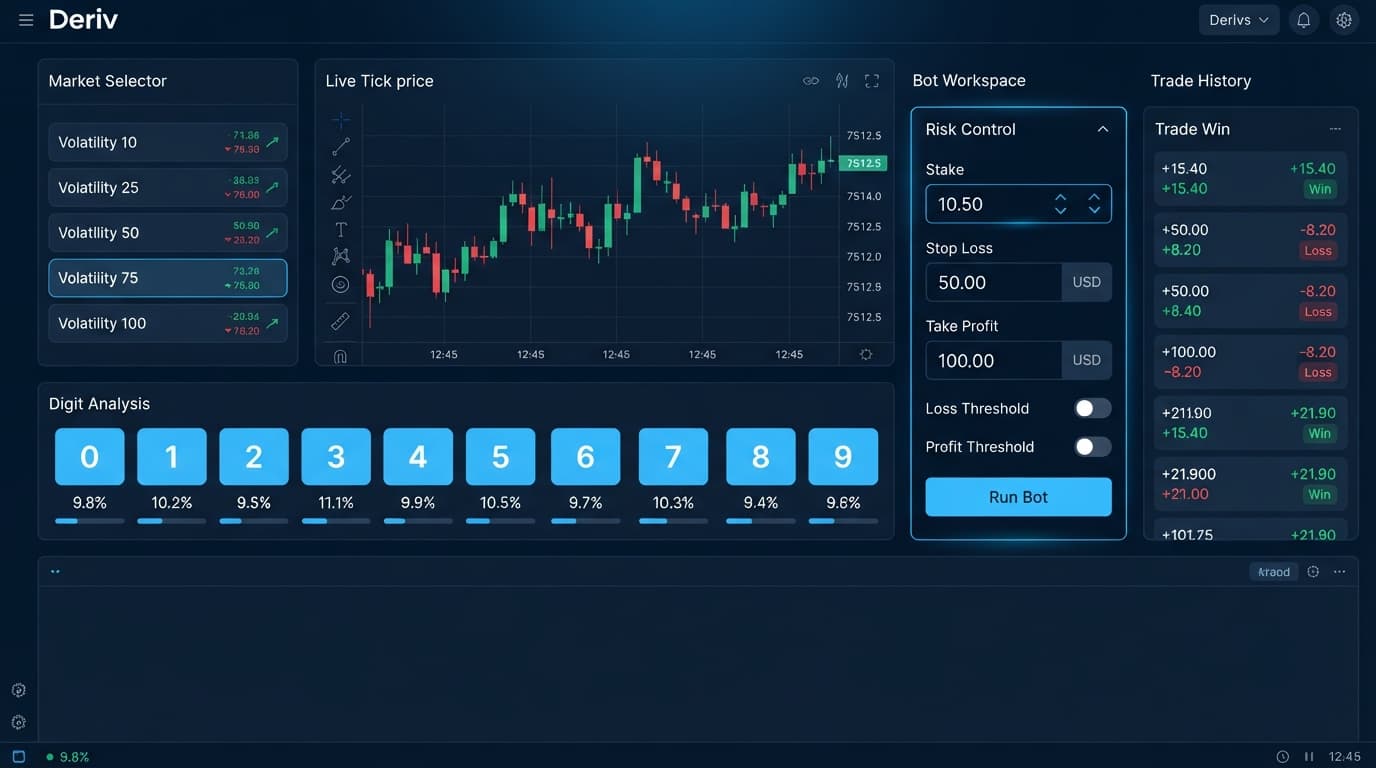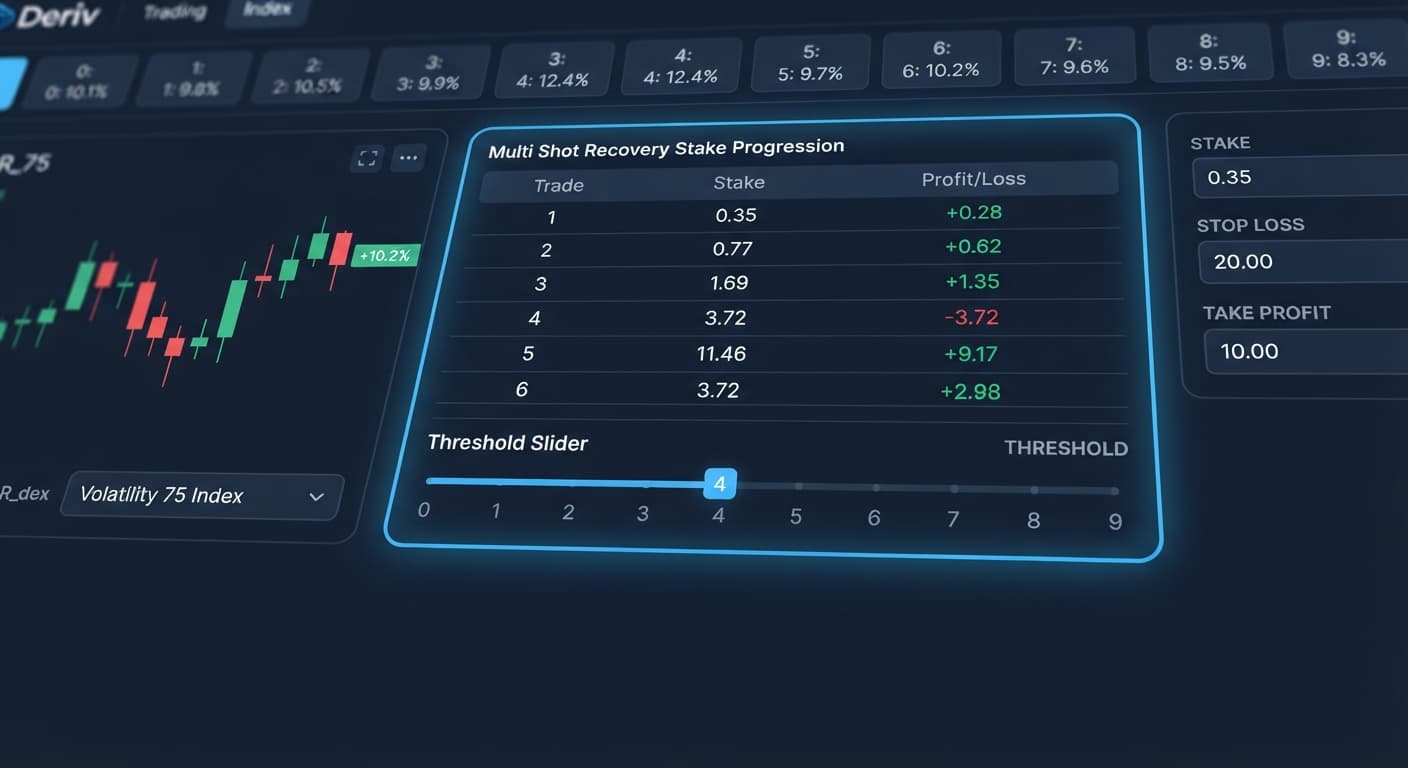
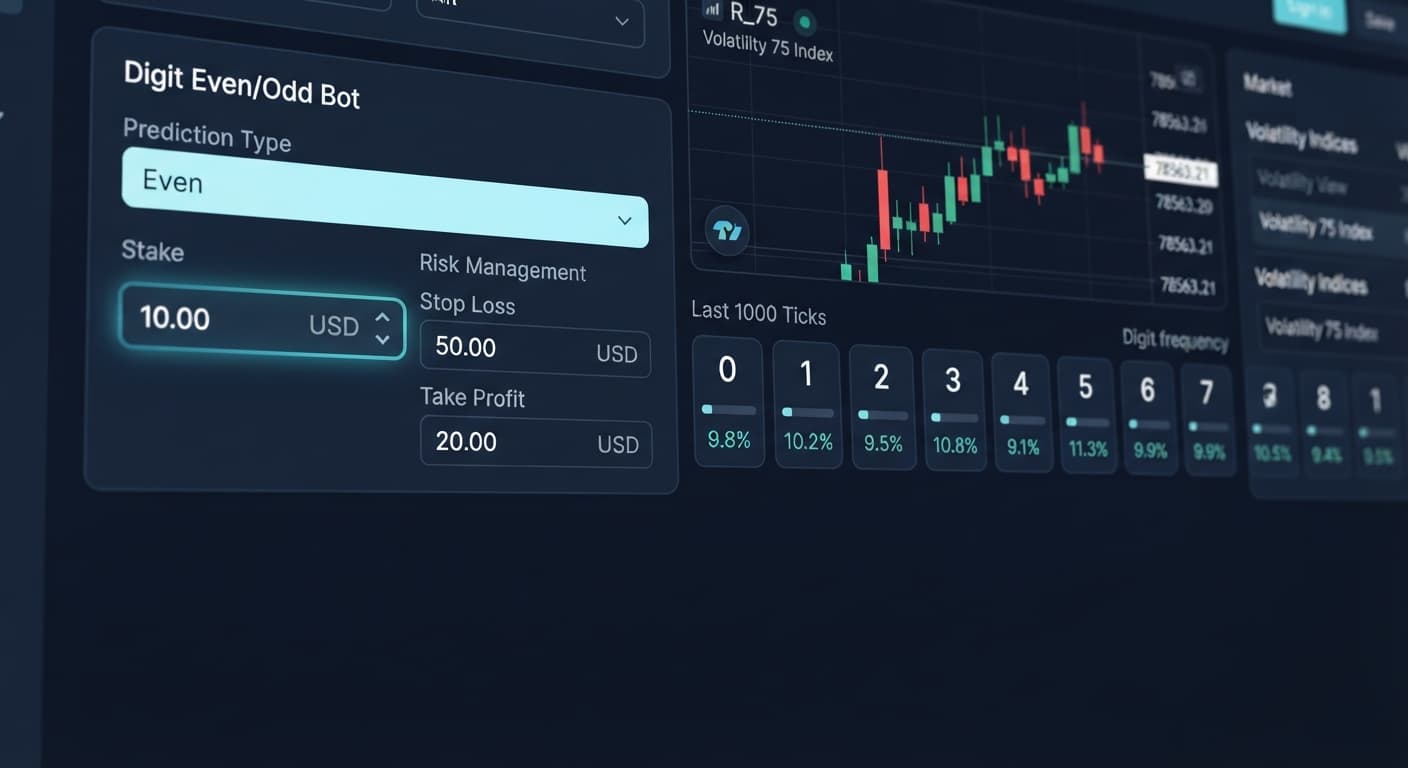
Strategies & Risk
How to Trade Even Odd on Deriv with BinaryBot.live
Learn how to trade even odd on deriv using the BinaryBot.live digit bot. Configure an alternating pattern strategy step by step. Start trading today!
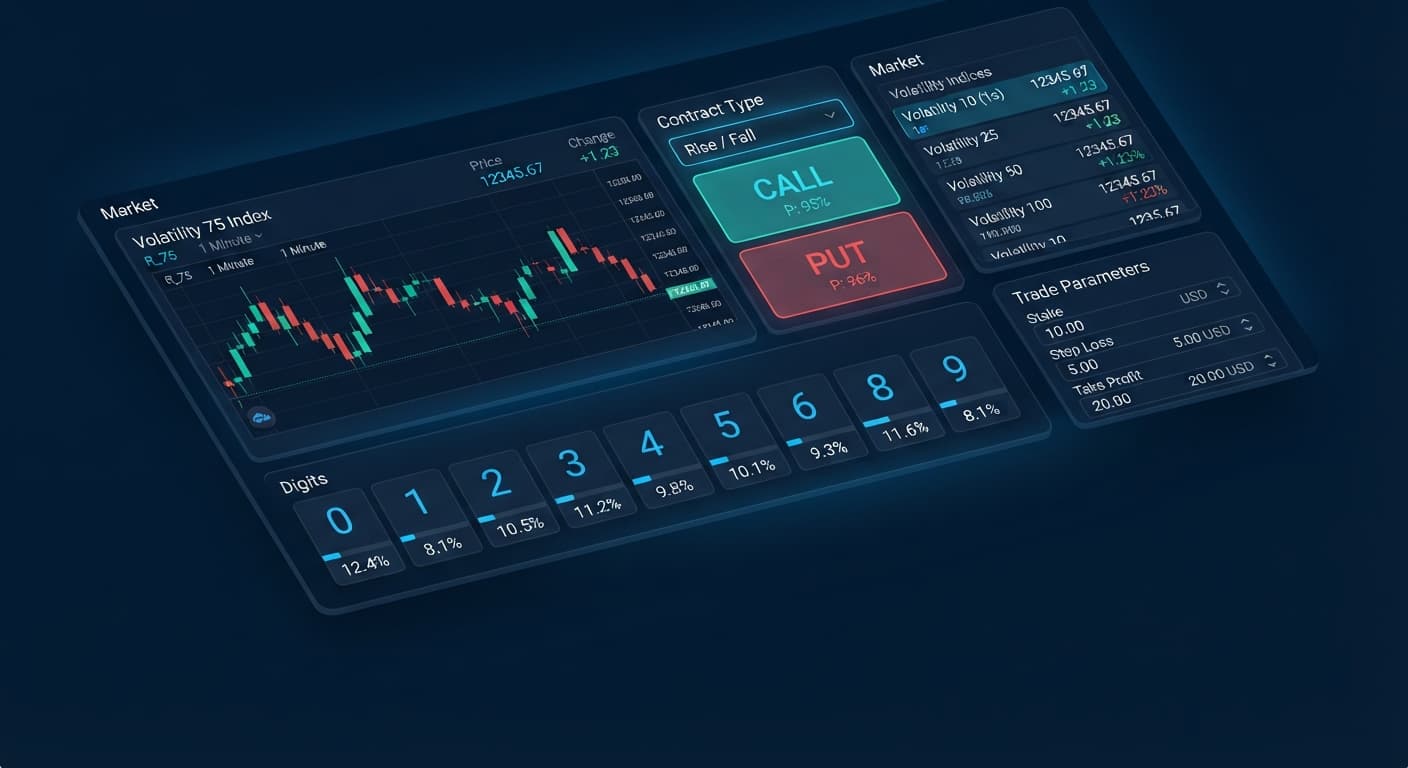
Learning how to trade rise fall on deriv requires choosing whether an index tick price will end higher or lower than your entry spot over a fixed duration. You buy a CALL contract if you expect the exit tick to land strictly higher than the entry spot, or a PUT contract if you expect it to land lower. Using automated deriv bots, you execute these directional trades continuously based on preset rules without clicking every trade manually.
This guide details how to set up an automated CALL and PUT system on BinaryBot.live. You'll learn how to connect your account, select synthetic indices, program your tick duration, and enforce hard risk limits before running automated contracts.
Before launching automated trades, make sure you've got these three components ready:
Open your web browser and navigate to Solid Trading Bot or choose another automated tool from the free bot library.
The page loads instantly inside your browser without requiring account creation on BinaryBot.live. Look at the top control bar. You'll notice a red status badge labeled Disconnected alongside a blank input box for your credentials.
Paste your token into the Deriv API Token field on the top control panel, then click the Connect button right next to it.
The system connects directly to Deriv over their official API. Within two seconds, the red badge changes to a green Connected badge. Your live or virtual account balance displays next to the indicator. If you see a red warning box instead, your token lacks Trade permissions or contains an extra trailing space.
Find the market selection panel. Click the Market dropdown menu and select a synthetic index, such as Volatility 100 (1s) Index or Volatility 75 Index.
Next, move to the Trade Type dropdown. Choose Rise/Fall. This configures the bot to purchase CALL and PUT contracts rather than digit match or digit differ contracts. Understanding how to trade rise fall on deriv means knowing that payout rates on standard Rise/Fall contracts generally hover near 95%, depending on the exact market asset you pick.
Locate the Duration control field. Enter a precise tick count or minute length. For rapid automated loops, set this to 5 and select Ticks from the adjacent dropdown menu.
Now set your trade logic under Direction Strategy:
Move to the Money Management panel before starting execution. You'll see inputs for stake sizes and account guardrails. Enter these baseline numbers:
0.35 (or your preferred starting base unit).5.00 to automatically halt trading once you hit a five-dollar gain.10.00 to shut down execution if losses reach ten dollars.Click the green Start Bot button at the top of the interface. The bot immediately evaluates your parameters and submits the first contract order.
Once your bot is running, you don't need to guess whether trades are executing correctly. The web app gives you continuous visual updates straight from the feed. Here's what your screen displays during normal operation versus an operational error:
| Interface Indicator | System Meaning | Required Action |
|---|---|---|
| Green Connected Pill | API handshake active and connected | System is ready to place contracts |
| Red Invalid Token Alert | API key rejected due to bad permissions or typo | Re-copy token from Deriv with Read + Trade checked |
| Log: Contract Purchased #... | Order sent and confirmed by Deriv | Wait for duration ticks to run down |
| Log: Win: +$0.33 | Exit spot ended in your predicted direction | Bot updates profit counter and queues next trade |
| Log: Loss: -$0.35 | Exit spot missed your direction | Bot applies configured money management stake adjustment |
| Yellow Reconnecting Status | Temporary drop in web connection | Keep tab open; contract remains safe on server |
When executing a CALL contract, the trade log displays your entry spot price the moment the transaction registers. If you set a 5-tick duration, you'll see five consecutive tick updates line up underneath. The contract clears on tick five. If the final tick sits even 0.001 points higher than the entry spot, your trade clears as a win.
If your network drops mid-trade, don't panic. The actual contract lives on Deriv's backend servers, not inside your browser tab. The trade finishes automatically regardless of your internet connection.
Even when mastering how to trade rise fall on deriv, market shifts and latency can break an unmonitored setup. Here are three common operational pitfalls and the exact settings to counter them:
If your internet connection drops packets, single-tick entries might clear late, causing entry slippage.
Running a fixed CALL strategy while a market aggressively crashes creates consecutive losing contracts.
3. This stops the bot automatically if the market trends hard against your directional bias.If you select Martingale under money management and experience a long loss sequence, required stakes double quickly. On a $0.35 starting stake, four losses in a row demand a $5.60 stake on trade five.
3. Once the bot hits three losses, it resets back to your base $0.35 stake rather than compounding risk further.Test every contract variable on a demo setup before committing funds. You can test these exact Rise/Fall setups on Solid Trading Bot using virtual funds. If you don't have an active account yet, create a free Deriv account to generate your API token.
Trading involves risk. Past performance does not guarantee future results.
Related: Build a Rise and Fall Deriv Bot (Beginner Guide)
Related: Digit Match Strategy Deriv Bots: Setup & Risk Controls
How the strategies behind the bots actually work — Digit Differs, Over/Under, Even/Odd, Rise/Fall, and the money management that decides whether they survive a losing streak.
Try 9 Strategies on Solid →You need to generate an official Deriv API token with both Read and Trade scopes checked from your account settings. Paste that token into the Deriv API Token field on the BinaryBot.live control panel and click connect.
Payout rates on standard Rise/Fall contracts generally hover near 95%. The exact rate depends on the specific synthetic market asset you choose to trade.
Your API token must have both Read and Trade scopes checked. If your token lacks Trade permissions or contains an extra trailing space, the system will show a red warning box.
Select a synthetic index from the Market dropdown menu, then choose Rise/Fall under the Trade Type dropdown. After that, you can configure your contract duration, direction strategy, and stake size before running the bot.
Guides closest to this one.
Learn how to trade even odd on deriv using the BinaryBot.live digit bot. Configure an alternating pattern strategy step by step. Start trading today!
Your rise fall strategy deriv bots fails due to tick duration mismatch and aggressive stake sizing. Fix it with Fixed Stake and longer durations.
Use DIGITOVER 2 with a 5-tick duration and Multi Shot's Recovery to find the best over under settings for binary bots on Deriv.