Auto Trading Bots
Tick Picker vs Dualshot: Deriv Bots for Rise/Fall
Compare Tick Picker vs Dualshot for automated trading on BinaryBot.live. Learn how fixed stake and recovery progression impact your strategy. Test free now.

To execute a correct tick picker stop loss setup, enter your maximum loss limit into the stop loss field, define your gain limit in target profit, choose your money management mode, and set your base stake. The tool tracks contract settlements in real time and terminates execution the moment cumulative session losses hit your designated boundary. Configuring this parameter before launching trades prevents unchecked drawdowns during adverse tick sequences.
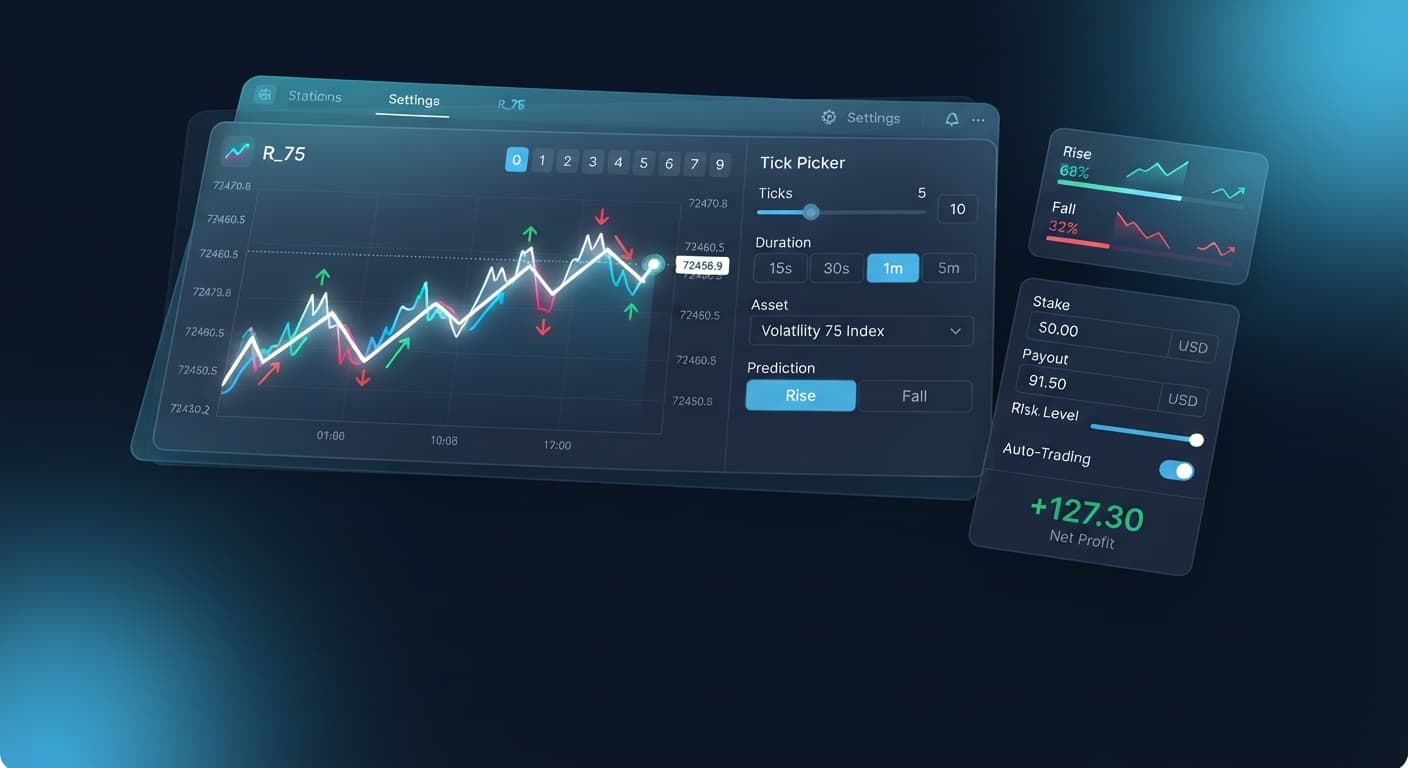
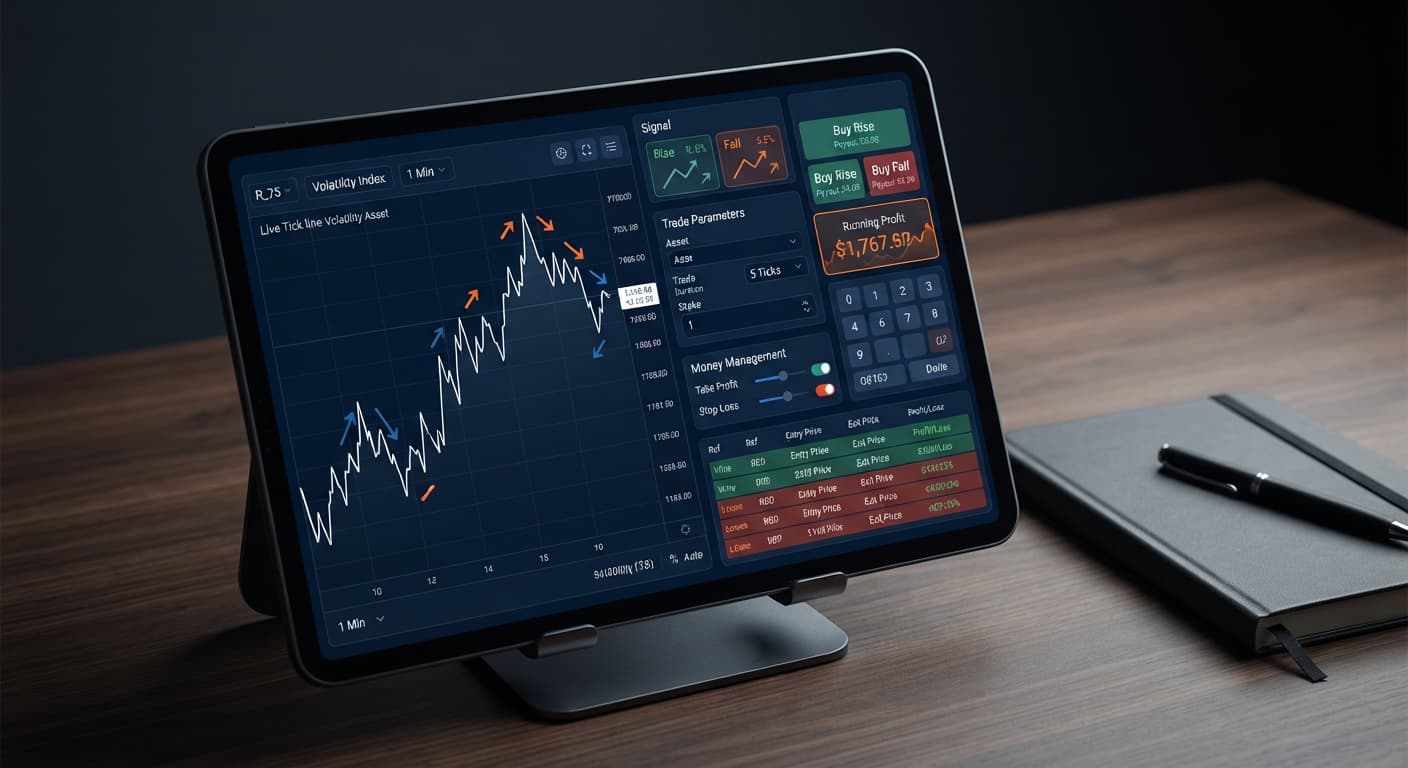
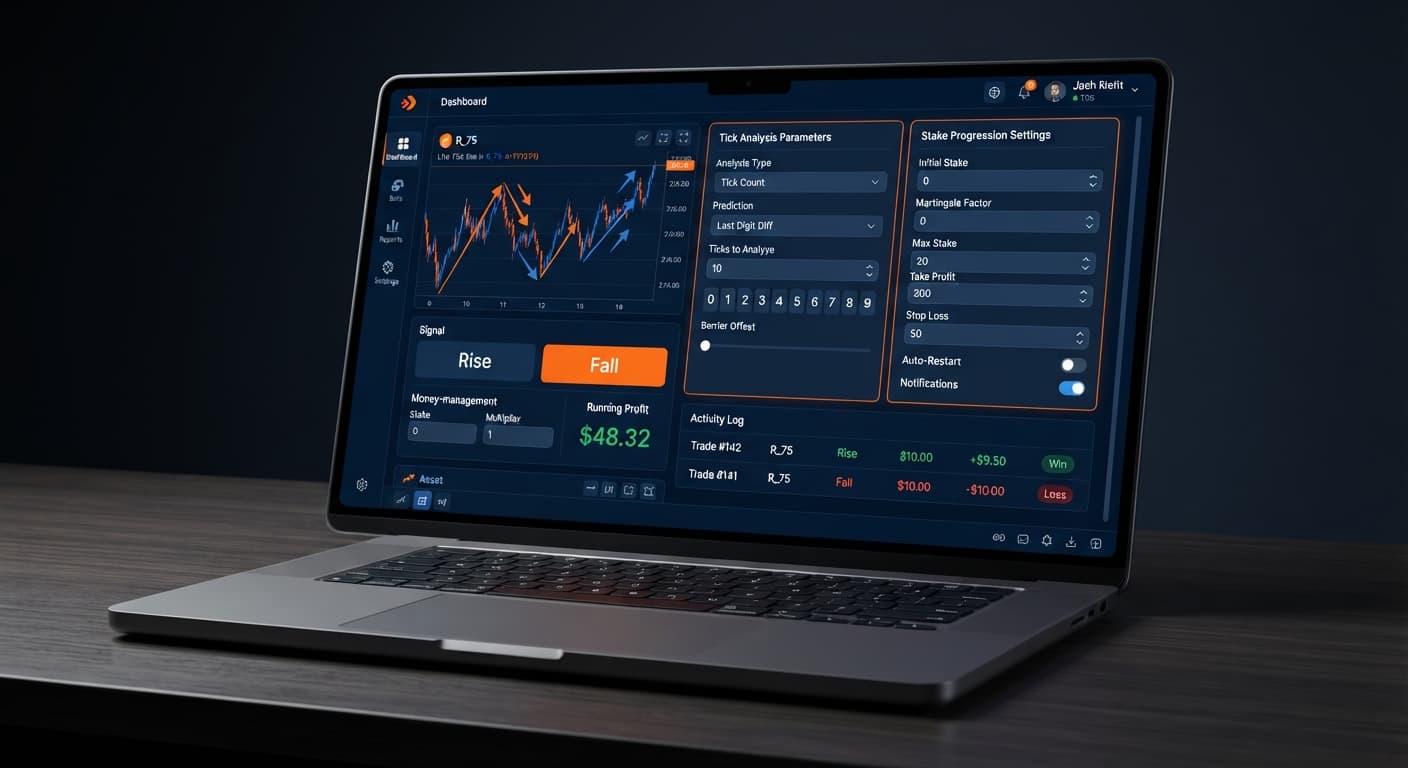
Running deriv bots without predefined boundaries is a fast way to clear out your balance. Tick Picker processes price stream changes across Volatility indices and 1s volatility indices to trigger CALL and PUT orders. While high-frequency tick signals capture short-term direction, market conditions change fast. If you don't cap your exposure early, an unexpected trend shift will keep firing trades long after your strategy stops working.
Most traders start using binary bots to remove emotion from trade execution. The problem starts when you leave numerical input fields blank or rely on default inputs that don't match your account size. If you run Tick Picker with no defined loss limit, the system places CALL and PUT contracts continuously until you manually hit the stop button or your balance hits zero.
Tick streams on synthetic assets move fast. Volatility 100 Index can print ten consecutive ticks against a trend signal in under ten seconds. If you're running a dynamic stake progression, those ten ticks can push contract values far beyond what your session budget can handle. Synthetic index ticks act as independent random events; past ticks don't force the next tick to reverse. Because long directional runs happen regularly, you need an automated circuit breaker built directly into the software interface.
Setting a hard ceiling changes how your trading session operates. Instead of monitoring every single tick with your hand hovering over a manual stop button, the bot tracks session net equity for you. Once total net loss reaches the exact number you typed into the control panel, the script kills the trade loop.
Follow these steps to configure your risk controls inside the tool interface before initiating live execution.
Click the stake input box and type your baseline order value. If your account balance is $100, a standard starting value is $1. Don't set this value higher than what your account can sustain over multiple trade sequences.
Open the money management mode dropdown menu and choose how the bot manages contract values after a result:
Click the stop loss field and type the total monetary drawdown allowed for the session. For a $100 capital base, entering 15 restricts maximum cumulative losses to $15. Once cumulative session losses hit or pass this number, all order placement stops immediately.
Click the target profit field and type your session profit threshold. Setting this to 10 means the bot stops trading as soon as your total net session profit reaches $10. Stopping after reaching a realistic profit target protects gains from turning into losses during sharp market reversals.
Before switching to real balance execution, select your market (such as Volatility 75 Index or Volatility 10 (1s) Index) and click start on a Deriv virtual account. Verify that orders register smoothly over the API connection and that the execution log updates cleanly after every settled tick.
Understanding what the visual elements on your screen mean helps you verify that your tick picker stop loss setup is active and operating correctly. The control interface changes visually based on connection state, active contract execution, and risk triggers.
| Interface Element | Visual Display | System State | Required Action |
|---|---|---|---|
| Connection Indicator | Green "Connected" text | Active API socket link to Deriv | None. System is reading live ticks. |
| Connection Indicator | Red "Disconnected" text | Socket connection dropped | Check internet link and re-enter API token. |
stop loss Input |
Solid field background | Risk cap locked in memory | None. Parameter is ready. |
| Log Output Panel | Green settlement entry | CALL/PUT contract closed in profit | System updates cumulative session balance. |
| Log Output Panel | Red settlement entry | CALL/PUT contract closed in loss | System checks cumulative loss against stop loss. |
| Log Header Alert | Red "Stop Loss Reached" banner | Cumulative session loss equaled or exceeded set value | Trade loop halted automatically. Review session data. |
| Log Header Alert | Green "Target Profit Reached" banner | Cumulative net profit met your target limit | Execution stopped safely. Session complete. |
When the bot runs, the trade log updates every time a contract closes. If you select Fixed Stake with a $1 stake and a $10 stop loss, the system evaluates your running total after every contract. If you hit ten consecutive losses, the screen flags a red session banner and disables the contract trigger.
If you use Martingale or Mesamilano, the log shows shifting order sizes. Because progressive recovery models increase trade values after losses, your session total might cross your defined limit mid-sequence. For instance, if your drawdown is at $8 with a $10 limit, and the next calculated trade is $4, a loss on that contract drops your net session return to -$12. The bot recognizes that -$12 past your $10 boundary, triggers the shutdown sequence, and stops placing trades.
Once you lock in your settings, the software changes its operational cycle from infinite looping to conditional execution. Without limits, the bot evaluates tick streams and places CALL or PUT contracts endlessly. With a proper tick picker stop loss setup active, every tick signal must pass a session-budget check before generating an API order command.
Here is what happens under the hood when a threshold is met:
stop loss and target profit.stop loss, the internal loop flag flips to false.You'll see the execution status log halt, accompanied by a clear on-screen notice. The software won't place another trade until you clear the log, adjust your input fields if needed, and manually press the start button again.
Even experienced users of binary bots make basic calculation errors when setting up risk parameters. Avoid these two common mistakes.
If you select Martingale or Mesamilano under money management mode, your stake increases after a losing trade. A common mistake is entering a stop loss value smaller than the second or third step of your stake progression.
If your initial stake is $2 and you set your stop loss to $3 under Martingale, your first loss costs you $2. The bot then calculates your next trade size as $4. However, because your current drawdown is $2 and the next order ($4) risks putting your account past your $3 limit, the system hits a logical roadblock. Either the bot terminates early on the very first loss, or the second trade breaches your stop loss parameter instantly. Always make sure your hard stop limit leaves enough room for your selected strategy's progression steps.
Another error is setting target profit exceptionally high while keeping stop loss tight, expecting the bot to run indefinitely until it hits a huge winning streak.
Deriv bots rely on realistic statistical bounds. If you set a $5 stop loss alongside a $500 target profit on a $1 stake, normal tick noise will trigger your loss cap long before your profit target ever gets close. Match your risk and reward inputs realistically. A balanced baseline ratio gives your chosen trend analysis strategy enough breathing room to process market noise without triggering premature halts or exposing your account to catastrophic drawdown.
Test your settings on Tick Picker using a virtual balance before trading live. If you don't have one yet, create a free Deriv account.
Trading involves risk. Past performance does not guarantee future results.
Related: How to Use Tick Picker for Deriv Rise/Fall Bots
Related: Tick Picker vs Manual Trading on Deriv Rise Fall Binary Bots
Professional tick analysis tool for Deriv with real-time charts, trend detection and Rise/Fall trading signals, plus Mesamilano and Martingale strategies.
Open Tick Picker →Enter your maximum loss limit directly into the stop loss field in the control panel before launching your trades. The bot will automatically track your real-time contract settlements and terminate execution the moment your cumulative session losses hit that boundary.
If you leave the stop loss field blank, the bot will continuously place CALL and PUT contracts until you manually hit the stop button or your account balance hits zero. Synthetic index ticks move fast, so an unexpected trend shift can quickly clear out your balance without an automated circuit breaker.
You can choose from Fixed Stake, Martingale, or Mesamilano inside the money management mode dropdown menu. Fixed Stake keeps contract sizes identical on every execution, while Martingale and Mesamilano use different methods to handle recovery following losing contracts.
Click the stake input box and type in your baseline order value, making sure it isn't higher than what your account can sustain over multiple trade sequences. For example, if you have a $100 account balance, a standard starting value is typically $1.
Guides closest to this one.
Compare Tick Picker vs Dualshot for automated trading on BinaryBot.live. Learn how fixed stake and recovery progression impact your strategy. Test free now.
Learn how to use tick picker for automated Rise/Fall trading on BinaryBot.live. Master free deriv bots with tick analysis. Start trading smarter today.
Compare tick picker vs manual trading on Deriv Rise Fall contracts. Learn how execution speed and emotion control differ when using a free deriv bot. Read now.