Digit Analysis
LDP Analyzer Stop Loss Setup for Deriv Bots
Master the LDP Analyzer stop loss setup for Deriv bots. Learn how to configure risk management controls to protect your capital. Start reading today.
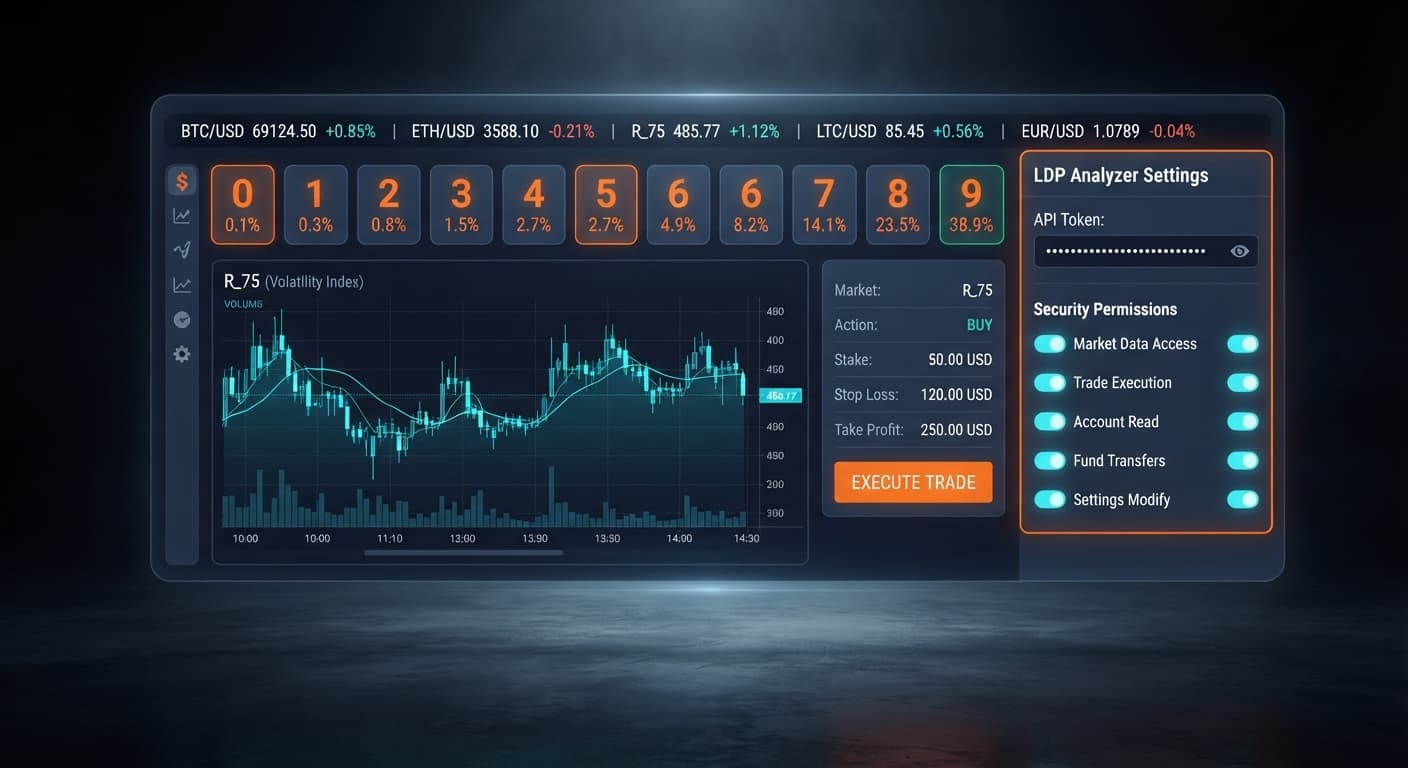
To complete your ldp analyzer api token setup, generate a read and trade API token inside your Deriv account settings and paste it into the designated field on the analyser dashboard. The tool connects directly to Deriv over their official API, letting you stream live tick feeds and place contracts straight from your own account. Capital never leaves your account, so you can test strategies on a virtual balance or trade live without transferring funds to third-party platforms.
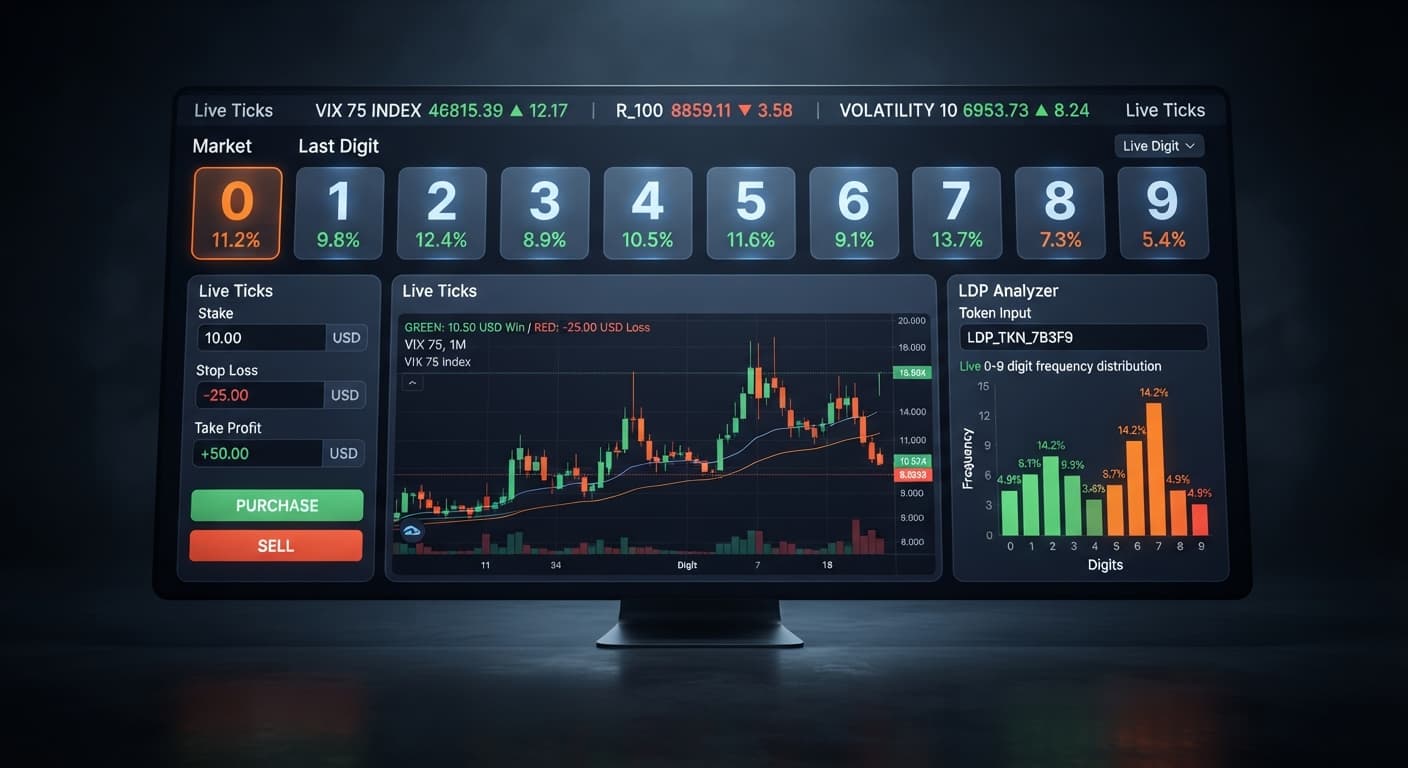
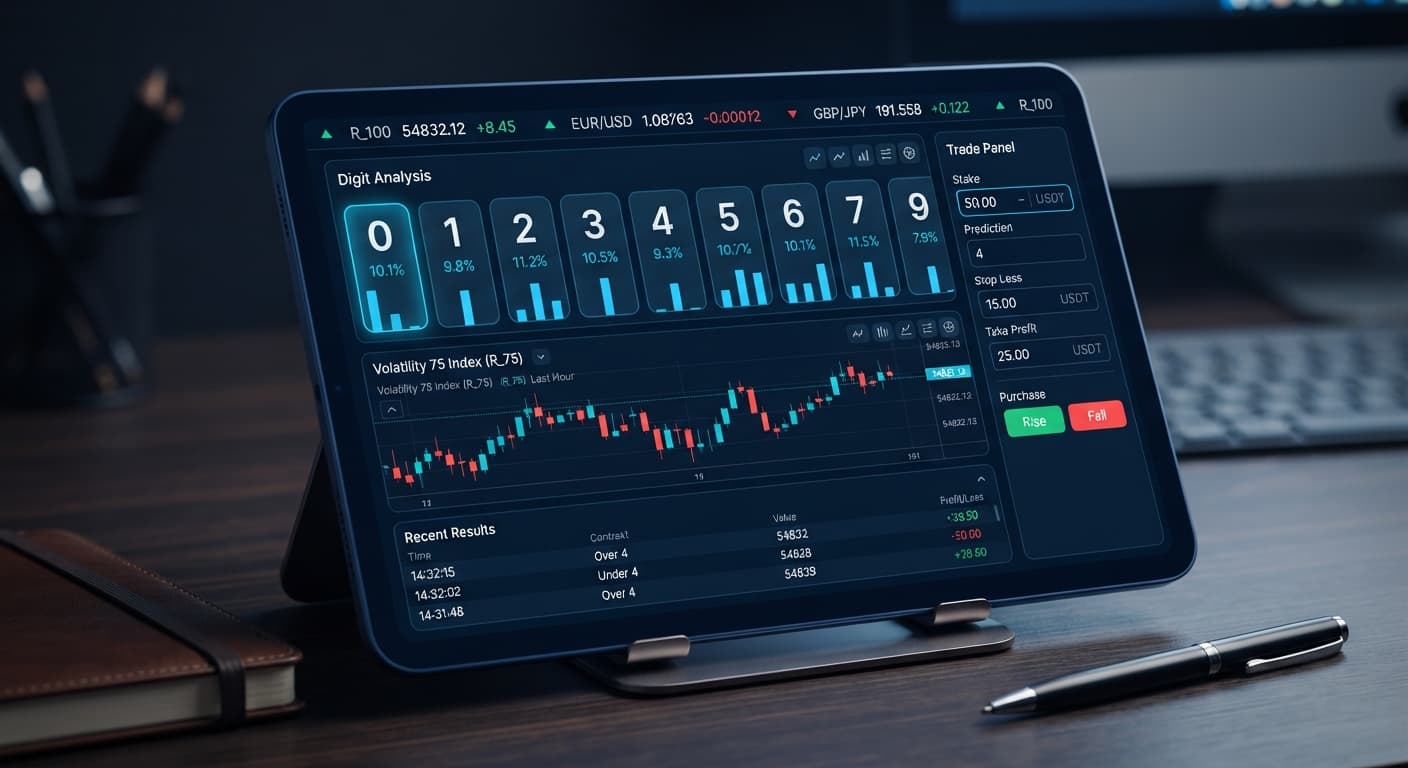
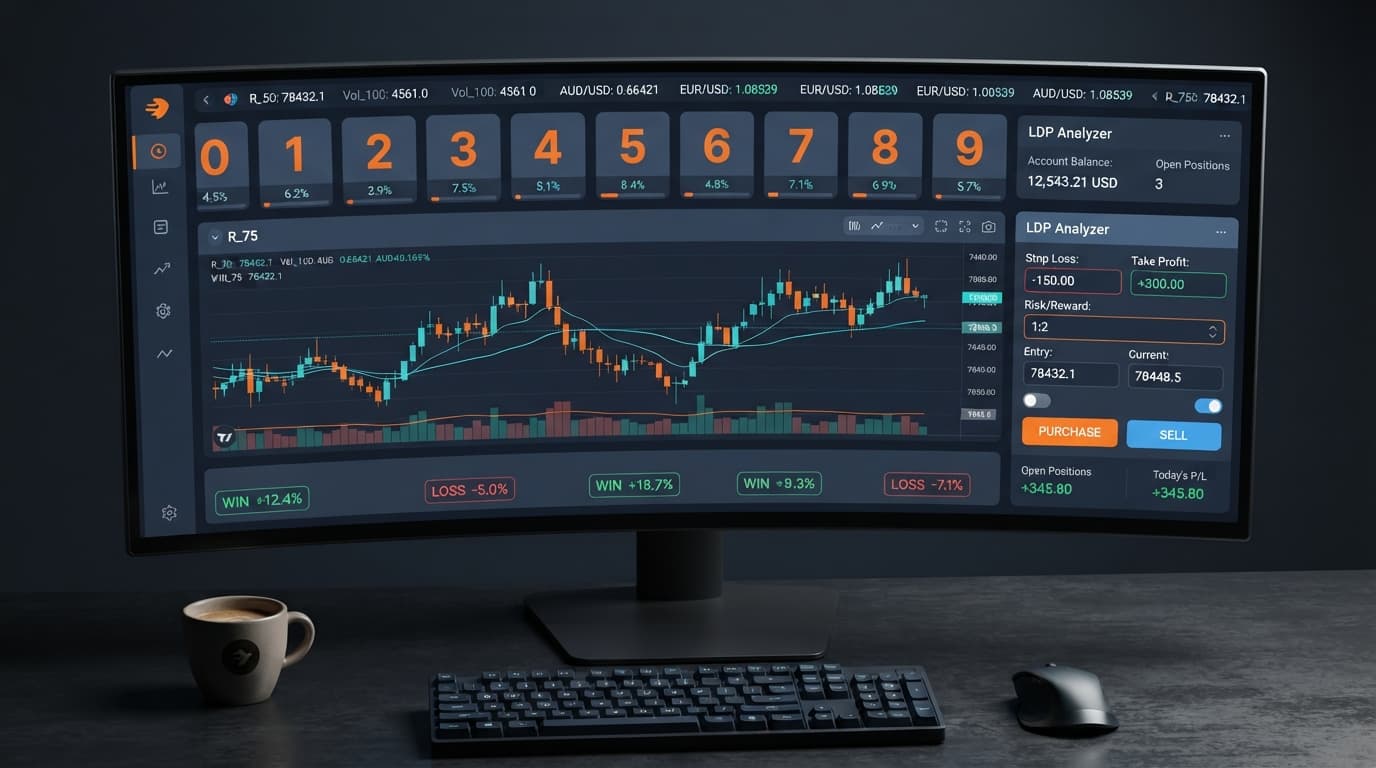
When you open the LDP Analyzer, you'll see a streamlined interface built for direct connection and real-time binary analysis. Before starting any session, you need to know which controls alter your account parameters and which ones manage contract execution.
| Interface Control | Exact On-Screen Label | Primary Function |
|---|---|---|
| API Key Input | Deriv API token connection | Authenticates your session with Deriv to stream ticks and execute orders. |
| Asset Chooser | market selector | Chooses the synthetic index feed (e.g., Volatility 75 or Volatility 100 1s). |
| Position Capital | stake | Sets the exact base dollar amount placed on each trade. |
| Hard Drawdown Limit | stop loss | Automatically halts automated strategy execution if losses hit this threshold. |
| Profit Target | take profit | Stops trading immediately once net gains reach this pre-set target. |
The main panel toggles between real-time digit analysis and automated strategy execution. The real-time analysis mode processes the stream of tick prices as they arrive, displaying the final digit of every price quote. If you enable automated strategy execution, the system issues trades directly through the API based on your active parameters.
Supported contract types include DIGITEVEN, DIGITODD, DIGITOVER, DIGITUNDER, DIGITMATCH, and DIGITDIFF. You can run these contracts across standard indices like Volatility 10, Volatility 25, Volatility 50, Volatility 75, and Volatility 100, as well as their 1s variants. Many traders who build custom workflows with web-based binary bots use this exact setup to eliminate manual entry delays.
Log into your Deriv dashboard in a separate browser tab. Navigate to Account Settings, open the API Token menu, and locate the token creation form.
You must check two specific permission scopes: Read and Trade. The Read scope allows the system to fetch your account balance and stream live price ticks. The Trade scope gives permission to place digit contracts on your behalf. Don't select Admin or Management scopes, as automated tools don't need administrative control over your account settings. Assign a memorable label like "LDP Analyzer" and click Create. Copy the raw alphanumeric string immediately to your clipboard.
Return to the browser tab running the analyser. Locate the input field labeled Deriv API token connection at the top of the settings panel. Paste your copied key directly into this box.
[ Paste Token Here ] -> Click Connect -> API Handshake Verification
As soon as you submit the token, the browser initiates an API connection to Deriv. If the token is valid, your account balance appears alongside a active connection indicator. If you're testing new setups, use a token generated from a Deriv virtual (demo) account. That keeps your real account balance safe while you verify how the digit statistics behave. Completing this ldp analyzer api token setup correctly ensures that orders route smoothly without permission errors.
Click the market selector dropdown to pick your trading asset. Synthetic markets operate around the clock, but their underlying tick volatility differs between assets.
For fast digit updates, select a 1s index like Volatility 75 (1s), which yields a new tick every second. If you prefer standard pacing, pick Volatility 10 or Volatility 50. Changing the asset immediately resets the live tick memory and starts building a fresh dataset for that specific index. Choose whether you want the screen in real-time digit analysis mode to monitor distributions manually, or set it to automated strategy execution if you plan to let the tool trigger trades automatically.
Before placing trades or enabling auto-execution, fill in every financial control box. Leaving these blank or misconfiguring them can lead to unexpected account drawdowns.
Always set a stop loss and a take profit before starting the bot, not after. In automated execution modes, these risk controls instruct the system to disconnect the trade loop the moment either ceiling is touched. That prevents a single bad streak from liquidating your session funds.
Review your market selection, stake size, and risk limits. If you're running real-time digit analysis, watch the live output as prices stream in. You'll see individual last digits recorded sequentially in the feed.
If you are using automated strategy execution, click the primary activation switch. The system monitors the incoming digits against your selected contract conditions (such as DIGITEVEN or DIGITUNDER). When a trade condition triggers, a contract request transmits over the official API. You can monitor active order entries, contract purchase prices, and trade outcomes right in the session log. To upgrade your layout with heatmap visualization or advanced targets, consider testing the LDP Analyzer Pro dashboard once you're familiar with the base workflow.
To make informed choices while analyzing digits, you need to understand what historical distributions actually show on screen. Here is an exact 500-tick sample pulled from Volatility 75 during a live stream session:
| Last Digit | Recorded Ticks | Distribution Share | Session Classification |
|---|---|---|---|
| 0 | 48 | 9.6% | Neutral |
| 1 | 52 | 10.4% | Neutral |
| 2 | 45 | 9.0% | Cold |
| 3 | 58 | 11.6% | Hot |
| 4 | 50 | 10.0% | Neutral |
| 5 | 42 | 8.4% | Cold |
| 6 | 54 | 10.8% | Neutral |
| 7 | 51 | 10.2% | Neutral |
| 8 | 56 | 11.2% | Hot |
| 9 | 44 | 8.8% | Cold |
Looking at this sample, digits 3 (11.6%) and 8 (11.2%) ran above the theoretical average of 10%, while digits 5 (8.4%) and 9 (8.8%) ran cold. A trader watching this feed might see that digits 0 to 4 account for 50.6% of outcomes while digits 5 to 9 account for 49.4%.
Here is the key truth about synthetic indices: past digit frequency does not change the probability of the next tick. Deriv synthetic index ticks are independent random draws generated by cryptographic algorithms. A digit running cold over 500 ticks has the exact same 10% mathematical probability of appearing on tick 501 as a digit running hot. Frequency tables show historical distribution to help you identify short-term statistical variance, but they do not predict future outcomes. Treat every tick as a fresh event.
Knowing your feed is connected correctly saves you from missed trade triggers or false execution signals. When the system functions properly, you'll see three clear indicators:
If the feed stops updating or your ldp analyzer api token setup fails to establish a link, check your token permissions first. The most common error is generating a key without the Trade box checked. When that happens, the analyzer can read ticks but fails the moment it attempts to place a DIGITODD or DIGITEVEN contract.
Another frequent issue is session timeout caused by network switches. If your internet connection drops briefly, the browser socket connection to Deriv closes. Refresh the page, re-paste your token into the Deriv API token connection field, reset your stake, stop loss, and take profit values, and select your asset from the market selector once more.
Testing your connection settings on a virtual account removes operational risk. Experienced traders build their tools using free deriv bots on demo funds before transitioning to real balances.
Try it yourself on LDP Analyzer using a demo balance first.
If you don't have one yet, create a free Deriv account.
Trading involves risk. Past performance does not guarantee future results.
Related: LDP Analyzer Stop Loss Setup for Deriv Bots
Related: LDP Analyzer India: Beginner's Guide to Deriv Bots
Free LDP Binary Analyzer — AI-powered last-digit analysis for Deriv traders with real-time binary analysis and automated strategies.
Open LDP Analyzer →You need to generate a read and trade API token inside your Deriv account settings and paste it into the Deriv API token connection field on the LDP Analyzer dashboard. Once you submit a valid token, your account balance will appear along with an active connection indicator.
You must check the Read and Trade permission scopes when generating your token in Deriv. The Read scope lets the tool fetch your balance and stream ticks, while the Trade scope allows it to place digit contracts. You shouldn't select Admin or Management scopes.
Yes, you can test strategies on a virtual balance by using an API token generated from your Deriv virtual or demo account. Capital never leaves your account since the tool connects directly via the official API.
The tool supports DIGITEVEN, DIGITODD, DIGITOVER, DIGITUNDER, DIGITMATCH, and DIGITDIFF contract types. You can run these across standard synthetic indices like Volatility 10 through 100, as well as their 1s variants.
Guides closest to this one.
Master the LDP Analyzer stop loss setup for Deriv bots. Learn how to configure risk management controls to protect your capital. Start reading today.
Read this ldp analyzer deriv bots guide to connect your token, configure digit analysis, and run automated trades safely. Start automating today.
Discover why your ldp analyzer keeps losing on Deriv bots. Learn how to fix stake sizes, stop loss, and take profit settings. Test strategies for free today.