
Digit Analysis
Digit Pad for Beginners: Zero-Knowledge Guide to Deriv Bots
Master digit pad for beginners with zero prior knowledge. Learn digit analysis, track multiple Deriv volatility indices, and test binary bots today.
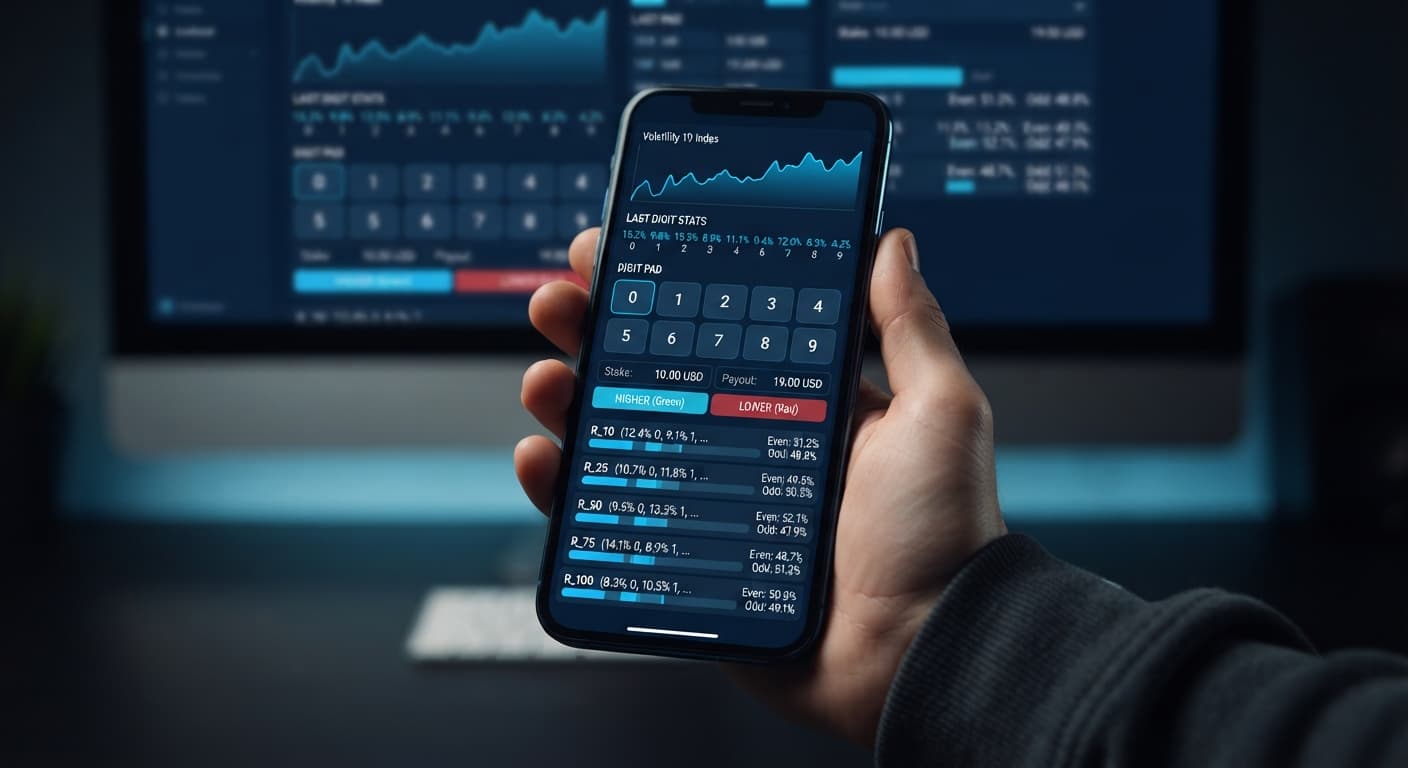
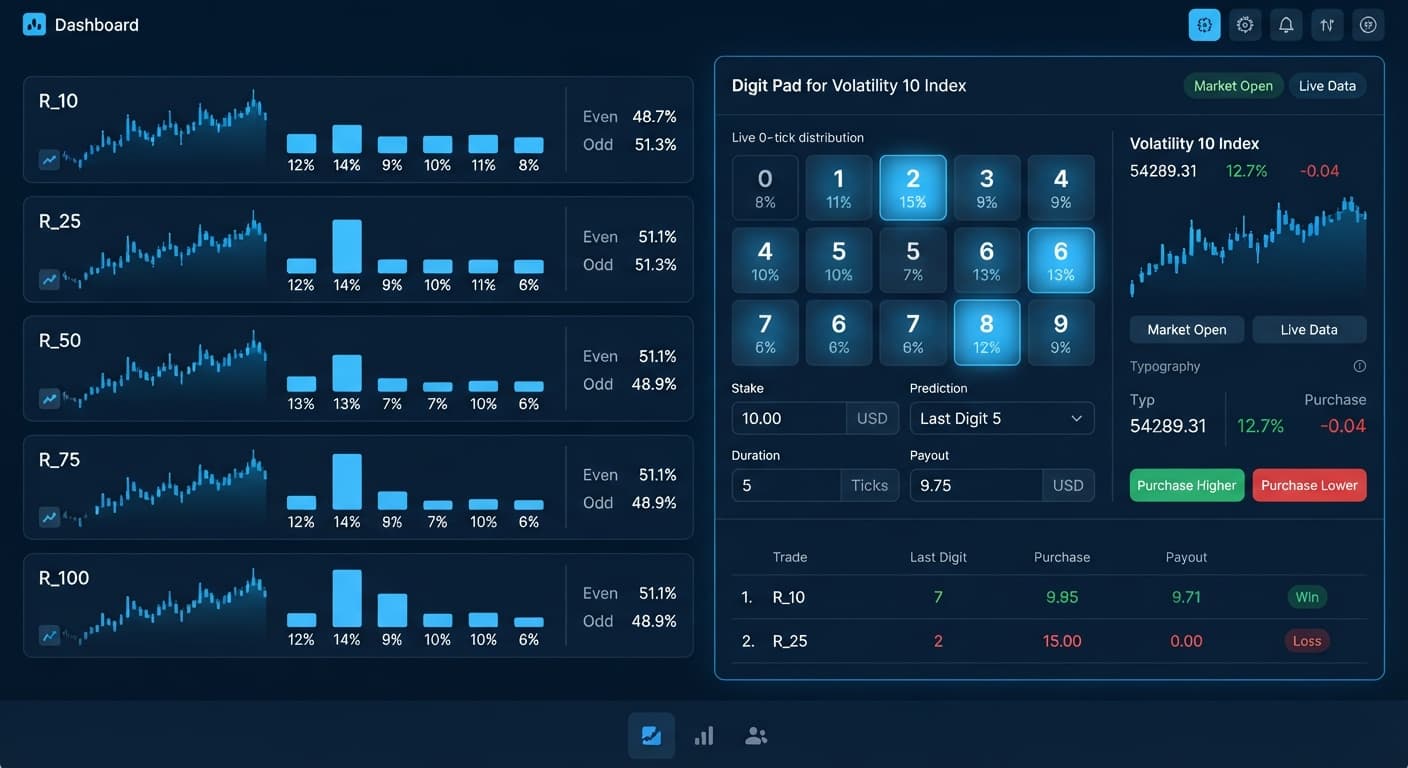
To use the Digit Pad on Volatility 10, select R_10 under market selection, set your preferred stake, define your digit target or choose Even/Odd, and execute your trade manually when the live matrix signals a statistical imbalance. Volatility 10 generates exactly one tick per second, providing a predictable execution tempo that prevents rushed entries. Mastering the workflow of the digit pad on volatility 10 allows you to trade DIGITDIFF, DIGITEVEN, or DIGITODD contracts across synthetic markets while keeping tight control over every trade.
A frequent mistake among synthetic index traders is locking into a single market view. If you sit on a single Volatility 10 chart without broader context, you're trading blind to how numbers are distributed across the rest of the volatility suite. Volatility 10 ticks once every second. That slow rhythm tempts traders to force trades during low-probability lulls simply because they're waiting around for the next entry signal.
When you force trades on isolated markets, you bleed capital. Deriv synthetic indices rely on independent random draws. Seeing the digit 4 land three times in a row on R_10 doesn't make an odd digit more likely on the next tick. Past digit frequency doesn't change future tick probabilities.
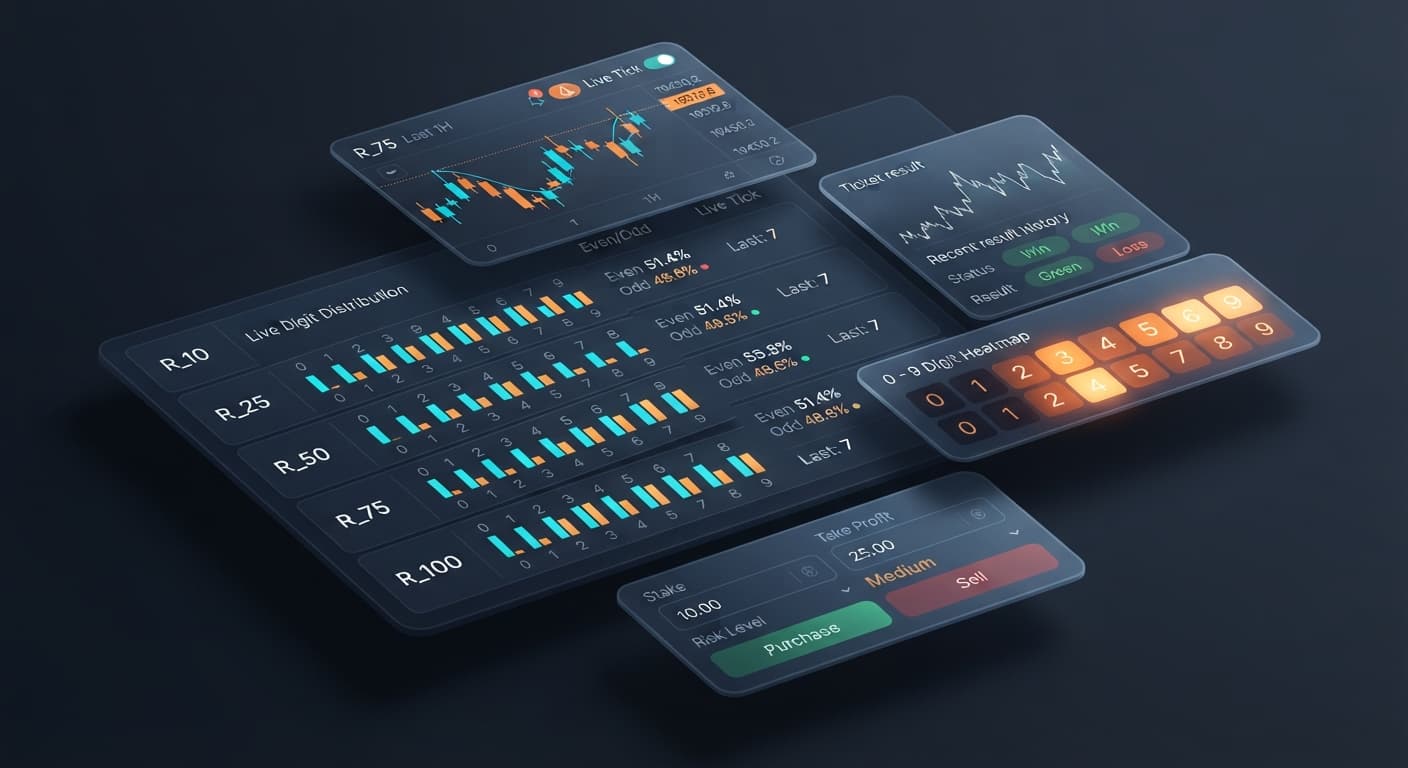
Traders who rely solely on single-market displays often make poor entries on slow-moving indices. Using a manual multi-market workspace like Digit Pad solves this by letting you monitor R_10 alongside R_25, R_50, R_75, and R_100 on one screen. Instead of sitting idle on R_10 during quiet stretches, you can evaluate real-time signals across all markets before placing a trade. This multi-market view gives you a broader perspective than basic binary bots that focus on one market at a time.
Before placing manual contracts, configure your interface inputs properly. Digit Pad keeps execution simple by placing all controls on a single pad. You don't need to juggle nested menus or search through complex option trees.
The pad uses three primary input controls:
market selection: Chooses the active volatility market for trade execution.stake: Sets the exact monetary amount allocated to the contract.digit target: Defines the specific number (0 through 9) required for DIGITDIFF contracts.Unlike automated systems that execute trades without human intervention, Digit Pad is a manual execution tool with live stats. It doesn't run automated stake-doubling progressions or recovery ladders. That means you decide when to enter and when to stop.
| Interface Setting | DIGITDIFF Configuration | DIGITEVEN / DIGITODD Configuration |
|---|---|---|
market selection |
R_10 | R_10 |
| Contract Type | DIGITDIFF | DIGITEVEN or DIGITODD |
stake |
10.00 | 10.00 |
digit target |
Select cold digit (0-9) | Not Applicable |
| Execution Type | Manual Click on Signal | Manual Click on Signal |
| Supported Indices | R_10, R_25, R_50, R_75, R_100 | R_10, R_25, R_50, R_75, R_100 |
Setting your stake accurately on a demo account first ensures you don't make costly typing mistakes when trading live markets.
Navigate to the dashboard and paste your Deriv API token into the connection box. Digit Pad connects directly to Deriv over their official API, establishing a direct connection between your browser and the exchange server.
No account balance or funds ever pass through the website; every trade executes directly on your personal account. Always select a virtual account token when setting up new strategies so you can test entries without risking capital.
Locate the market selection drop-down on the trade interface and pick R_10. Selecting R_10 narrows your active execution pad to Volatility 10 while keeping the multi-market matrix running in the background.
+--------------------------------------------------------+
|  MARKET SELECTION: [ R_10  v ]                         |
|  MODE:             [ DIGITDIFF v ]                     |
|  STAKE:            [ 10.00   ]                         |
|  DIGIT TARGET:     [ 4       ]                         |
+--------------------------------------------------------+
Choosing R_10 sets your tick frequency to exactly 1 tick per second. This consistent speed gives you enough reaction time to check the live matrix before placing a contract.
Enter your trade value into the stake field. If you're testing execution speeds, use a standard 10.00 demo stake.
Next, pick your contract structure. If you choose Digit Differs, set your digit target to the number you want to avoid. If you pick Even/Odd, your trade wins based on whether the last digit of the settling tick is even or odd.
Always set a fixed daily loss limit for your session before starting your manual trading run. Never attempt to manually double your stake after a loss—doing so can wipe out your account balance during an extended losing sequence.
Before clicking buy, examine the multi-market digit matrix. The tool tracks R_10, R_25, R_50, R_75, and R_100 simultaneously, showing you live distribution stats across all five indices side by side.
Look for extreme digit imbalances. For instance, if the digit 4 hasn't appeared on R_10 for 25 ticks, or if Even digits are showing a strong cluster across multiple indices, you have actionable statistical context. If you want deeper digit analysis or specialized last digit prediction models, cross-reference your matrix readings with the LDP Analyzer before making your entry.
Once you spot a trade opportunity, click the corresponding entry button on the manual trade pad. Digit Pad submits your request immediately over your API connection.
Because you're trading manually on R_10, you aren't tied to automated execution scripts. You retain full control over every contract purchase. Monitor the result directly on your screen dashboard as the contract settles on the final tick.
Timing is critical when trading synthetic digits manually. Volatility 10 moves at a fixed rate of one tick per second (1000ms per tick cycle). Understanding this timing structure helps you minimize latency between your mouse click and contract settlement.
Here is the precise timeline of a single-tick manual trade placed on the digit pad on volatility 10:
| Clock Timestamp | Elapsed Time | Tick Sequence | Execution Stage | Technical Action |
|---|---|---|---|---|
| 00:00.000 | 0.0s | Tick 0 | Signal Identification | Matrix updates digit distribution showing target digit spike on R_10. |
| 00:00.250 | 0.25s | Tick 0 | User Trigger | Trader identifies signal and clicks the entry button on the pad. |
| 00:00.400 | 0.40s | Tick 0 | Server Confirmation | Deriv API processes the order and assigns contract ID. |
| 00:01.000 | 1.0s | Tick 1 | Settlement Tick Draw | R_10 price tick updates; last digit extracted for evaluation. |
| 00:01.150 | 1.15s | Tick 1 | Contract Settlement | Outcome verified instantly; payout credited to account balance. |
On a 1-tick contract duration, the entire trade lifecycle takes roughly 1.15 seconds from entry signal to final settlement. Because price travels at a fixed 1-tick-per-second rate on R_10, you have a 600ms to 750ms window after a tick completes to click execution before the subsequent tick processes.
If your internet latency rises above 250ms, your manual execution might register a tick later than intended. Keep your browser network connection stable to ensure consistent contract entries.
Using the digit pad on volatility 10 is an effective manual strategy, but it isn't ideal for every market condition or trading style. Knowing when to avoid this configuration is just as important as knowing how to set it up.
Do not use this manual setup under these conditions:
If you prefer automated execution over manual control, exploring other deriv bots can streamline your strategy without requiring constant screen time. For manual precision on slow-moving indices, however, this tool provides the direct control manual traders need.
Test these manual execution triggers on Digit Pad using a Deriv demo balance first. If you don't have an active account, create a free Deriv account to begin analyzing live tick data. Trading involves risk. Past performance does not guarantee future results.
Related: Digit Pad for Beginners: Zero-Knowledge Guide to Deriv Bots
Related: Digit Pad Best Market: Volatility 10 Index for Deriv Bots
Related: Digit Pad Deriv Bots Guide: Multi-Market Digit Analysis
Free multi-market digit trading tool for Deriv — trade Digit Differs and Even/Odd across all volatility indices simultaneously with real-time signals for R_10, R_25, R_50, R_75 and R_100.
Open Digit Pad →To trade manually, select R_10 under market selection, set your stake, and choose either a digit target or Even/Odd. You'll then execute your trade by clicking when the live matrix shows a statistical imbalance. Digit Pad lets you handle these inputs from a single control panel without digging through nested menus.
Focusing solely on Volatility 10 causes single-market tunnel vision, tempting you to force trades during quiet lulls because the index only ticks once per second. Using the multi-market workspace on Digit Pad lets you monitor R_10 alongside R_25, R_50, R_75, and R_100 on one screen to evaluate real-time signals across all markets.
No, Digit Pad is strictly a manual execution tool with live stats and doesn't run automated stake-doubling progressions or recovery ladders. You have to decide when to enter a trade and when to stop. Because it's manual, you retain full control over every contract you place.
You need to configure three primary inputs on the Digit Pad control panel: market selection to choose your volatility index, stake to set your monetary amount, and digit target if you're trading DIGITDIFF contracts. You can also choose Even or Odd depending on your contract type before executing the trade manually.
Guides closest to this one.
Master digit pad for beginners with zero prior knowledge. Learn digit analysis, track multiple Deriv volatility indices, and test binary bots today.
Discover why Volatility 10 is the digit pad best market for trading Digit Differs and Even/Odd on Deriv bots. Read our market guide and test strategies now.
Read this digit pad deriv bots guide to master multi-market digit analysis, last digit prediction, and manual trading strategies on BinaryBot.live.