Auto Trading Bots
Sniper Bot V3 API Token Setup for Deriv Bots
Master your sniper bot v3 api token setup for binary bots. Learn how to connect Deriv safely and launch your automated trading bot today.
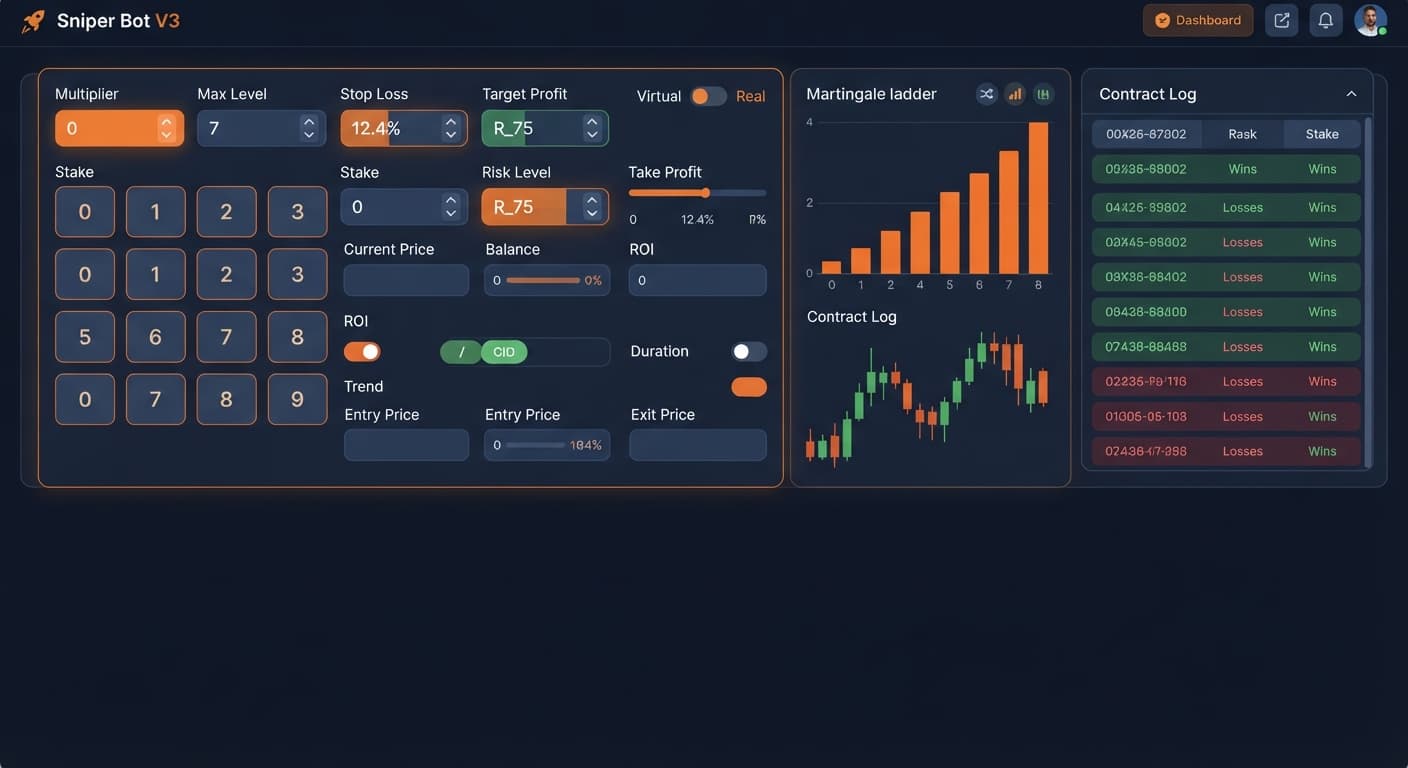
To understand how to use sniper bot v3, you connect your Deriv API token, set strict session limits like STOP LOSS and TARGET PROFIT, configure virtual losses as an execution filter, and select a market like Volatility 100 Index. This setup is built for traders running automated deriv bots who want to filter bad market conditions using phantom trades before placing live contracts. It connects directly to Deriv over their official API inside your browser, meaning your money stays in your account rather than moving through third-party servers.
If you launch trades immediately without testing the current tick flow, you miss the main reason to run this specific tool. The single most vital parameter to decide first is VIRTUAL LOSS (in a row).
Setting VIRTUAL LOSS (in a row) tells the system to execute paper trades in the background until a specific number of consecutive losses occur. Only after that threshold is reached does the system place a live contract with real stakes on your account. If you set this value to 0, the software places live trades on every signal, acting like standard binary bots that trade live constantly. Getting this setting wrong means you throw away the built-in shield against long losing streaks before your session even starts. Always test this behavior on a Deriv demo account first so you see how phantom trades trigger before risking real money.
Paste your Deriv API key into the VIRTUAL TOKEN field on screen. Choose your desired asset from the available list of Volatility indices or 1s volatility indices, then select your contract type, such as CALL, PUT, DIGITEVEN, DIGITODD, or DIGITDIFF.
After you enter your token and choose your market, the status indicator on screen changes from disconnected to ready, displaying your current virtual balance alongside your connected account currency.
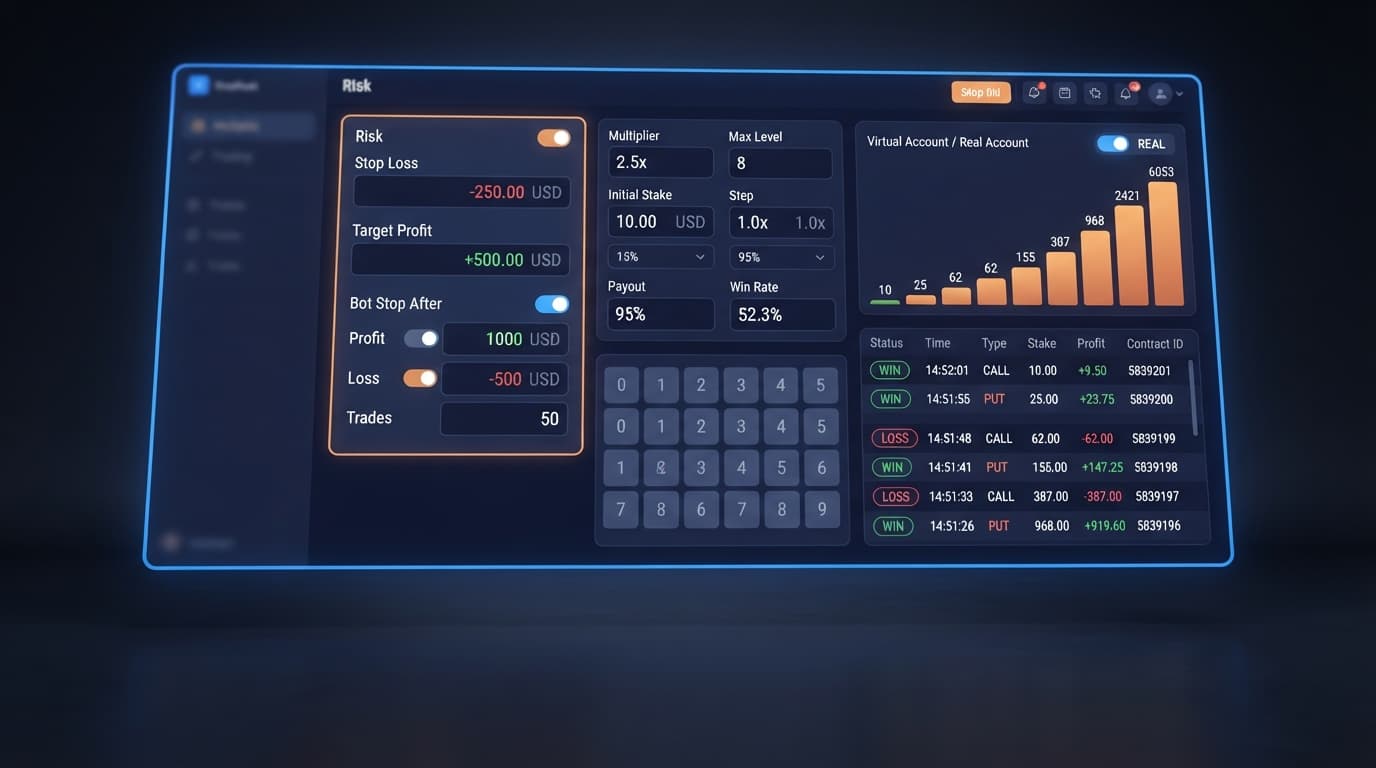
Type your maximum loss limit into the STOP LOSS box and your target gain into the TARGET PROFIT box. For a $100 trading bankroll, set STOP LOSS to 20 and TARGET PROFIT to 10.
Once these numbers are filled in, the control panel locks in your risk parameters. If your session hits either limit, the system triggers BOT STOP AFTER automatically to prevent further execution.
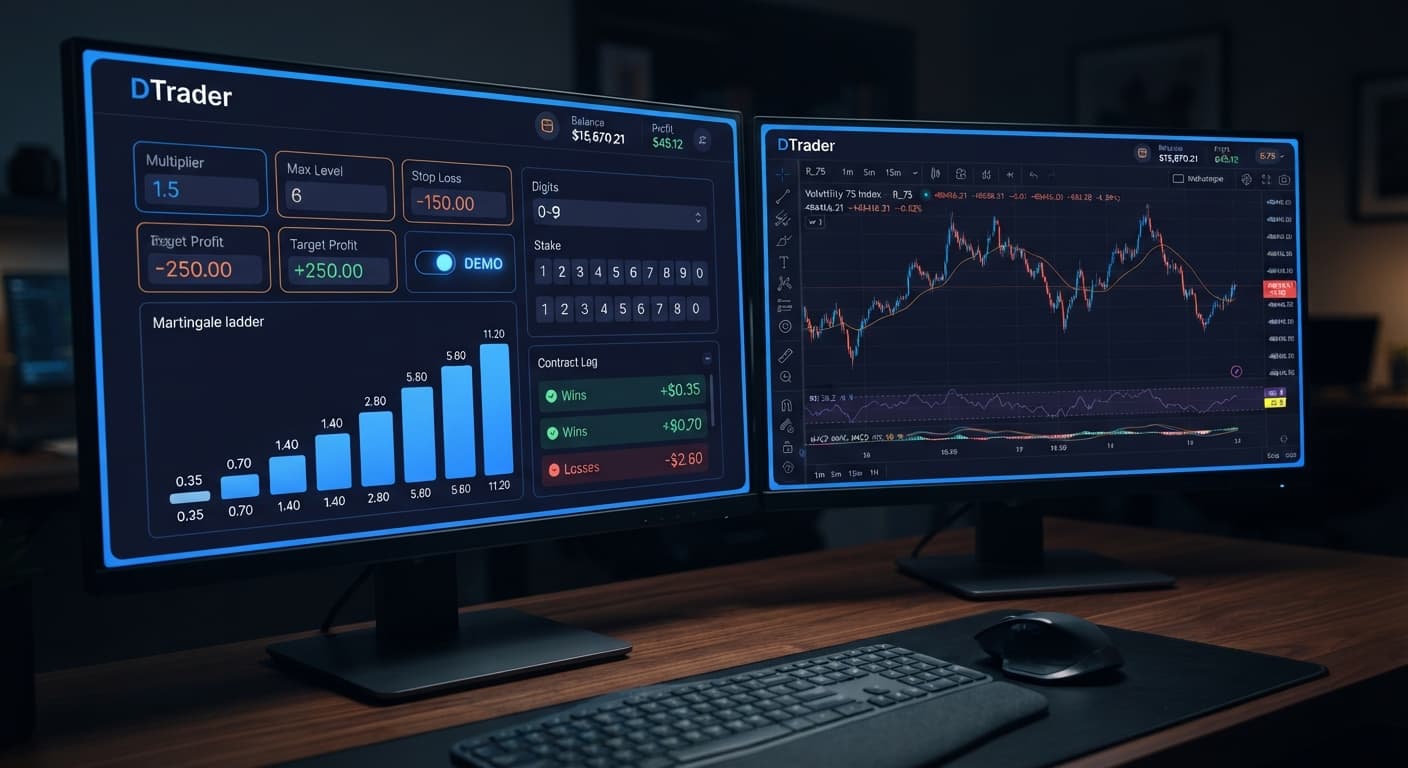
Select your stake scaling method from the MODE menu, choosing between Fixed Stake, Martingale, Anti-Martingale, Fibonacci, D'Alembert, or % of Balance. If you select Martingale, set UNIT to 1, MULTIPLIER to 2, MAX LEVEL to 4, and WHEN MAX LEVEL to Reset.
The screen now displays your active money management parameters. A high MAX LEVEL with a 2x MULTIPLIER means the final stake in the ladder can be hundreds of times the base stake, so capping it at 4 ensures your stake resets after four steps instead of compounding out of control.
Set VIRTUAL LOSS (in a row) to 3, and set BACK TO VIRTUAL to IF REAL WIN. This tells the system to wait for 3 consecutive paper trade losses before placing a real trade, and then return to paper trading immediately after a winning real trade.
The interface displays your virtual sequence monitor, showing 0/3 virtual losses. It won't place a real trade on your account until that counter reaches 3/3.
Enter 2 into DELAY AFTER WIN and 5 into DELAY AFTER LOSE to pause execution between trades, giving the market time to move. Click the start button to run the session.
The trade log on screen starts updating with tick data, showing active paper trades in grey text and real contracts in bold green or red text as execution triggers fire.
When learning how to use sniper bot v3 for digit contracts like DIGITEVEN, DIGITODD, or DIGITDIFF, analyzing recent tick distributions gives you insight into short-term statistical variance. The table below shows a sample breakdown of 500 consecutive ticks recorded on the Volatility 75 Index.
| Last Digit | Ticks Recorded | Frequency Percentage | Market Drift Bias |
|---|---|---|---|
| 0 | 46 | 9.2% | Cold |
| 1 | 59 | 11.8% | Hot |
| 2 | 52 | 10.4% | Neutral |
| 3 | 40 | 8.0% | Cold |
| 4 | 51 | 10.2% | Neutral |
| 5 | 63 | 12.6% | Hot |
| 6 | 48 | 9.6% | Neutral |
| 7 | 42 | 8.4% | Cold |
| 8 | 55 | 11.0% | Hot |
| 9 | 44 | 8.8% | Cold |
Looking at this distribution, digit 5 ran hot at 12.6% while digit 3 ran cold at 8.0%. Summing odd versus even results shows odd digits landed 268 times (53.6%) and even digits landed 232 times (46.4%). On screen, a trader sees a clear bias toward odd outcomes over this 500-tick window.
A trader might decide to set MODE to Fixed Stake and target DIGITODD based on this visible drift. However, past digit frequency does not change the probability of the next tick. Deriv synthetic indices rely on independent random draws. The chart describes historical sample variance, not future tick direction.
Refining your setup after an initial run is a crucial part of knowing how to use sniper bot v3 effectively over multiple market cycles.
Try it yourself on Sniper Bot V3 using a demo balance first.
If you don't have one yet, create a free Deriv account.
Trading involves risk. Past performance does not guarantee future results.
Related: Configuring Sniper Bot V3 Virtual Trades: Beginner Guide
Advanced automated trading bot for Deriv with Rise/Fall, Higher/Lower, Touch/No Touch and Digit strategies, plus martingale, anti-martingale, Fibonacci and D'Alembert money management.
Open Sniper Bot V3 →You connect it by pasting your Deriv API key into the virtual token field directly inside your browser. This links the software through Deriv's official API so your money stays safely in your own account.
It runs background paper trades until a specific number of consecutive losses happen before placing any live contracts. If you set this value to zero, the bot will trade live instantly on every signal without using the phantom trade filter.
You set your maximum loss limit in the stop loss box and your target gain in the target profit box. Once your session hits either of these limits, the system automatically triggers a bot stop to prevent further execution.
You can choose between fixed stake, martingale, anti-martingale, fibonacci, d'alembert, or a percentage of your balance. If you use martingale, you'll need to configure your unit, multiplier, max level, and max level reset behavior.
Guides closest to this one.
Master your sniper bot v3 api token setup for binary bots. Learn how to connect Deriv safely and launch your automated trading bot today.
Master the sniper bot v3 stop loss setup for Deriv bots. Learn to configure risk limits and target profit safely on our free automated trading bot.
Master your sniper bot v3 demo account setup on BinaryBot.live. Learn how to configure and test this automated trading bot risk-free today.