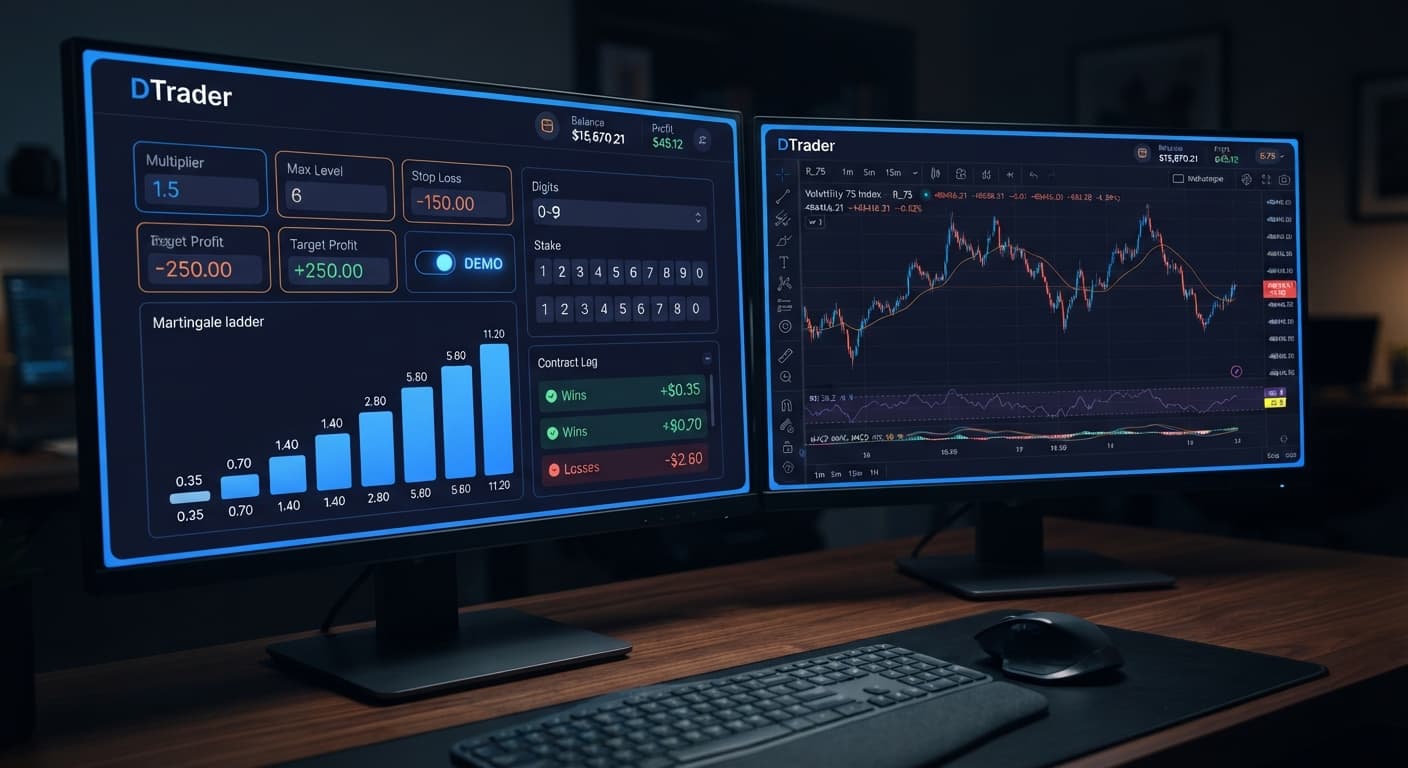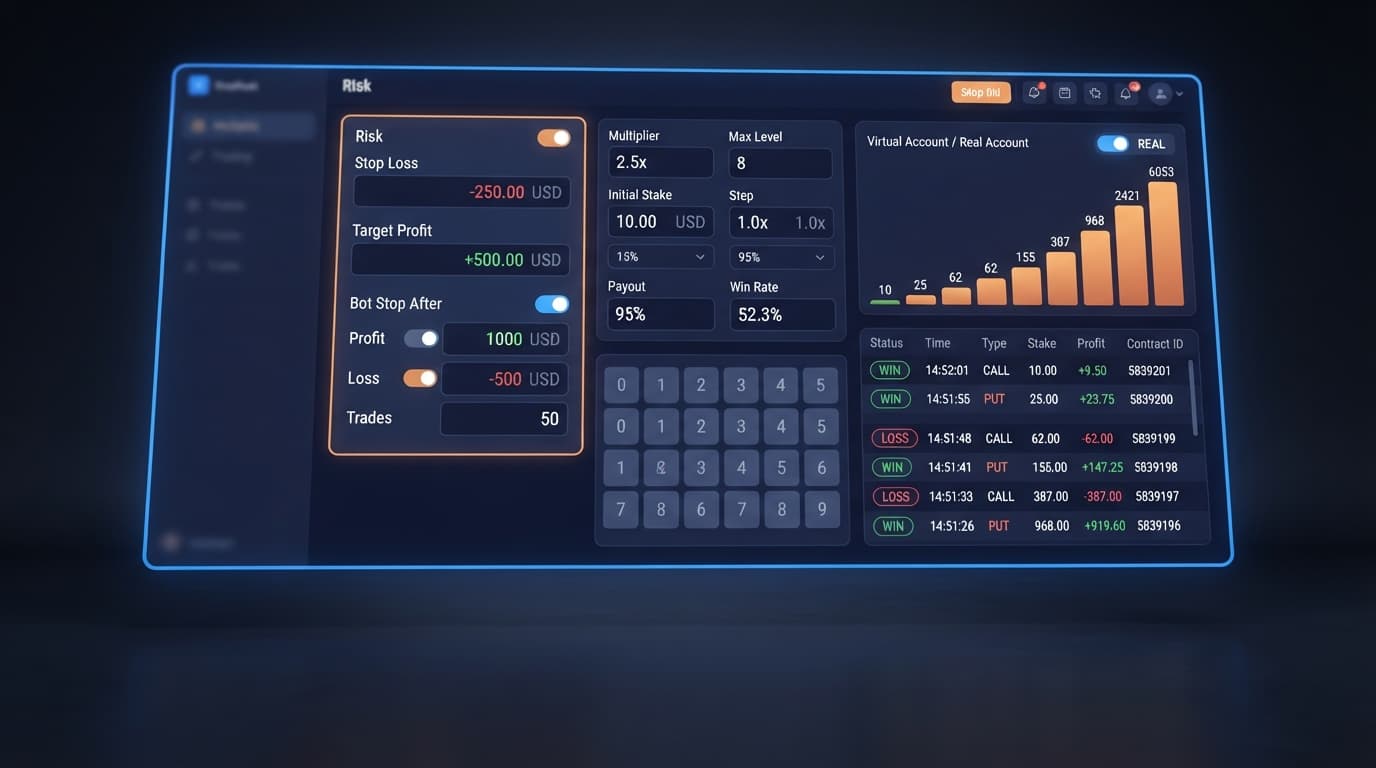

Auto Trading Bots
Sniper Bot V3 Demo Account Setup for Deriv Bots
Master your sniper bot v3 demo account setup on BinaryBot.live. Learn how to configure and test this automated trading bot risk-free today.
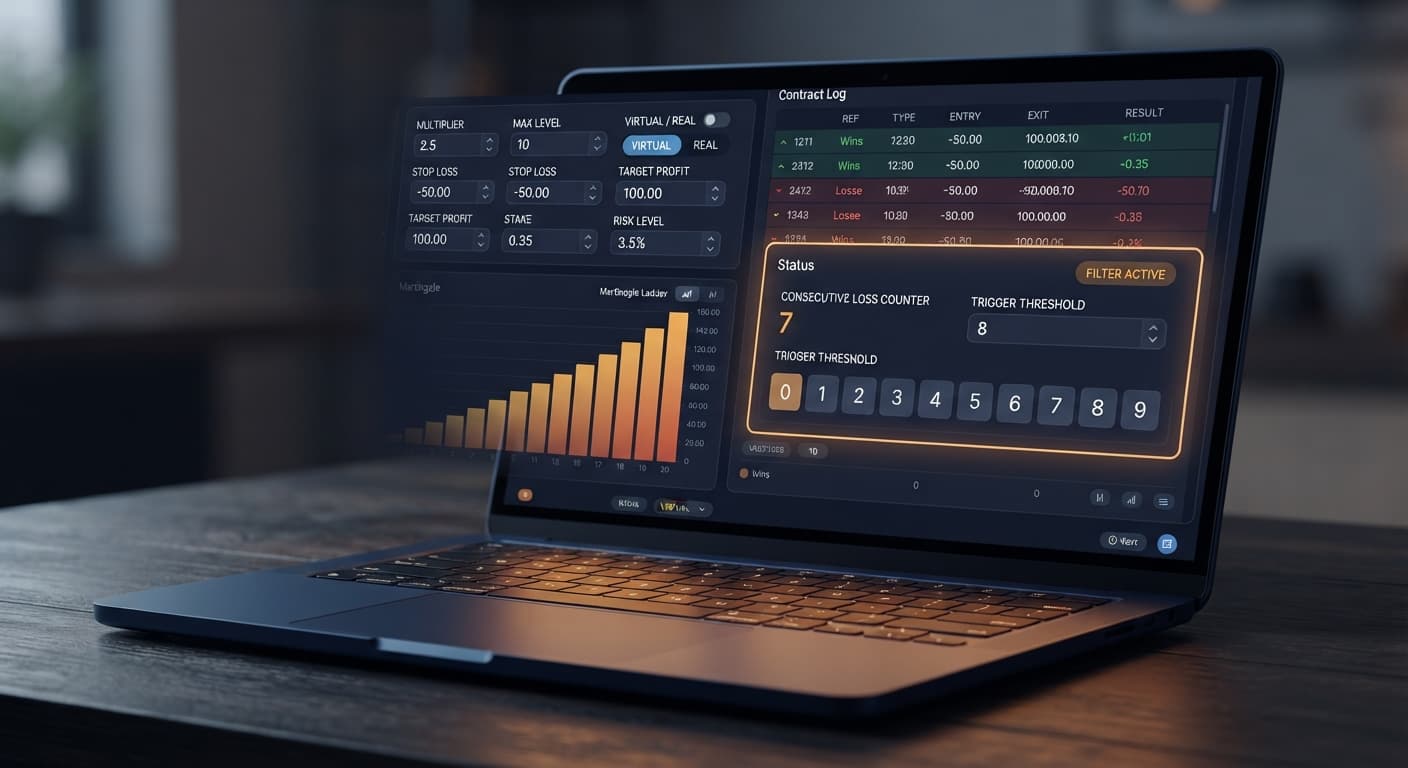
If your Sniper Bot V3 is not working, it's almost always because your VIRTUAL LOSS (in a row) threshold is set higher than current market ticks permit, or your API token lacks trade permissions. The bot connects directly to Deriv over their official API and runs phantom trades in the background until your exact virtual sequence triggers. When those virtual conditions aren't met, no real trades fire, leaving your trade log completely still. Fix this issue by lowering your virtual loss count, checking your token scopes, or verifying that your safety limits haven't already paused execution.
You log in, select Volatility 100 Index, set your contract to DIGITEVEN, set your stake, and hit start. The live price ticks update continuously in the browser window, but the real contract execution counter stays stuck at zero. Traders running automated strategies on deriv bots often assume the web app froze or the socket connection dropped.
That confusion is understandable. Standard binary bots place a live order on every single tick or bar close. Sniper Bot V3 doesn't work like that. Its primary feature is virtual paper trading. The algorithm monitors every tick, logs phantom wins and losses on a virtual tracker, and only submits a real contract to your Deriv account after a specific streak of virtual losses occurs.
If you set VIRTUAL LOSS (in a row) to 5 on an even/odd digit strategy, the bot must observe five odd digits consecutively before it places its first real order. On a standard tick stream, five consecutive odd digits happen roughly once every 32 digit draws. You can easily sit for 15 minutes watching live ticks fly past without a single dollar being committed. The tool isn't broken—it's waiting for your exact filter criteria to occur.
When you need to verify whether the engine is working or just waiting on filters, run this fast four-step check.
Step 1: Change VIRTUAL LOSS (in a row) to 0. This bypasses the paper-trading filter and forces the bot to evaluate live trades immediately on the next tick.
Step 2: Inspect the VIRTUAL TOKEN input field to make sure your API key was copied cleanly without leading or trailing spaces.
Step 3: Check your STOP LOSS and TARGET PROFIT limits under BOT STOP AFTER to ensure a previous session limit didn't lock the runner.
Step 4: Verify that your account switch matches your intentions. If you want to run paper tests, use your demo token; if you're executing real contracts, ensure your primary token has full trade authorization.
Diagnosing execution issues requires looking at specific UI indicators rather than guessing. The bot interface updates its internal state counters on every incoming tick from the synthetic index stream.
| Visual Indicator | System State | Required Action |
|---|---|---|
| Virtual Loss Counter: 2 / Target: 5 | Active paper trading; streak incomplete | Wait for tick sequence or lower VIRTUAL LOSS (in a row) |
| API Status: Scope Error / Red Badge | Token lacks trade execution permissions | Re-generate API token on Deriv with 'Trade' scope checked |
| BOT STOP AFTER: Triggered | Session stop loss or target profit hit | Clear session counters or increase target limits |
| Log: Processing Tick (No Order) | Market ticks streaming, contract criteria unfulfilled | Adjust strategy rules or switch market selection |
| Status: Paused via DELAY AFTER LOSE | Delay timer active between contracts | Wait for timer countdown or adjust delay inputs |
When a session runs correctly, you'll see incoming tick values stream through the background monitor while the virtual counter increments and resets. If the virtual counter hits 2 and the next tick is a virtual win, the counter resets back to 0 without opening a live position. That is expected behavior. The bot only routes an order to your Deriv balance when the counter reaches your exact target value.
If you've checked the basics and your session still refuses to place orders, one of these technical bottlenecks is usually the cause.
Setting VIRTUAL LOSS (in a row) to 7 on DIGITODD means you're asking the bot to wait for seven consecutive even digits before placing a single live order. Past digit frequency does not change the probability of the next tick; Deriv synthetic indices are independent random draws.
Each tick on a digit market has an independent 50% chance of being odd or even. The probability of seeing seven even digits in a row is less than 0.8%. You could leave your browser open for an hour without hitting that trigger. If you want more frequent trade entry, drop your virtual loss requirement to 1 or 2.
The BACK TO VIRTUAL setting dictates how the bot behaves after a live trade settles. You can choose between four operational states:
If you select IF REAL WIN/LOSE, the bot takes a single real trade and immediately reverts to paper trading, requiring another full streak of virtual losses before taking trade number two. If your virtual loss filter is set high, the bot will appear to stop working after every single trade. If you want continuous real execution after the initial filter triggers, select IF REAL WIN or NEVER depending on your plan.
When you create an API token inside your Deriv account settings, you must explicitly check the boxes for the permissions that token carries. If you only check "Read", the bot can fetch live prices and stream ticks, but Deriv's server will reject any order payload sent by the bot.
To fix this, log into Deriv, navigate to Account Settings > API Token, and create a new token with both "Read" and "Trade" scopes enabled. Paste that new key into the VIRTUAL TOKEN or live token field in Sniper Bot V3.
The BOT STOP AFTER parameter monitors total session performance against your risk limits. If you set STOP LOSS to 10 USD and your previous trades resulted in a 10.50 USD loss, the system locks execution instantly.
Traders often forget that session counters persist until refreshed. If you hit your TARGET PROFIT or STOP LOSS in a morning session, pause the bot, and click start again in the afternoon without refreshing the page, the bot reads the existing loss total and halts instantly. Always clear your session statistics or refresh the browser tab before starting a new run. Set a stop loss and a take profit before starting the bot, not after.
The DELAY AFTER WIN and DELAY AFTER LOSE controls accept values in seconds. They inject a mandatory pause between contract evaluations to prevent rapid-fire execution during volatile price spikes.
If you accidentally enter 300 into DELAY AFTER LOSE instead of 3, the bot will freeze all market evaluations for five minutes after any losing contract. During this window, the UI will appear completely unresponsive to market movements. Check your delay fields and keep them to small integer values like 1, 2, or 3 seconds.
Sniper Bot V3 supports multiple contract types across Volatility indices and 1s volatility indices:
Execution errors occur when selected parameters don't match the contract type. For example, trying to run a ONETOUCH contract without defining a valid barrier offset causes the Deriv API to return an invalid contract payload error. When this happens, check the browser console; you'll see an incoming error message from the WebSocket stream explaining that the barrier format was rejected.
Once execution is restored, verify your money management settings. The bot supports six distinct operational modes: Fixed Stake, Martingale, Anti-Martingale, Fibonacci, D'Alembert, and % of Balance.
If you're using Martingale, keep close track of MULTIPLIER, MAX LEVEL, and WHEN MAX LEVEL. Martingale stake progression can wipe an account during a long losing streak—the stake doubles far faster than most traders expect. A high MAX LEVEL with a 2x MULTIPLIER means the final stake in the ladder can be hundreds of times the base stake—calculate it before starting.
If MAX LEVEL is set to 5 on a 1 USD base stake with a 2x MULTIPLIER, your fifth consecutive loss requires a 16 USD stake, making your cumulative exposure 31 USD. Configure WHEN MAX LEVEL to reset to base stake rather than holding high exposure if you want to cap potential drawdown. Always test settings on a Deriv demo account before risking real funds.
To explore other automated tools and digit strategies, browse the free deriv bot library for additional web apps that connect to your account.
Try it yourself on Sniper Bot V3 using a demo balance first.
If you don't have one yet, create a free Deriv account.
Trading involves risk. Past performance does not guarantee future results.
Advanced automated trading bot for Deriv with Rise/Fall, Higher/Lower, Touch/No Touch and Digit strategies, plus martingale, anti-martingale, Fibonacci and D'Alembert money management.
Open Sniper Bot V3 →It's usually because your virtual loss threshold is set higher than current market ticks allow, or your API token lacks trade permissions. The bot runs phantom trades in the background and won't place a real order until your exact virtual sequence triggers.
Change your virtual loss in a row setting to 0 to bypass the paper-trading filter and force the bot to evaluate live trades immediately on the next tick. You should also inspect your API token for leading or trailing spaces.
This happens when your Deriv API token lacks trade execution permissions. You'll need to re-generate your API token on Deriv and make sure the trade scope is checked.
That message means a previous session's stop loss or target profit was hit and locked the runner. You can fix it by clearing your session counters or increasing your target limits.
Guides closest to this one.
Master your sniper bot v3 demo account setup on BinaryBot.live. Learn how to configure and test this automated trading bot risk-free today.
Master your sniper bot v3 api token setup for binary bots. Learn how to connect Deriv safely and launch your automated trading bot today.
Master the sniper bot v3 stop loss setup for Deriv bots. Learn to configure risk limits and target profit safely on our free automated trading bot.