Auto Trading Bots
Solid Trading Bot API Token Setup for Deriv Bots
Complete solid trading bot api token setup guide for BinaryBot.live. Learn to connect your Deriv account securely and run your automated binary trading strategy.
Completing your solid trading bot demo account setup requires creating a demo API token inside Deriv, pasting it into the bot interface, and defining your execution parameters before running trades. You don't risk real money while doing this because virtual funds handle every contract placed during testing. By the end of this guide, you'll have a fully functional automated bot connected directly to your virtual account, executing contracts on synthetic indices in a controlled environment.
This setup guide is built for traders who want to test strategy logic on virtual balances before committing capital. Whether you're testing digit sequences or index speed differences, running virtual tests gives you clear feedback without financial friction. Understanding how deriv bots execute logic in real time is much safer when your account equity isn't on the line.
Before launching the bot interface, you need a few core items ready:
read and trade scopes enabled.Once you have these prepared, finishing your solid trading bot demo account setup takes less than three minutes.
Log into your Deriv account and ensure your account switcher in the top right corner is set to your Demo account rather than a Real account.
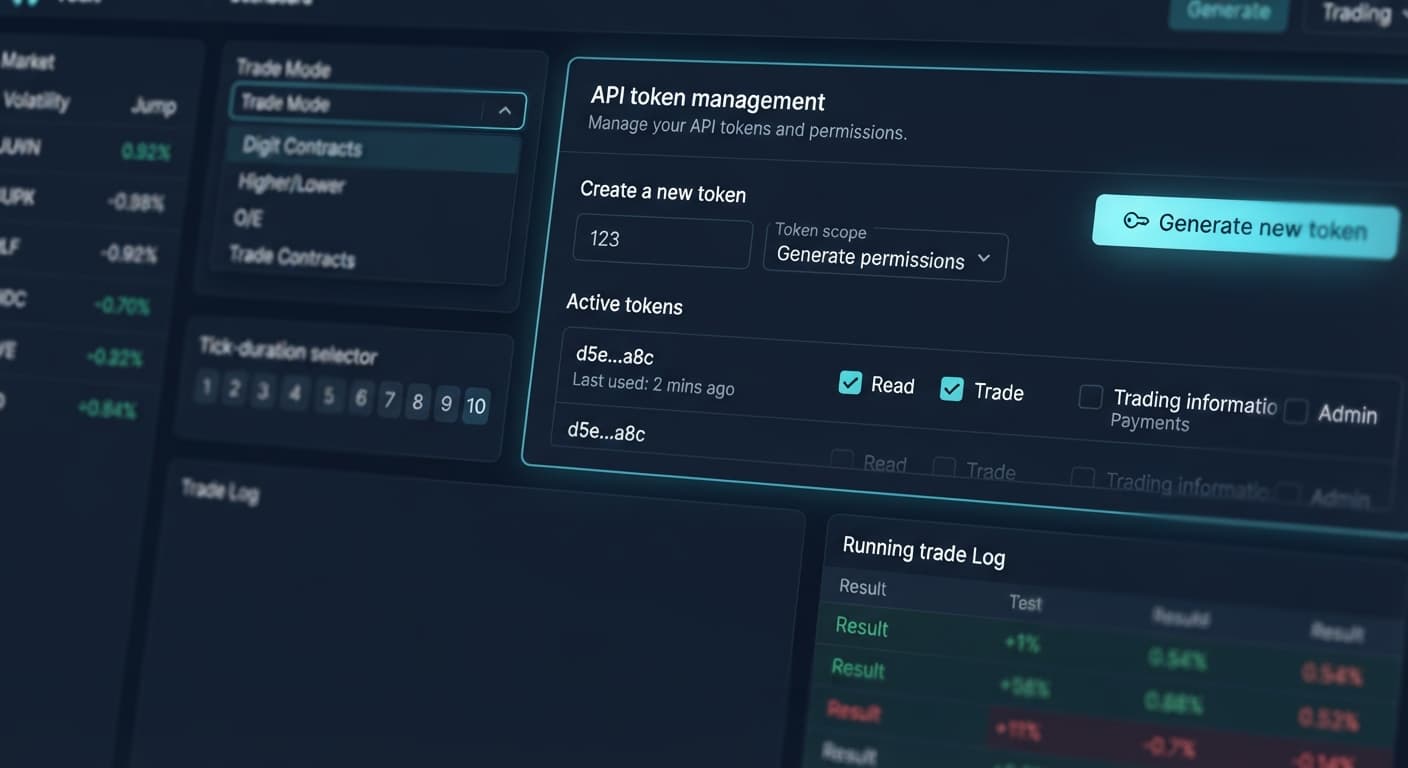
Navigate to your account settings, find the API Token section, and create a new token. Check the boxes for Read and Trade. Give the token a label like Solid Demo so you know what it's for, then click Create. Copy the long alphanumeric string that appears on screen. Keep this token handy—it connects the Web Browser interface directly to Deriv over their official API without giving away control of your master account password.
Open the Solid Trading Bot workspace in your web browser. Locate the API token input box near the top of the control panel.
Paste your copied demo API token into the text field and click the Connect button. Within two seconds, the screen updates to display your virtual account ID alongside your current demo account balance (typically $10,000.00 USD). A green connection indicator confirms that the bot interface has successfully established a link to your demo account.
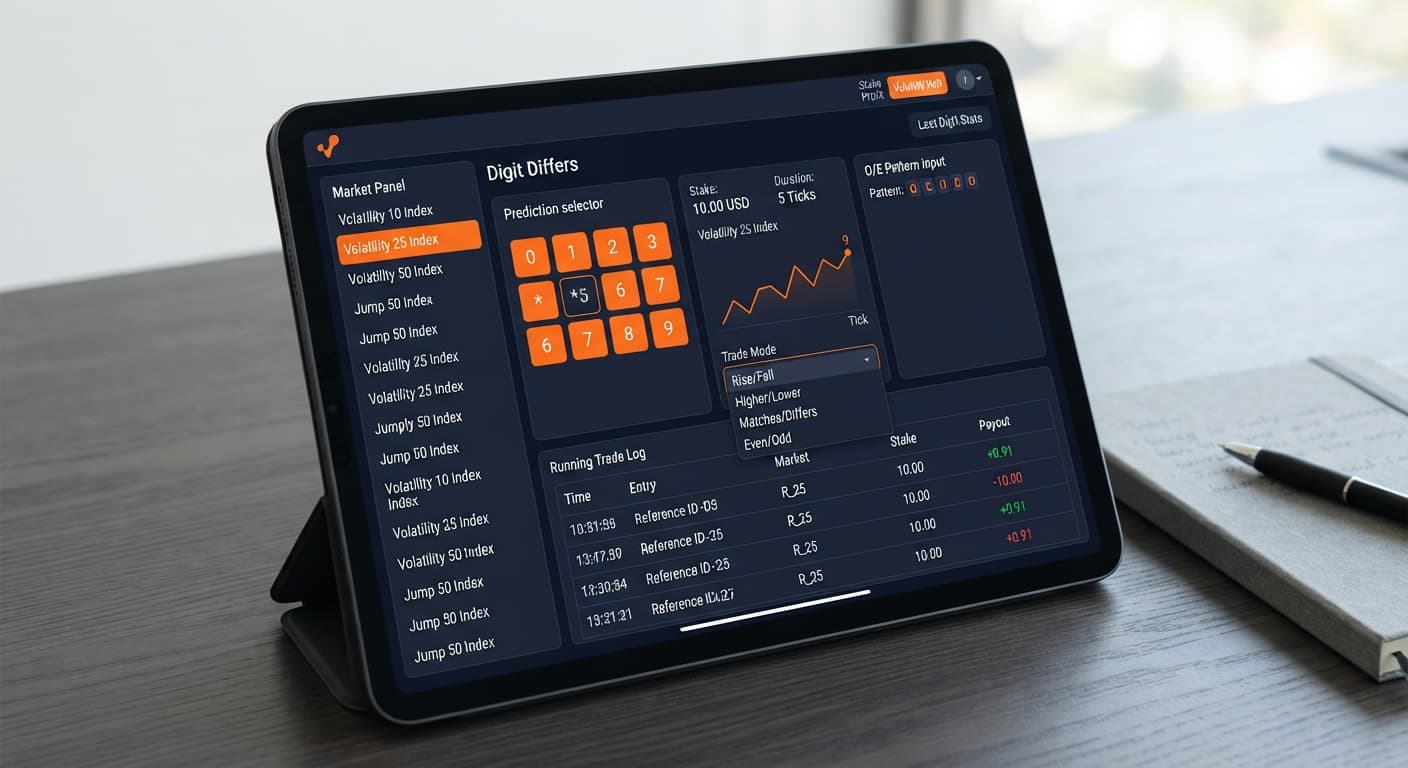
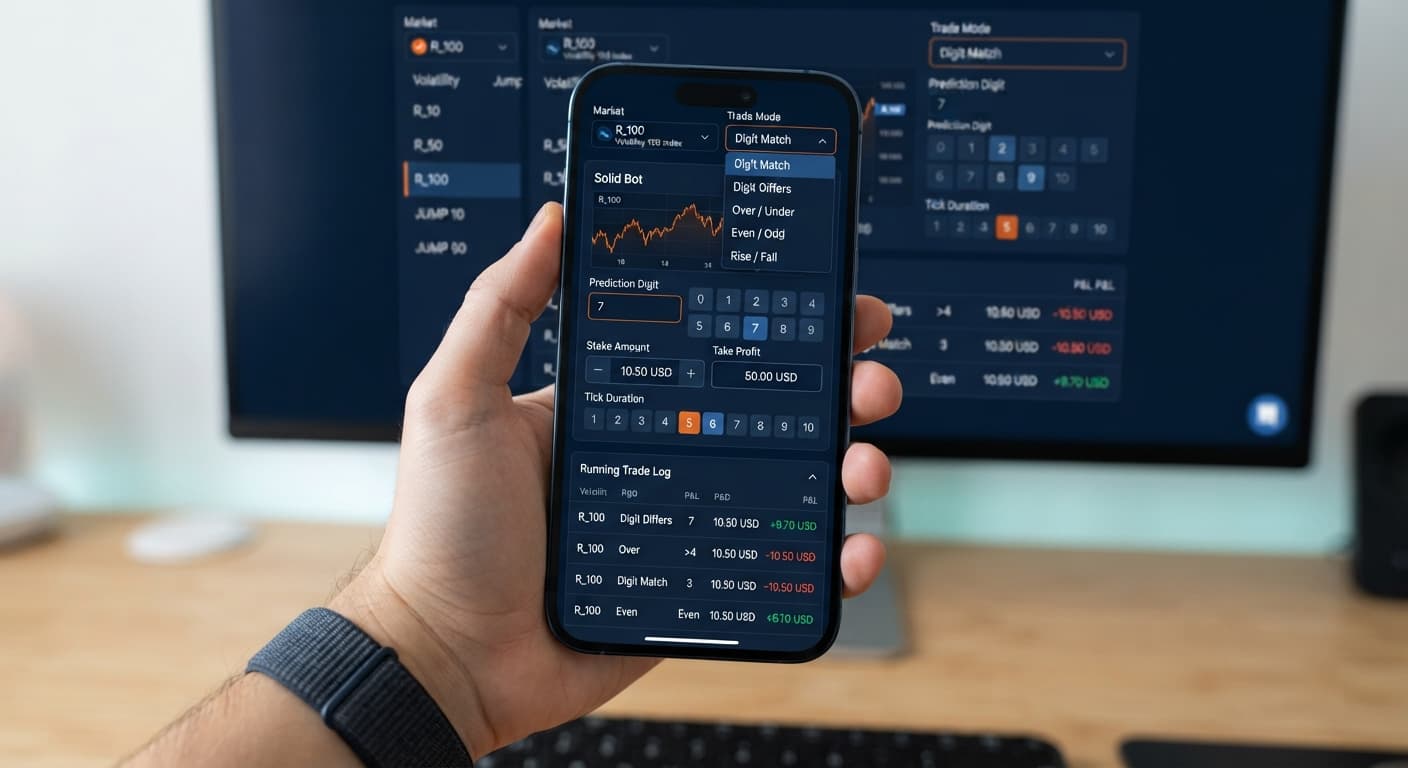
Locate the primary configuration panel on the left side of the dashboard. Click the dropdown menu labeled Market Index to select the synthetic index you want to run. For this initial demo run, select Volatility 100 Index.
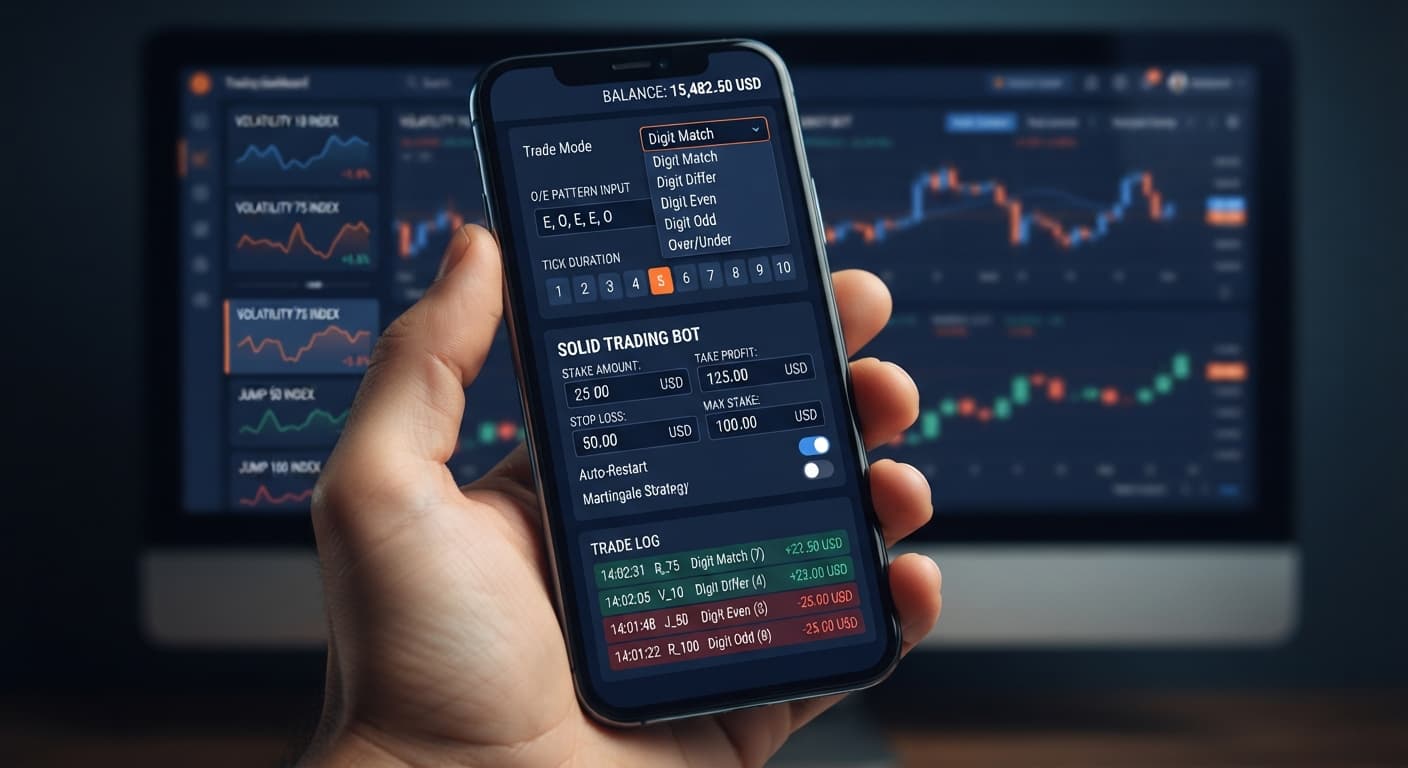
Next, move to the Trade Mode dropdown menu. Solid exposes seven specific modes. Select Digit ODD from the dropdown menu. Once selected, the dashboard updates to reflect that the bot will place DIGITODD contracts on the underlying index whenever entry conditions are met.
Now you'll set the exact execution rules that dictate when and how contracts open. Locate the Pattern (O=Odd, E=Even) text box and enter E. This instructs the engine to wait until the last tick's spot digit ends in an Even number before immediately purchasing an Odd digit contract.
Move to the numeric entry fields directly below:
10.1.Your screen now reflects a strategy configured to analyze the Volatility 100 Index, watch for a single Even digit, and immediately execute a 1-tick DIGITODD contract using a $10 virtual stake.
Before hitting the start button, establish your account protection boundaries. Locate the risk parameter inputs at the bottom of the strategy panel:
50.100.Once these numeric values are set, click the green Start Bot button at the top of the control panel. The screen shifts into active monitoring mode. The live log panel begins displaying incoming tick digits from the Volatility 100 Index in real time, showing exact contract purchases and balance updates as trades settle.
Choosing the right market for your solid trading bot demo account setup dramatically impacts how fast your pattern conditions trigger and how quickly contracts settle. Many traders default to standard volatility indices without realizing that Jump indices and 1-second indices present entirely different tick paces.
Here is how three distinct index types available on Solid compare when executing automated contracts:
| Performance Metric | Volatility 100 Index | Jump 25 Index | Volatility 10 (1s) Index |
|---|---|---|---|
| Tick Interval | 2 seconds per tick | 1 second per tick | 1 second per tick |
| Price Volatility Profile | Smooth, continuous shifts | Periodic extreme price jumps | Low frequency, steady speed |
| Digit Distribution Behavior | Uniform 0-9 draw | Uniform 0-9 draw (despite price jumps) | Uniform 0-9 draw |
| Ideal Tick Duration | 1 to 3 ticks | 1 tick | 1 to 5 ticks |
| Pattern Trigger Frequency | Moderate (1 tick / 2s) | High (1 tick / 1s) | High (1 tick / 1s) |
When testing automated binary bots, index speed changes how fast your session target profit or stop loss gets hit. On the Volatility 100 Index, a tick occurs every two seconds. If your pattern requires waiting for an E (Even) digit, you'll average a trigger roughly every four seconds.
On the Volatility 10 (1s) Index or Jump 25 Index, ticks arrive every single second. That doubles your transaction frequency. If you run a $10 stake on a 1-tick duration on Volatility 10 (1s), your balance fluctuates twice as fast as it would on standard Volatility 100.
For initial testing in your solid trading bot demo account setup, standard Volatility 100 Index provides a balanced pace. It gives you enough time to read the execution logs as contracts settle without overwhelming the live chart display. The Jump indices are better suited for advanced testing once you fully understand how fast rapid-fire ticks execute contracts.
Even when working inside a virtual balance, poor setup habits carry over into live environments. Understanding where automated testing goes wrong helps you build reliable configurations across all binary bots you deploy.
A common trap when configuring digit bots is believing that a long streak of Even digits makes an Odd digit "due" on the next tick. Deriv synthetic index ticks are completely independent random draws. The probability of getting an Odd digit on any given tick remains 50%, regardless of whether the last six ticks were Even.
E or O on your demo account first to measure true long-term distribution without relying on invalid probability assumptions.It is easy to launch a bot on demo funds and walk away from the computer. However, if you leave a bot running endlessly, market variance will eventually hit a bad run of trades that wipes out your virtual balance. If you don't practice strict risk controls on demo, you won't use them on real capital.
If you set your Tick Duration — 1 to 10 ticks to 10 ticks while running a rapid digit match or odd/even strategy, the market price will move through ten separate draws before your contract resolves. This increases trade exposure time without improving your underlying statistical edge.
1. This ensures your contract settles immediately on the very next tick, keeping your execution fast and precise.Testing these setups thoroughly on deriv bots gives you a clear, objective view of how automated logic behaves under real market conditions. Always refine your settings in a virtual environment until your results match your trade plan.
Try it yourself on Solid Trading Bot using a demo balance first.
If you don't have an account yet, create a free Deriv account to generate your virtual API token.
Trading involves risk. Past performance does not guarantee future results.
Advanced automated digit trading bot for Deriv with 9 trading strategies including Digit Differs, Odd/Even, Over/Under, Rise/Fall and Higher/Lower.
Open Solid Trading Bot →You'll need to generate a demo API token with read and trade scopes enabled from your Deriv account settings. Then, paste that token into the API token input box on the Solid Trading Bot workspace and click connect.
You must enable both the read and trade scopes when generating your API token in your Deriv account settings. This allows the Solid Trading Bot interface to execute contracts securely without needing your master password.
No, you won't risk real money during this setup because virtual funds handle every contract placed while testing. You'll use your Deriv demo account containing virtual USD funds to test your strategies safely.
You can configure your execution rules by locating the pattern text box in the configuration panel. For example, entering 'E' instructs the Solid Trading Bot engine to wait for an even spot digit before purchasing an odd digit contract.
Guides closest to this one.
Complete solid trading bot api token setup guide for BinaryBot.live. Learn to connect your Deriv account securely and run your automated binary trading strategy.
Build a solid trading bot on volatility 25 using Deriv digit differs. Follow this step-by-step setup guide for free binary bots. Start testing today.
Configure the solid trading bot on volatility 10 for automated digit trading on BinaryBot.live. Learn the step-by-step deriv bot trading strategy now.